Recipe cards
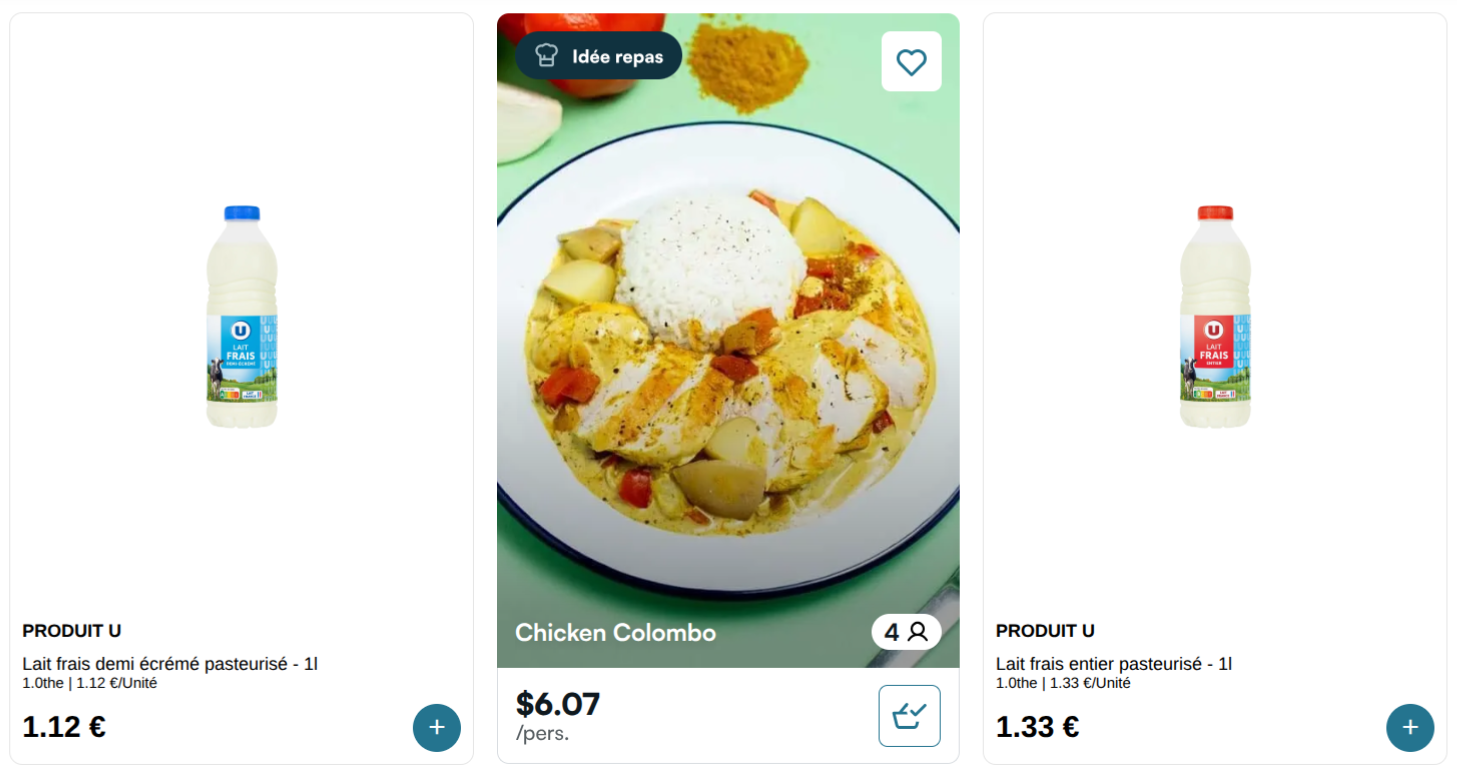
The main Mealz feature is giving you access to a recipe card component that you can insert in between products in any shelf of your website. With those recipes appearing in the shelves among the products that the client came to look for, they may be inspired by the recipe and click on it. They will then see all products needed to make that recipe and discover that they can, in a single click, add to their cart all these products !
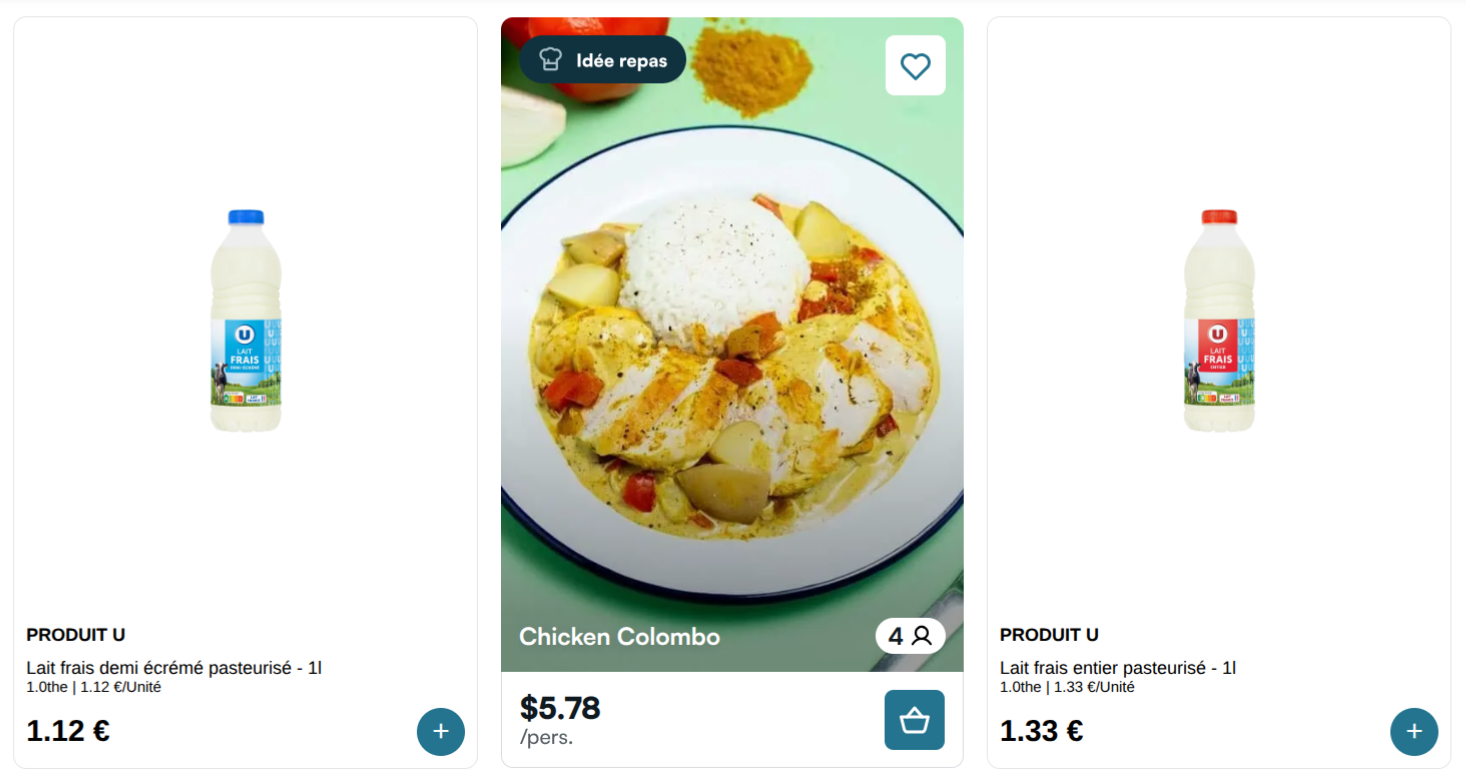
Here is an example of a recipe card inserted between two products:
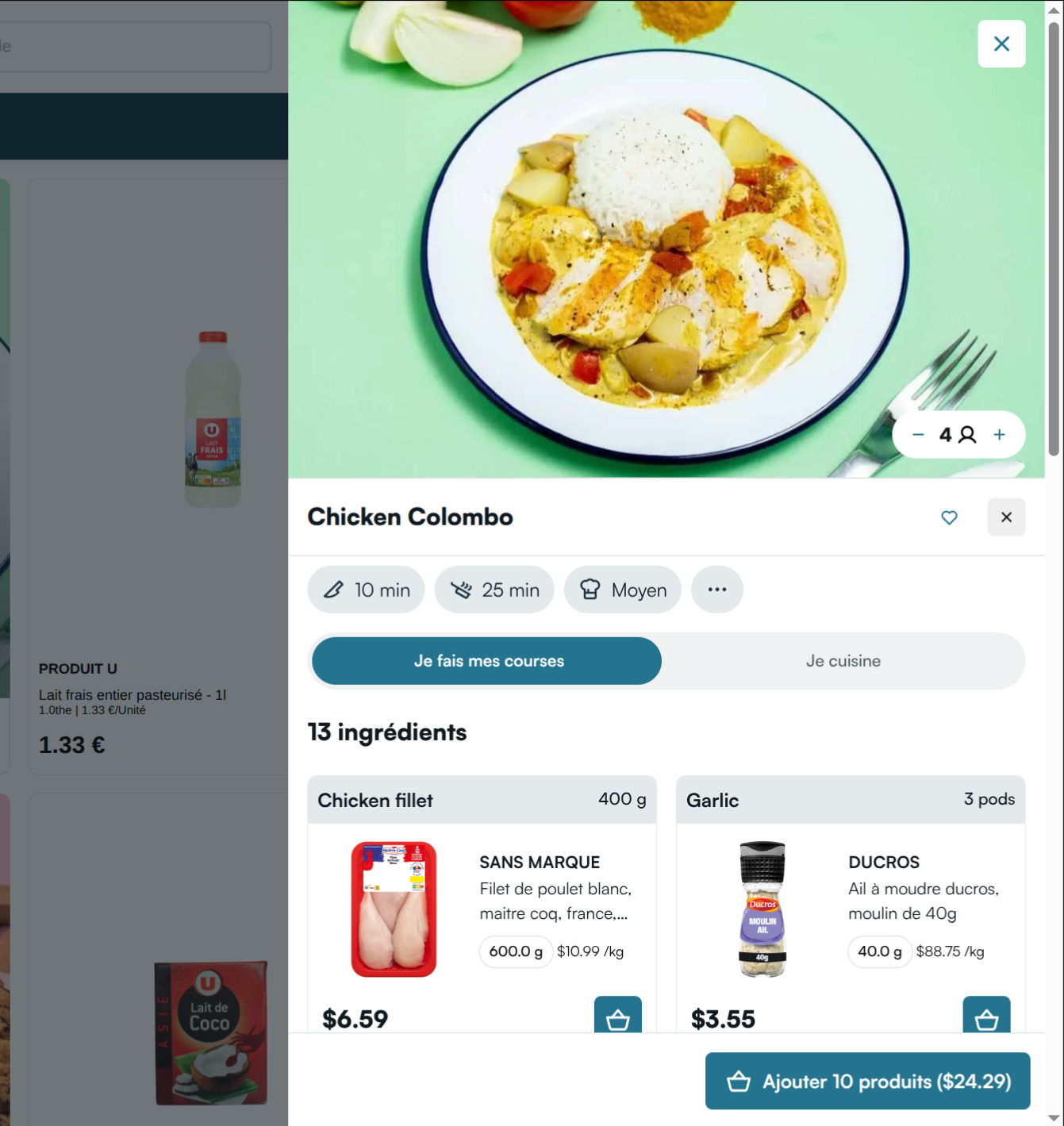
If the user clicks on the main CTA, the title or the image, a drawer will appear (by default on the right side of the page) to display the list of ingredients needed for the recipe:
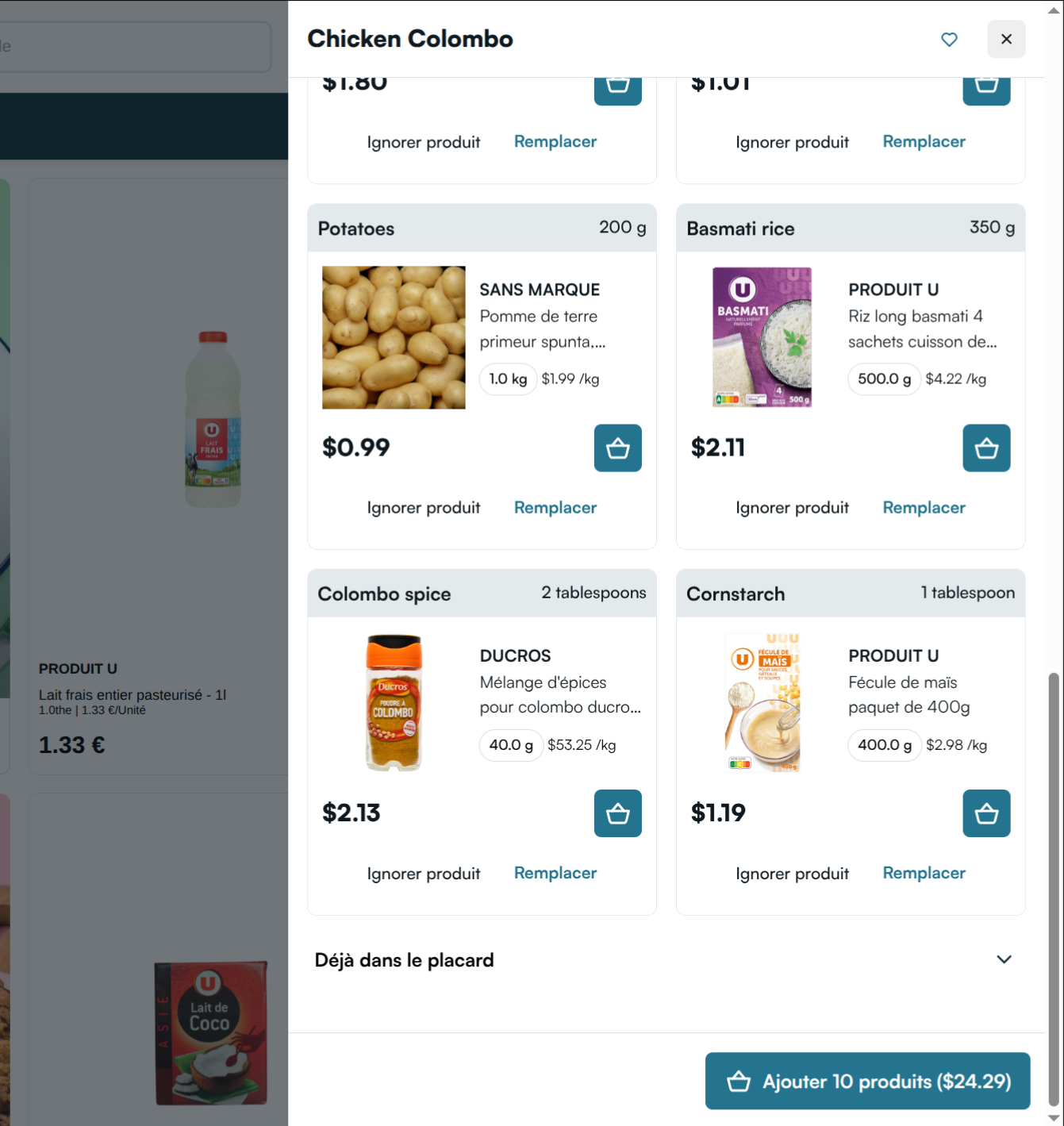
The user can then add the products to their cart, either all at once by clicking on the primary CTA, or one by one:
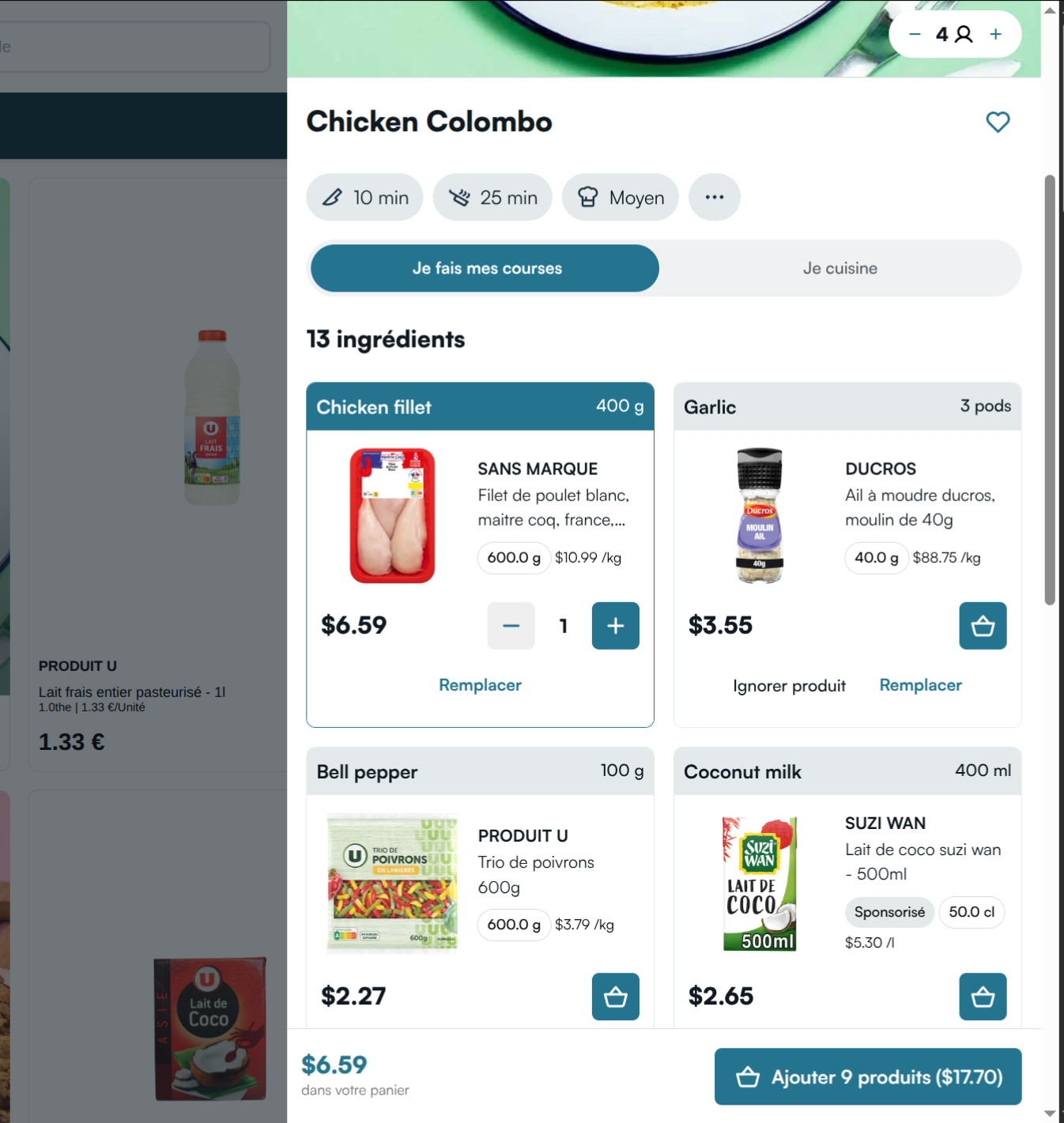
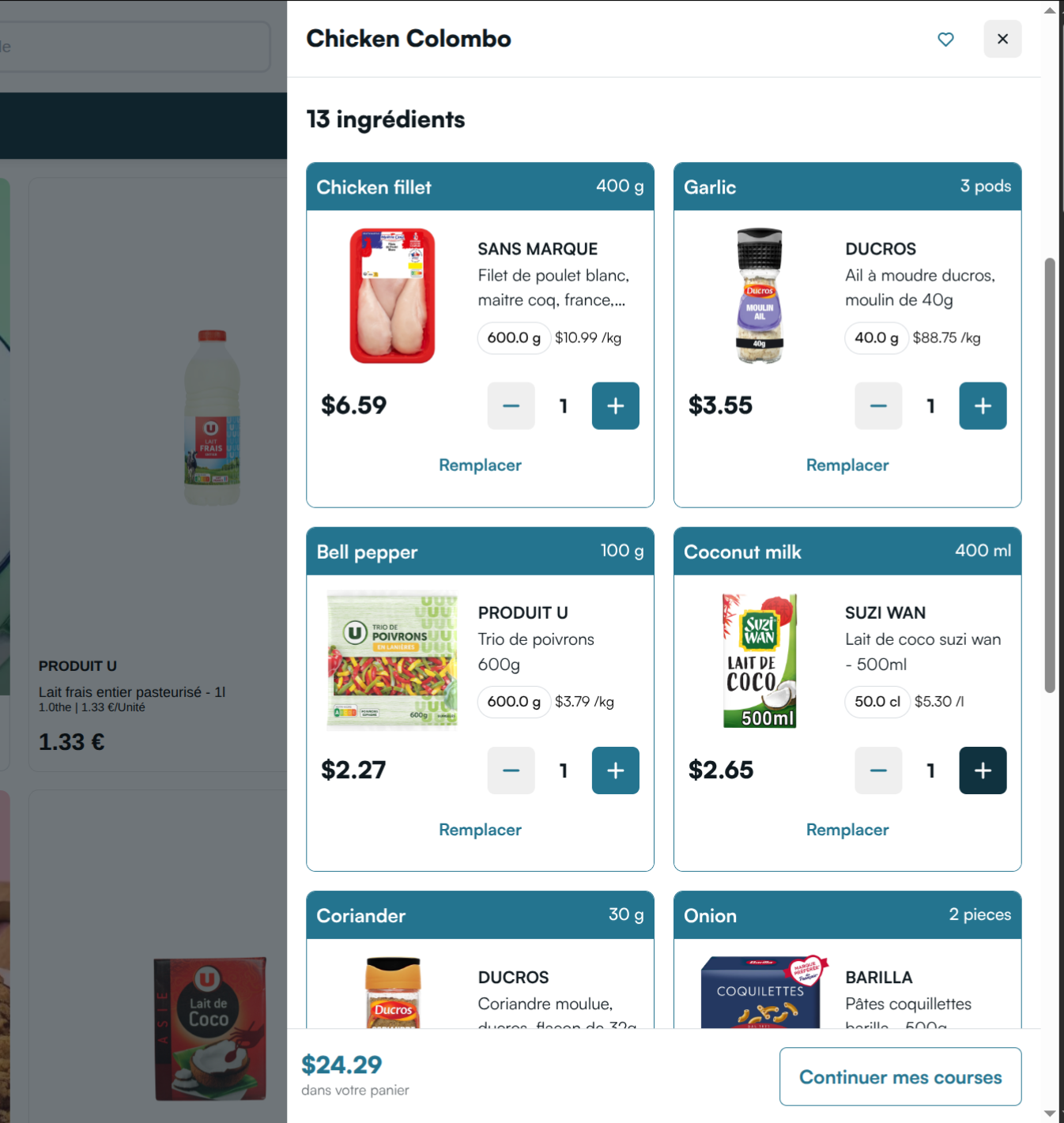
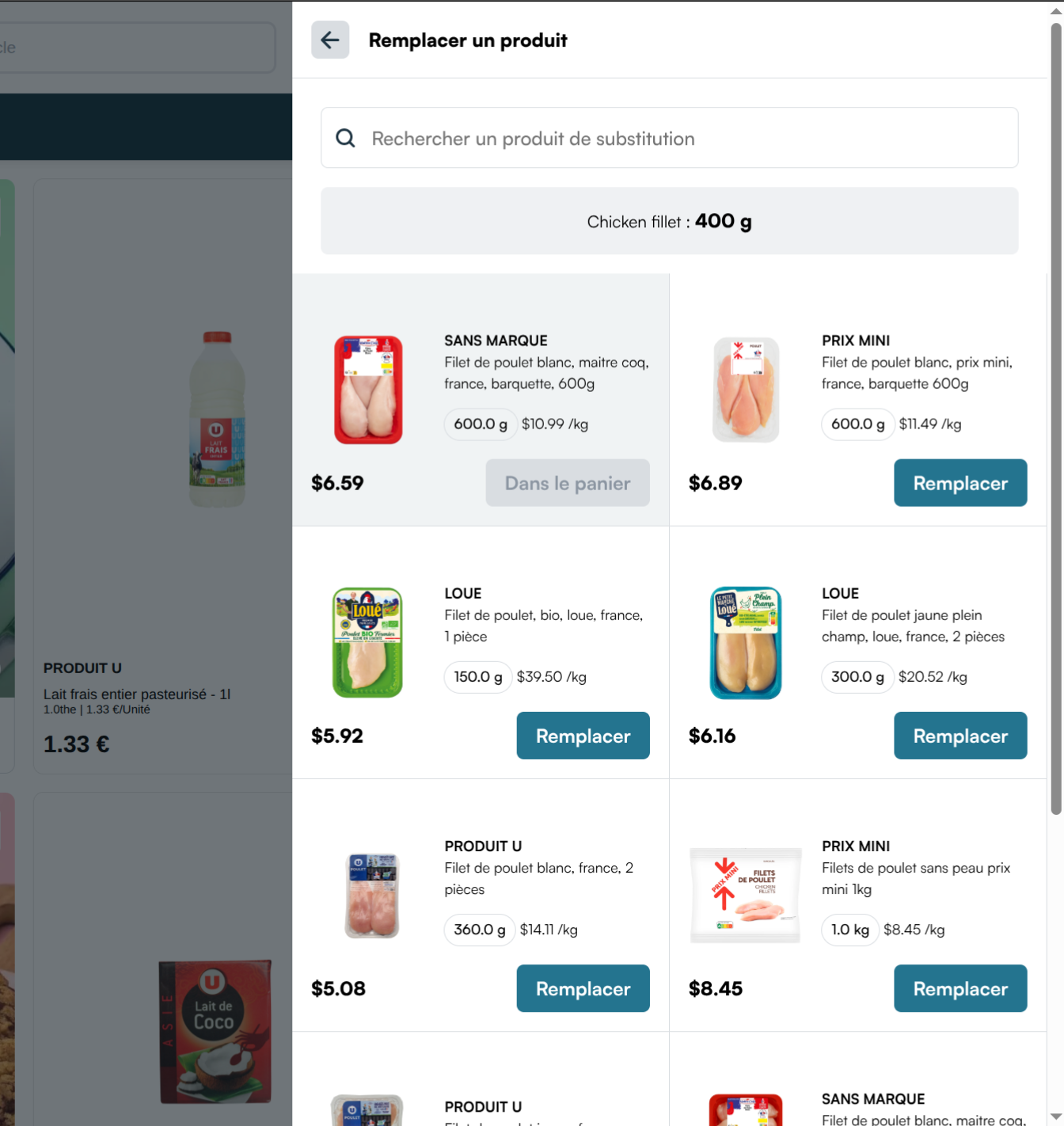
They can also replace any product they want by another product that would also suit the ingredient needed for the recipe:
Once the user has added the recipe to their cart, the component is updated to remind them that the recipe was added:
For routes and parameters, see Recipe card in the Integration reference.