Catalog
Overview
The catalog is a suite of full pages that you can display inside of blank pages in your website. It consists of several pages that route to one another:
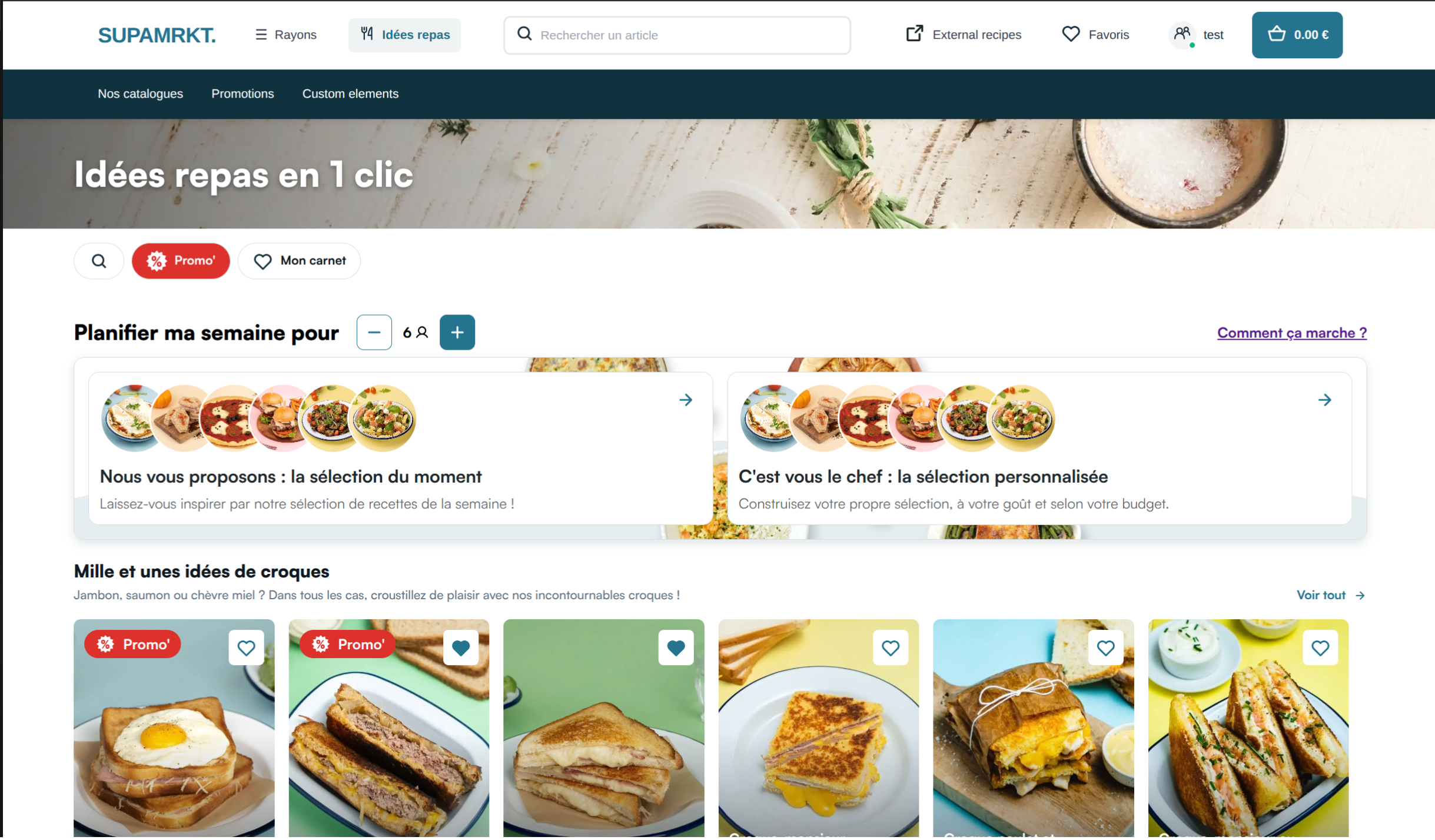
- The home page, the intended starting point of the experience, which displays the categories of your catalog, each categories displaying the first recipes they contain
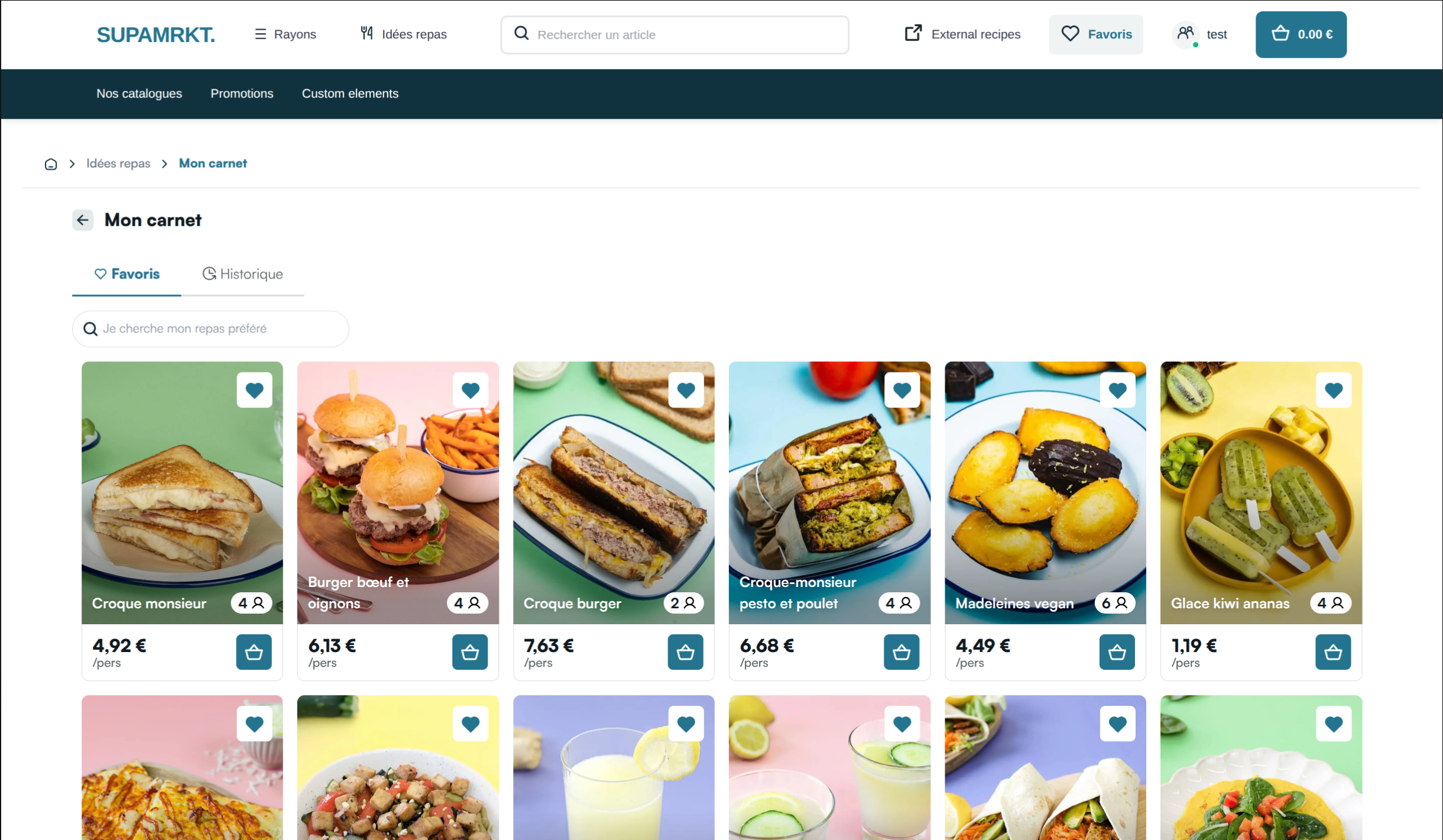
- The My Space page, which shows a connected user's saved recipes and order history in two tabs (Favorites and History)
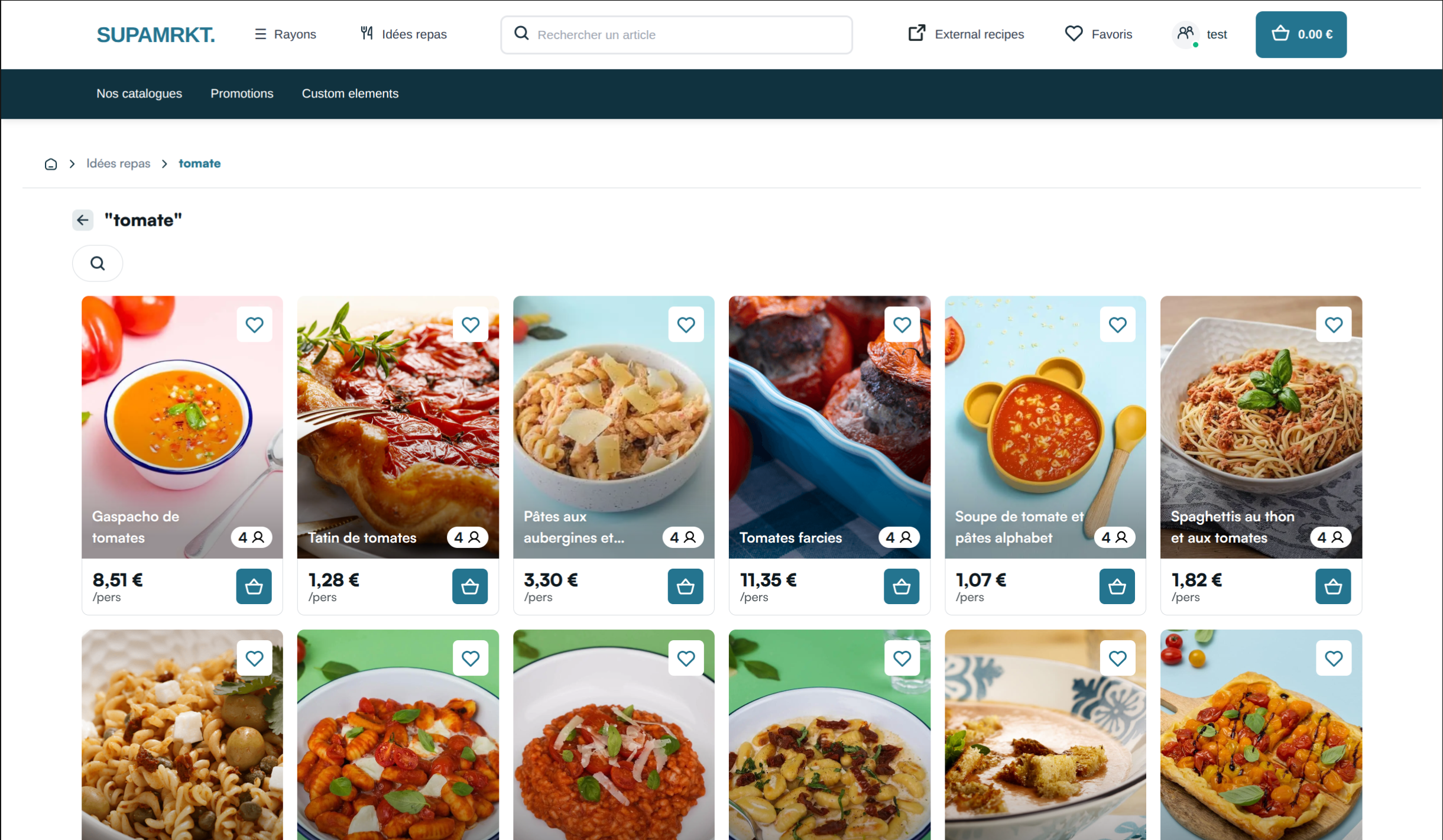
- The list page, which shows a filtered list of your catalog of recipes (currently the only application of the list page is for the search results)
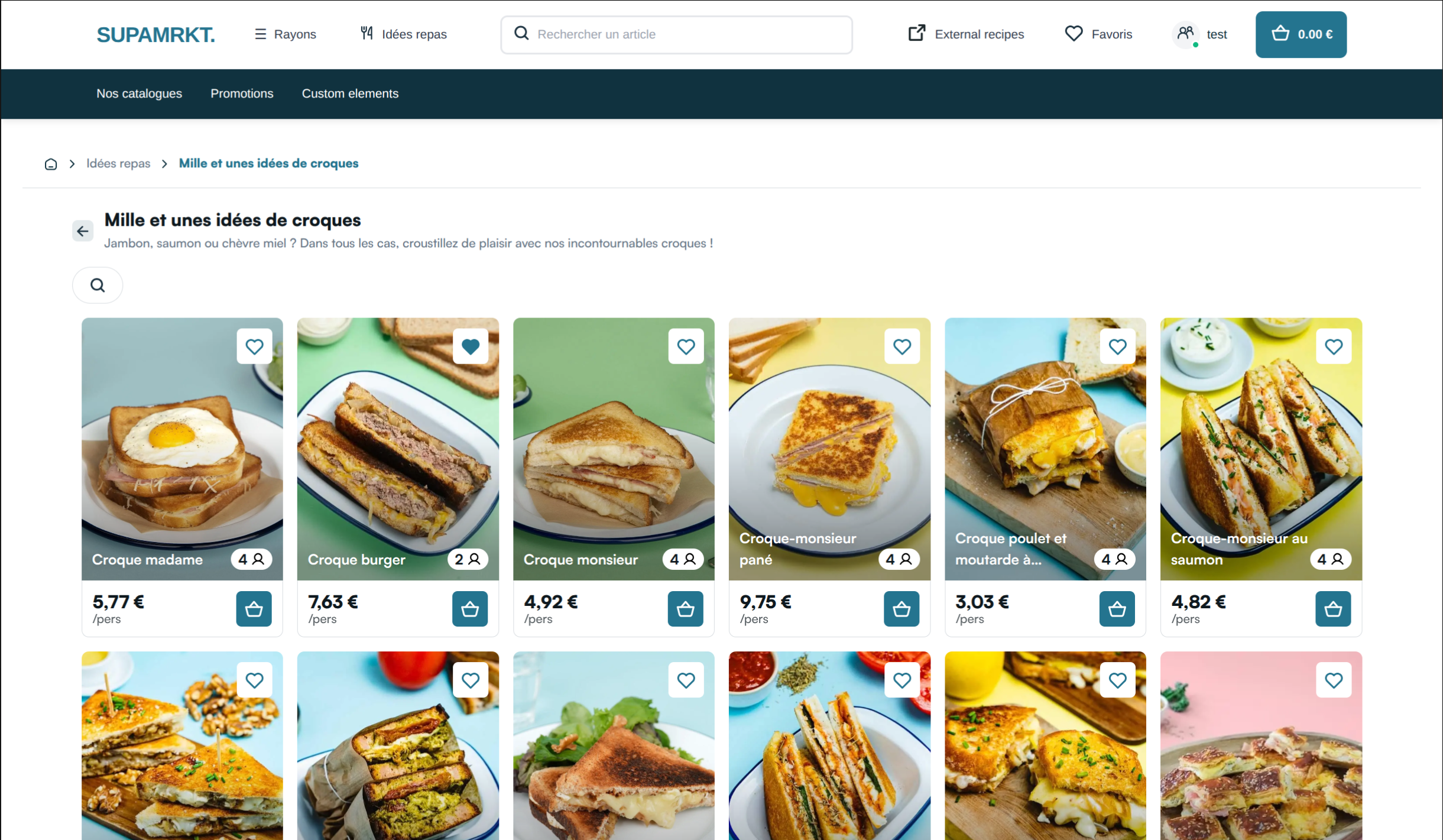
- The categories page, which shows the list of recipes in a category
All pages display a toolbar that has :
- A search bar to search recipes by name which redirects to the list page if clicked from the home page, or the current page with additional filters if on the list, My Space or categories page
- On the home page only, a Promo button (shown when promotional recipes are available) which redirects to the list page with the promotions filter. See Promotions.
- A "Favorites" button which redirects to the My Space page (Favorites tab)
- A "Preferences" button that opens the Preferences drawer, enabling users to set global preferences for recipes based on include and exclude tags (e.g., gluten-free, vegan, or exclude specific ingredients). These preferences are automatically managed and applied across all Mealz-related features, excluding favorites, for a tailored experience without additional configuration.
Each pages also displays a floating button showing the number of recipes currently added to the user's cart.
On a click on this button, the "My meals" drawers appears:
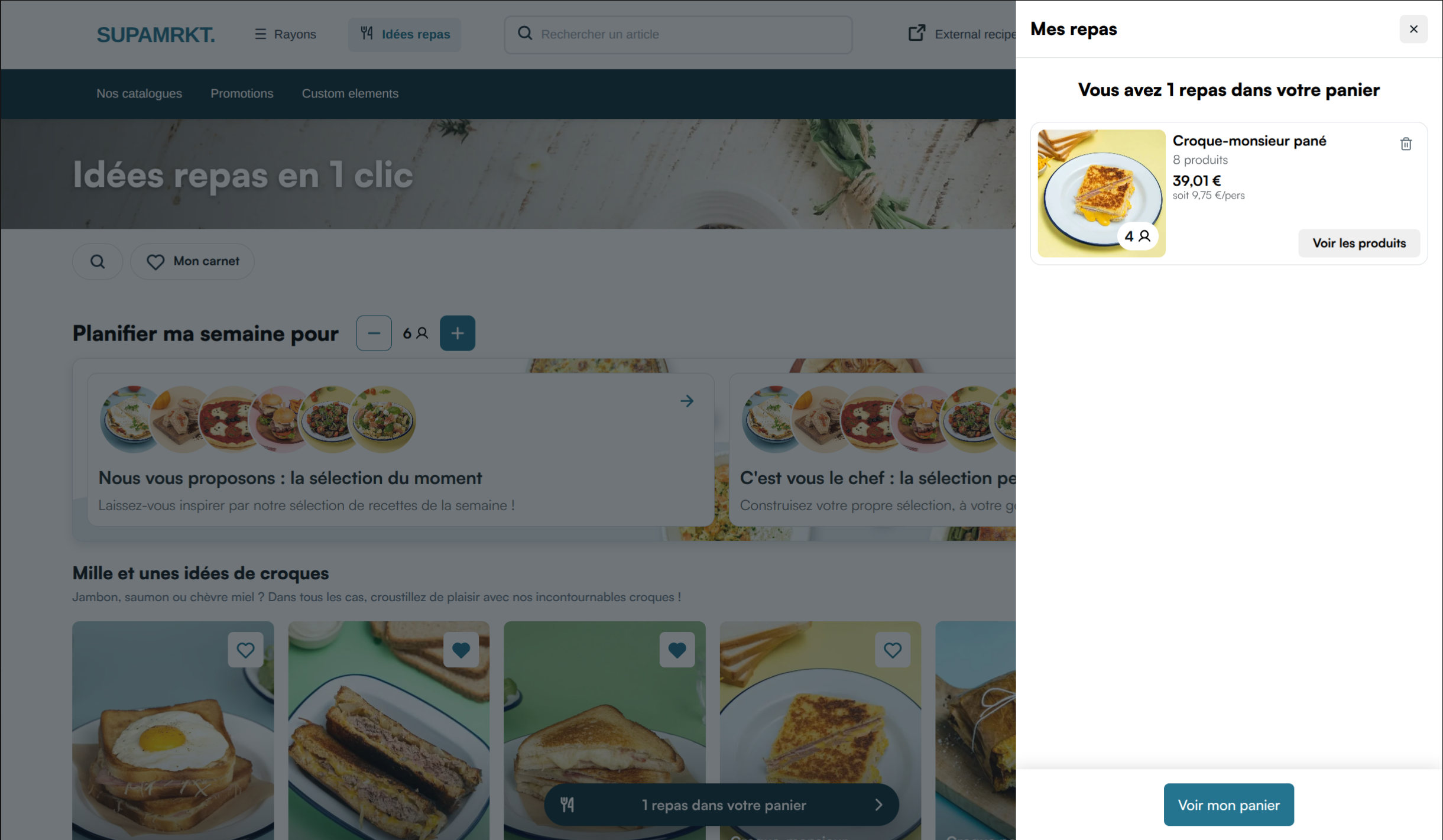
Clicking the trash icon next to a recipe in the drawer will remove that recipe from the cart, along with all its associated products. This action is equivalent to removing each product individually from the recipe details drawer. Clicking "See products" on a recipe will open the recipe details drawer, just as if the corresponding recipe card was clicked.
The category, My Space and list pages each return a response with only 20 recipes in the list, but more recipes are automatically fetched on scroll from the client-side.
Routing
Links between catalog pages (toolbar, category "See all", search, My Space tabs, promotions, and so on) point to URLs on your website. Those URLs are client-dependent: we configure them on our side from the catalog page URLs you use in prod and pre-prod.
When the user navigates inside the catalog, Mealz redirects them to your page with query parameters that describe the target and any active filters. Your SSR call should include the same values from the page URL so the rendered HTML matches what the user selected.
Parameter descriptions use Mandatory, Recommended, and Optional as usual. Parameters Mealz adds to the page URL during in-catalog navigation are marked Mandatory to forward: when they appear in the page URL, you should forward the parameter to the SSR request.
You can override some forwarded values for a tailored layout. For example, to show only the Favorites or History section on My Space, always request the same tab (and optionally the same history_style) and hide the tab bar or layout switch with CSS, or pass show_tab_selector=false.
Home Page
The base url for the catalog home page is the following:
GET https://MEALZ_SSR_API_URL/API_VERSION/catalog
-
Parameters :
-
store_id: string: (Recommended) We need your store ID to display the prices of the recipes, to fetch the recipes in basket informations and to hide recipes with primary ingredients not available in your store, so ideally it should be passed if the user has chosen a store -
max_recipes_per_category = 6: (Recommended) Specify a maximum number of recipes to display per category. In our base design, we have 1 row of recipes per category and recipes should ideally fill the space available. So it is in your interest to fetch exactly the number of recipes that can be displayed on 1 row on the user's screen. -
display_infos: boolean = false: (Optional) By default, the recipe-cards doesn't show the preparation time and difficulty af the recipe but if you want to display them you can set display_infos to true -
recipe_card_variant: number = 1: (Optional) Select the variant for the display of the cards in the catalog. Default is 1, available values are 1, 2 and 3 (see here for examples) -
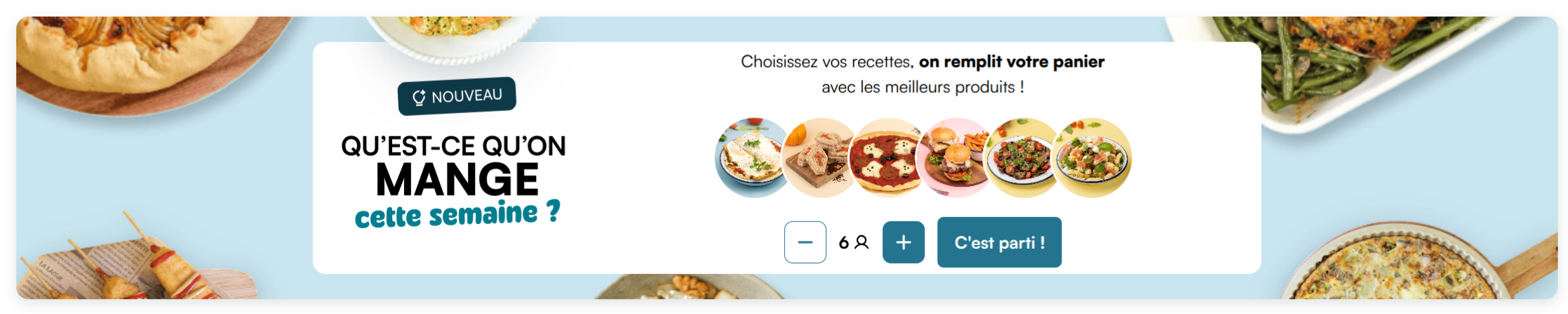
planner_entry_variant: number = 3: (Optional) Select the layout for the embedded planner entry block on the catalog home. The default is 3; available values are 1, 2, and 3 (see below for examples). On the standalone/planner/entryroute, use thevariantquery parameter instead.
-
Example :
Do not forget the mandatory HTTP headers
GET https://MEALZ_SSR_API_URL/API_VERSION/catalog?store_id=max_recipes_per_category=6&recipe_card_variant=2
Planner entry variants
The catalog home embeds a planner entry block (see Planner). Use planner_entry_variant to choose its layout.
Variant 1 — hero layout starting from Mealz's weekly selection:
Variant 2 — hero layout starting from a personalized (custom) menu:

Variant 3 (default) — dual-card layout with separate options for the weekly selection and a custom menu:

Category Page
The base url for the catalog category page will be the following:
GET https://MEALZ_SSR_API_URL/API_VERSION/catalog/category
- Parameters :
-
category_id: string: (Mandatory to forward) The category to display. Mealz includes the id in "See all" links (default format:{yourCategoryPageUrl}/{slug}/{id}). Read it from the page URL and pass it ascategory_id={id}on the SSR request. -
store_id: string: (Recommended) We need your store ID to display the prices of the recipes, to fetch the recipes in basket informations and to hide recipes with primary ingredients not available in your store, so ideally it should be passed if the user has chosen a store -
display_infos: boolean = false: (Optional) By default, the recipe-cards doesn't show the preparation time and difficulty af the recipe but if you want to display them you can set display_infos to true -
recipe_card_variant: number = 1: (Optional) Select the variant for the display of the cards in the catalog. Default is 1, available values are 1, 2 and 3 (see here for examples) -
search: string: (Mandatory to forward) Search term from the toolbar. Whensearchis in the page URL, pass the same value on the SSR request.
-
My Space page
The My Space page replaces the old standalone favorites page. It is a standard catalog page with two tabs for connected users:
- Favorites: recipes the user saved as favorites
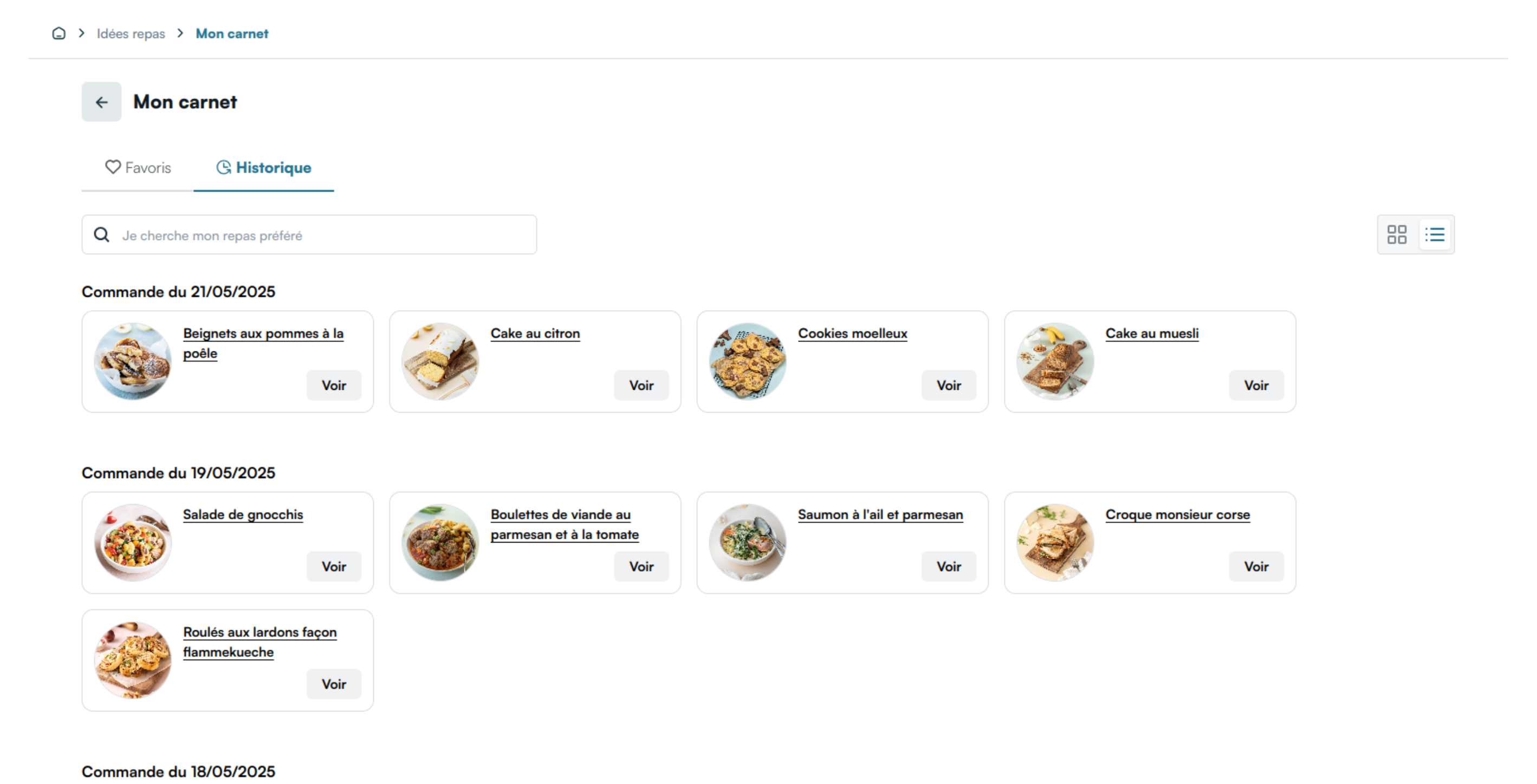
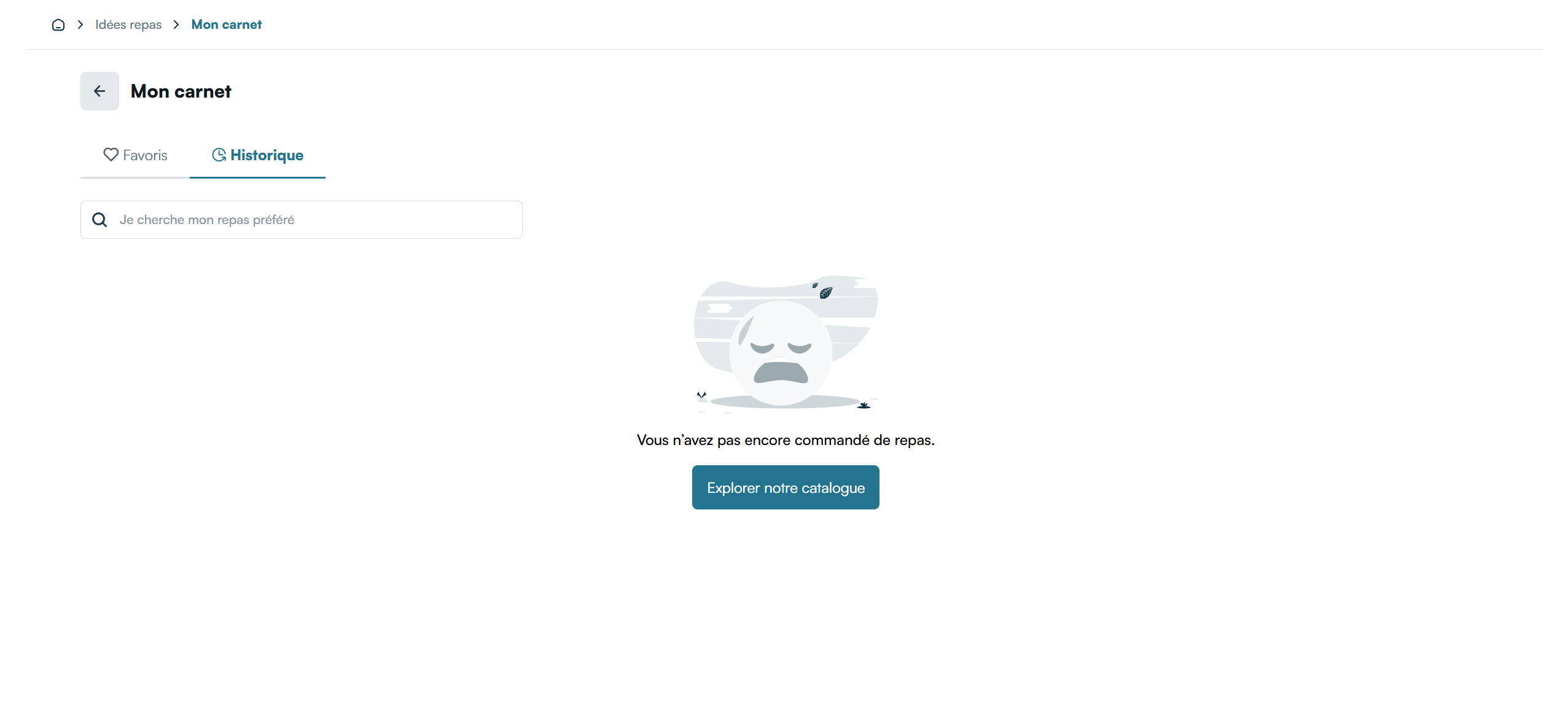
- History: past orders, with a grid or list layout

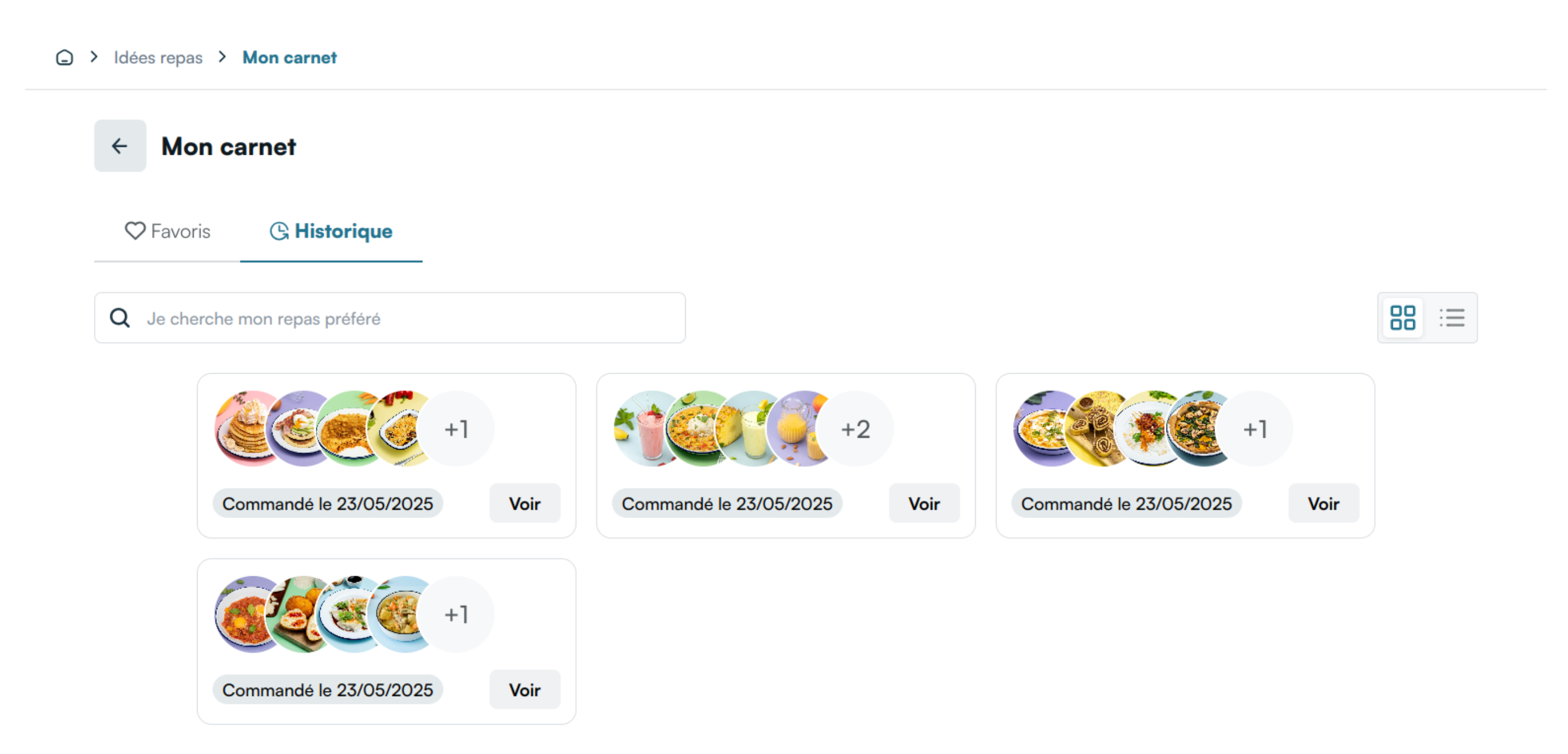
Clicking an order in the History tab opens a drawer with the recipes from that order.

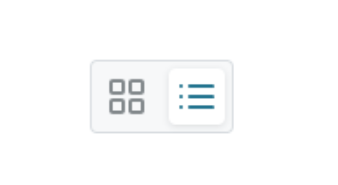
The History tab supports two layouts. Users can switch between grid (default) and list. In list mode, clicking on a recipe simply opens it like for the recipe-cards.
The base url for the My Space page is:
GET https://MEALZ_SSR_API_URL/API_VERSION/catalog/my-space
Fetch the matching styles with GET /styles/catalog/my-space. See Fetching styles.
-
Parameters :
-
store_id: string: (Recommended) We need your store ID to display the prices of the recipes, to fetch the recipes in basket informations and to hide recipes with primary ingredients not available in your store, so ideally it should be passed if the user has chosen a store -
tab: 'favorites' | 'history' = 'favorites': (Mandatory to forward) Active My Space tab. Whentabis in the page URL, forward it the SSR request. Default when omitted:favorites. -
history_style: 'grid' | 'list' = 'grid': (Mandatory to forward) Layout for the History tab. Whenhistory_styleis in the page URL, forward it to the SSR request. Only applies whentab=history. Default when omitted:grid. -
search: string: (Mandatory to forward) Search term from the toolbar. Whensearchis in the page URL, forward it to the SSR request. -
show_tab_selector: boolean = true: (Optional) Whenfalse(or0), hides the Favorites/History tab bar and shows the active section title instead of "My Space". -
display_infos: boolean = false: (Optional) By default, the recipe-cards doesn't show the preparation time and difficulty of the recipe but if you want to display them you can set display_infos to true -
recipe_card_variant: number = 1: (Optional) Select the variant for the display of the cards in the catalog. Default is 1, available values are 1, 2 and 3 (see here for examples)
-
List Page
The base url for the catalog list page will be the following:
GET https://MEALZ_SSR_API_URL/API_VERSION/catalog/list
- Parameters :
-
store_id: string: (Recommended) We need your store ID to display the prices of the recipes, to fetch the recipes in basket informations and to hide recipes with primary ingredients not available in your store, so ideally it should be passed if the user has chosen a store -
search: string: (Mandatory to forward) Search term from the toolbar. Whensearchis in the page URL, pass the same value on the SSR request. -
promotions: boolean = false: (Mandatory to forward) Whenpromotions=trueis in the page URL, pass the same value on the SSR request to filter the list to recipes with products on sale. See Promotions. -
all_recipes: boolean = false🆕: (Mandatory to forward) Whenall_recipes=trueis in the page URL, pass the same value on the SSR request to display the full recipe catalog. Only user preference filters (include_tags,exclude_tags,guests) are applied; search terms, promotions, and recipe-type filters are stripped and the recipe-type filter UI is disabled. -
display_infos: boolean = false: (Optional) By default, the recipe-cards doesn't show the preparation time and difficulty af the recipe but if you want to display them you can set display_infos to true -
recipe_card_variant: number = 1: (Optional) Select the variant for the display of the cards in the catalog. Default is 1, available values are 1, 2 and 3 (see here for examples)
-
I18n
Catalog pages use the same i18n override mechanism as other SSR features (see Internationalisation).
The keys below cover strings rendered by the catalog itself (toolbar, home, list, category, My Space, shared empty states, and navigation). Recipe cards shown on those pages have additional keys; see Recipe card.
{
  "COMMON": {
    "ALT": {
      "GO_BACK": "Go back to previous page"
    }
  },
  "CATALOG_TOOLBAR": {
    "SEARCH_MEALS_PLACEHOLDER": "I'm looking for an ingredient or a meal",
    "SEARCH_FAVORITE_MEALS_PLACEHOLDER": "I'm looking for my favorite meal"
  },
  "CATALOG_HOME": {
    "TITLE": "Meal ideas in 1 click",
    "CATEGORY": {
      "SEE_ALL": "See all"
    },
    "HEADER": {
      "BUTTON": "Discover recipes"
    }
  },
  "CATALOG_ALL_RECIPES": {
    "TITLE": "All our recipes"
  },
  "CATALOG_PROMOTIONS": {
    "TITLE": "Sales"
  },
  "CATALOG_LIST": {
    "DISH_TYPE_FILTER": {
      "ARIA_LABEL": "Dish type filter",
      "ALL": "All",
      "MAIN_DISH": "Main dishes",
      "STARTER": "Starters",
      "DESSERT": "Desserts",
      "DRINK": "Drinks"
    }
  },
  "MY_SPACE": {
    "TITLE": "My space"
  },
  "CATALOG_FAVORITES": {
    "TITLE": "Favorites",
    "HOME_NAME": "Meal ideas",
    "LOADING": "Loading results...",
    "NOT_LOGGED_IN": "Sorry, you must be logged in to access the content of this page.",
    "EMPTY": "Sorry, you don't have any saved meal ideas yet"
  },
  "CATALOG_HISTORY": {
    "TITLE": "History",
    "ORDERED": "Ordered on",
    "ORDER_FROM": "Order from",
    "ORDER_HISTORY": "Order history",
    "SEE": "See",
    "EMPTY": "You don't have any order history yet",
    "GO_TO_HOME": "Explore our meal ideas"
  },
  "CATALOG": {
    "EMPTY": "Sorry, we couldn't find any meal ideas for you.\nTry another search."
  },
  "MY_MEALS_BUTTON": {
    "TEXT": " recipes in your cart",
    "CARET_ALT": "Open the list"
  },
  "PREFERENCES": {
    "TITLE": "Preferences"
  },
  "RECIPE_PROMOTION_BADGE": {
    "TEXT": "On sale"
  }
}
See Internationalisation for more information on how to configure a custom I18n file to override our base texts with your own. See the recipe card to see its customizable text contents.