Recipe card (SSR)
Overview
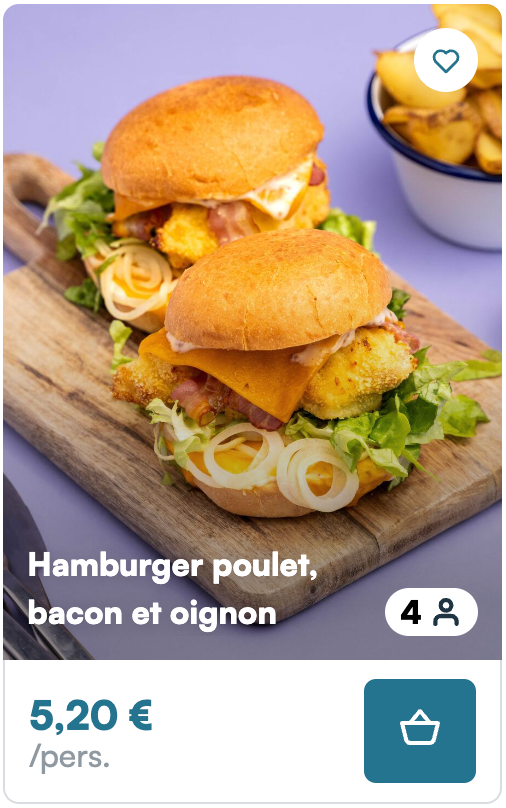
The recipe card is the base of Mealz' whole experience. This card fetches and shows a recipe based on the items that are displayed around it (see here to see how the process of fetching the best recipe works).
The primary CTA on the card is the "Basket icon" button. When clicked, Mealz's drawer opens and shows the recipe's details. Clicking on the picture or title has the same effect.
Finally, by clicking on the heart icon the user can add the recipe to Mealz's favorite recipes list. This icon only appears if the user is connected.
The base url for the recipe-card is the following:
GET https://MEALZ_SSR_API_URL/API_VERSION/recipe-card
-
Parameters :
-
surrounding_products_ids: string[]: (Mandatory if norecipe_idprovided) an array of productIds around the place where you want to put the recipe card, the goal is to find a recipe matching the products eg: if the recipe is surrounded by milk, we want to show a recipe that needs milk -
recipe_id: string: (Mandatory if nosurrounding_products_idsprovided) load a recipe from its id -
store_id: string: (Recommended) We need your store ID to display the price of the recipe, so ideally it should be passed if the user has chosen a store -
pricebook_key: string = 'DEFAULT': (Optional) the pricebook key is needed to retrieve the recipe price corresponding to the pricebook you are currently using. If your website doesn't have multiple pricebooks for the same store, this parameter is not needed. -
display_variant: number = 1: (Optional) Select the variant for the display of the card. Default is 1, available values are 1, 2 and 3 (see below for examples) -
orientation: 'vertical' | 'horizontal' = 'vertical': (Optional) Select the orientation for the display of the card (see below for examples) -
current_products_ids: string[]: (Optional) takes an array of product ids with a high priority on the suggestion. Does not have any effect if not paired with surrounding_products_ids -
serves: number(Optional) Override the default number of guests set for the recipe
-
Displaying a fixed recipe can be tempting if you want to have control on the content appearing on your website, but it also means that the users will always see the same recipes at the same places and may not stay interested, while our algorithm has some random elements to it that makes the content vary between sessions, giving the user more inspiration.
Example :
Do not forget the mandatory HTTP headers
A recipe contextualized with surrounding products (Recommended):
GET https://MEALZ_SSR_API_URL/API_VERSION/recipe-card?surrounding_products_ids=["214086","1254022"]&store_id=2817&pricebook_key=DEFAULT&serves=4&profiling=true&display_variant=3&orientation=horizontal
A fixed recipe:
GET https://MEALZ_SSR_API_URL/API_VERSION/recipe-card?recipe_id=15123&store_id=2817&pricebook_key=DEFAULT&serves=4&profiling=true&display_variant=3&orientation=horizontal
Display variants
Variant 1 Vertical (default):
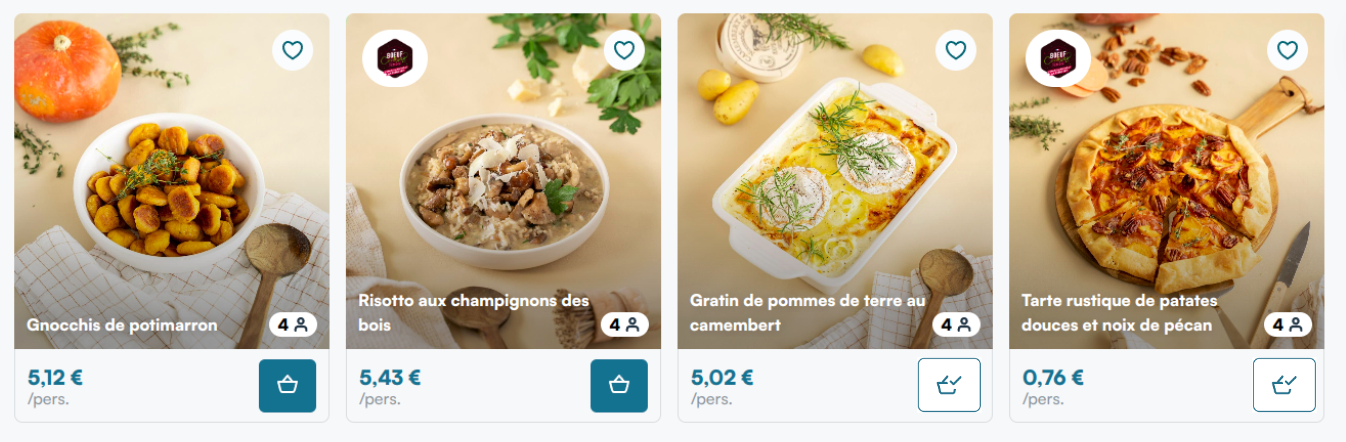
Variant 1 Horizontal:

Variant 2 Vertical:
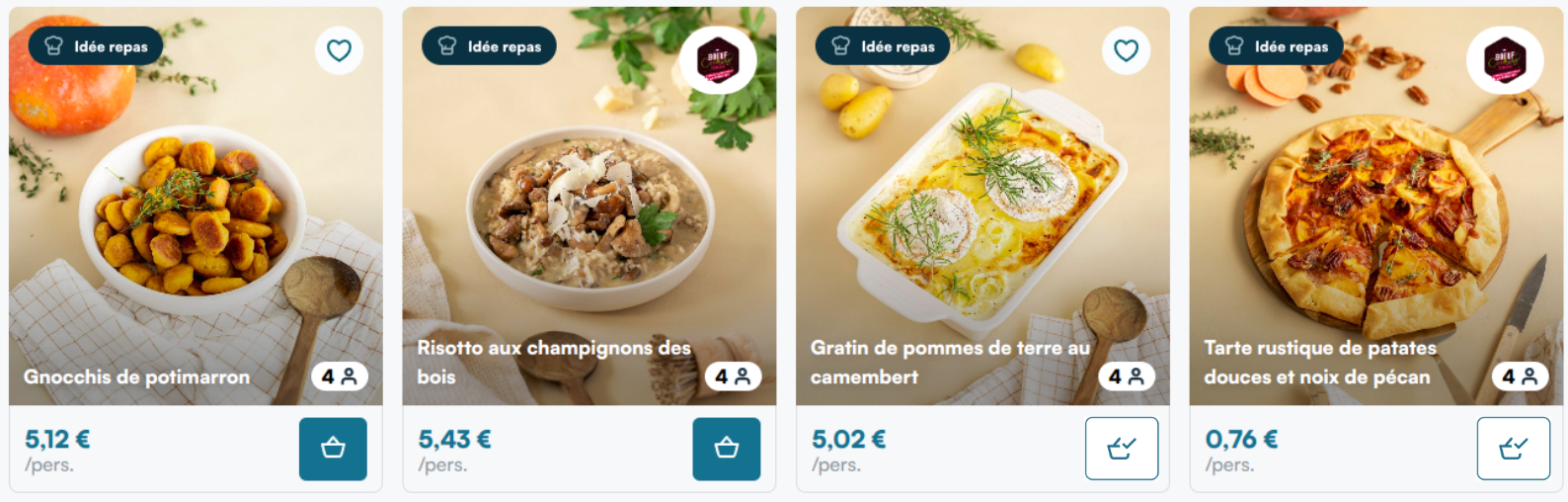
Variant 2 Horizontal:

Variant 3 Vertical:
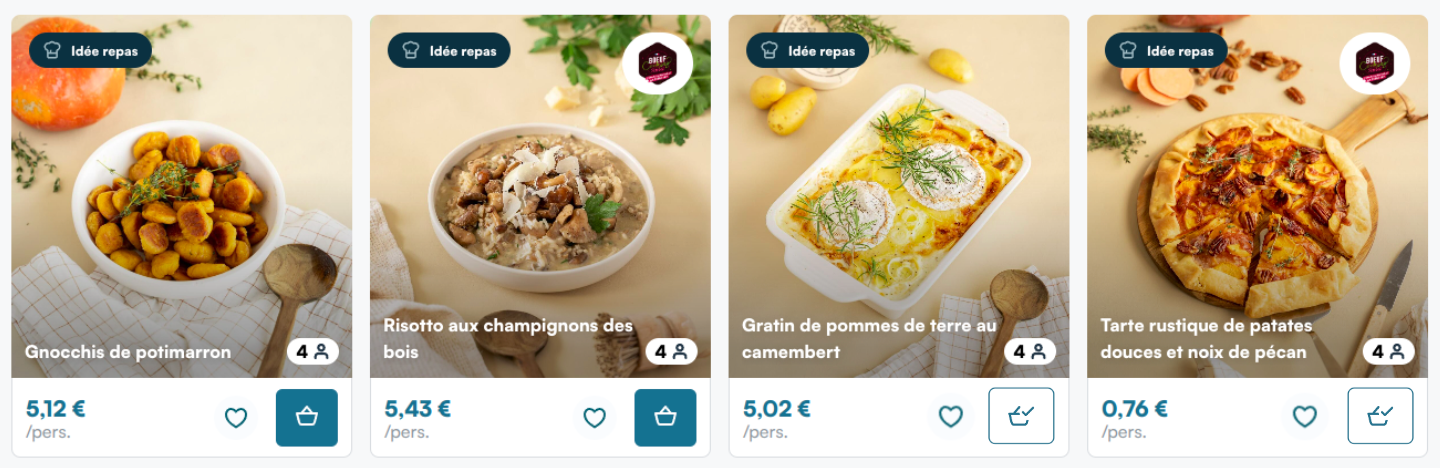
Variant 3 Horizontal:

The second and third variants are ideal for the cards you display in your shelves, because of the badge in the upper-left corner (that you can easily replace by an image of your design that corresponds better to your website's design). The third variant is better if your products have their "add to favorite" CTA next to the price.
The first variant is better for our catalog, because displaying the badge on each card would be redundant, which is why we use this variant by default.
I18n
The customizable text contents for this component are the following:
{
  "RECIPE_PRICING": {
    "PER_GUESTS": "/pers."
  },
  "RECIPE_CARD_CTA": {
    "IN_BASKET_ICON_ALT": "See the products currently in basket",
    "NOT_IN_BASKET_ICON_ALT": "See the products"
  }
}
See Internationalisation for more information on how to configure a custom I18n file to override our base texts with your own.
Fetching multiple recipe cards at once
For performance purposes, we have created another route for the recipe-cards that you can call to fetch multiple cards at once. Whereas the single card route has multiple "modes" (with a recipeId or with the surrounding products Ids), this route is only intended to be used with the surroundingProductsIds param.
The base url for the recipe-card is the following:
GET https://MEALZ_SSR_API_URL/API_VERSION/recipe-card/multiple
Where you would call the /recipe-card route multiple times with each time a surrounding_products_ids urlParam, you can instead call this route with a surrounding_products_ids urlParam with all surrounding_products_ids params values in an Array as value.
For example, instead of calling:
GET https://MEALZ_SSR_API_URL/API_VERSION/recipe-card?surrounding_products_ids=["id1","id2"]
GET https://MEALZ_SSR_API_URL/API_VERSION/recipe-card?surrounding_products_ids=["id3","id4"]
You can call:
GET https://MEALZ_SSR_API_URL/API_VERSION/recipe-card/multiple?surrounding_products_ids=[["id1","id2"],["id3","id4"]]
Unlike all other routes, you probably do not want to add the returned HTML to your page directly as this this route returns all recipe-cards in a single HTML string. You probably want to separate the cards into multiple strings and then add each card between the correct products on the page.
Here is an example of separating the cards:
const multipleRecipesHTML = fetch(`${MEAL_API_URL}/recipe-card/multiple?${params}`, headers)
const recipeCardsHTML = multipleRecipesHTML.split('</mealz-recipe-card>')
    .filter(text => text.includes('<mealz-recipe-card'))
    .map(text => text + '</mealz-recipe-card>')
Do note that the cards will be returned in the order corresponding to the order of the surrounding_products_ids param. (i.e. the first cards is build using the first element in the array)
-
Parameters :
-
surrounding_products_ids: string[][]: (Mandatory) an array of arrays of productIds. You can see it as an array of multiples of the surrounding_products_ids param from the /recipe-card route.We do a JSON.parse() to read this input so make sure to use JSON.stringify() or an equivalent to build this param. eg:
JSON.stringify([['id1', 'id2'], ['id3', 'id4']]) -
store_id: string: (Recommended) We need your store ID to display the price of the recipe, so ideally it should be passed if the user has chosen a store -
pricebook_key: string = 'DEFAULT': (Optional) the pricebook key is needed to retrieve the recipe price corresponding to the pricebook you are currently using. If your website doesn't have multiple pricebooks for the same store, this parameter is not needed. -
display_variant: number = 1: (Optional) Select the variant for the display of the card. Default is 1, available values are 1, 2 and 3 (see below for examples) -
orientation: 'vertical' | 'horizontal' = 'vertical': (Optional) Select the orientation for the display of the card (see above for examples) -
current_products_ids: string[]: (Optional) takes an array of product ids with a high priority on the suggestion. Does not have any effect if not paired with surrounding_products_ids -
serves: number(Optional) Override the default number of guests set for the recipe
-
Custom recipe card: recipe.show analytics
Use this when you render your own recipe card UI (not the SSR <mealz-recipe-card> HTML) but want the same recipe.show behaviour as the native card. See Analytics for how recipe.show is defined.
Step 1 — Load and initialize the Web Components SDK
When a Mealz SSR component is already on the page, its HTML fragment includes the WebC SDK script tag — window.mealz becomes available once that script runs. You can skip this step if another Mealz feature on the same page already loaded the SDK.
If your page uses only custom recipe cards and no Mealz SSR component, you must load the SDK yourself before calling attachRecipeCardShowTracking.
Add the WebC script directly — the same bundle the SSR API injects in its HTML fragments:
<script type="module" src="https://cdn.jsdelivr.net/npm/webc-miam@9.1.30/webc-miam-fr.js"></script>
Pick the version and locale file Mealz provides for your integration (webc-miam-fr.js, webc-miam-en.js, …). See Web SDK installation for the full locale list.
SSR API v2 adds GET /v2/mealz-window-bootstrap, a minimal HTML fragment that loads only the SDK without a Lit component. That route is not available on v1 — use the CDN script tag above instead.
Whichever option you use, initialize Mealz (supplier.setupWithToken, user, POS, language, etc.) so analytics is ready before you attach tracking — see Set up and usage.
Step 2 — Attach one observer per card root
For each custom card container in the DOM, call:
const handle = window.mealz.analytics.attachRecipeCardShowTracking({
  element, // HTMLElement: root to observe (e.g. card wrapper)
  recipeId,
});
When the node is removed (virtual lists, SPA navigation), call:
handle.disconnect();
You can listen for emitted events on window.mealz.analytics.eventSent$ (same stream as other Mealz analytics).