Planner (SSR)
Overview
The Planner is a full-page experience that helps users build a meal plan (a “menu”) and then push it to the retailer cart.
The only supported entry point is planner-entry: you embed it on one of your pages (typically the catalog home), and it redirects the user to the planner experience.
-
A lightweight entry component (
/planner/entry) meant to be embedded on other pages. The user can:- Set the number of guests
- Start a menu from our current suggestions
- Start a menu from scratch
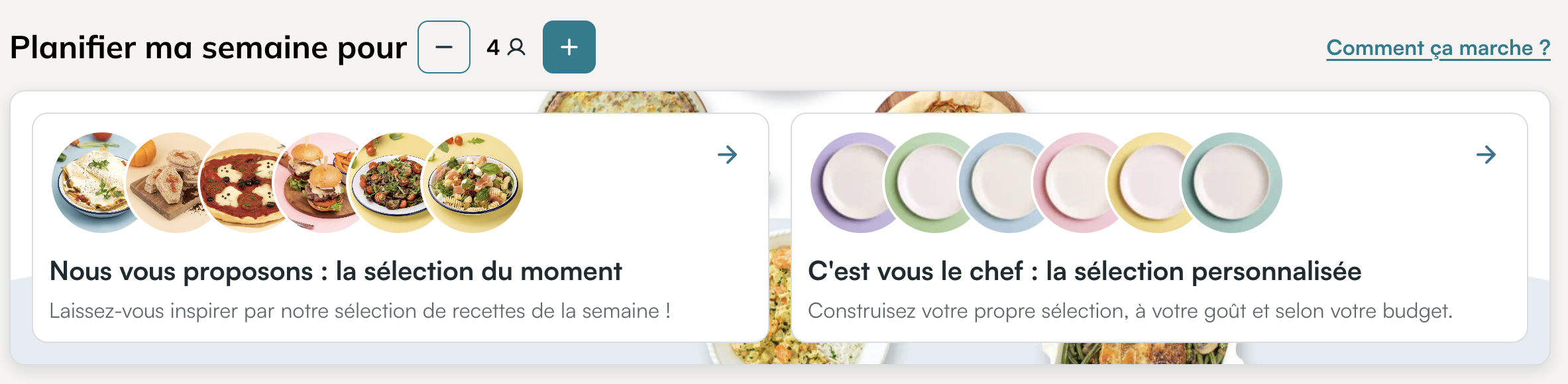
-
After selecting a mode,
planner-entryredirects to your current menu page (client URL), where the user:- Adds / removes recipes. From our suggestions, or our catalog with filters: main dish, starter, dessert, drinks
- Select / Unselect specific products from recipes
- (Optionally) sets a budget
- Finalizes the menu to the basket, then gets redirected to the retailer cart
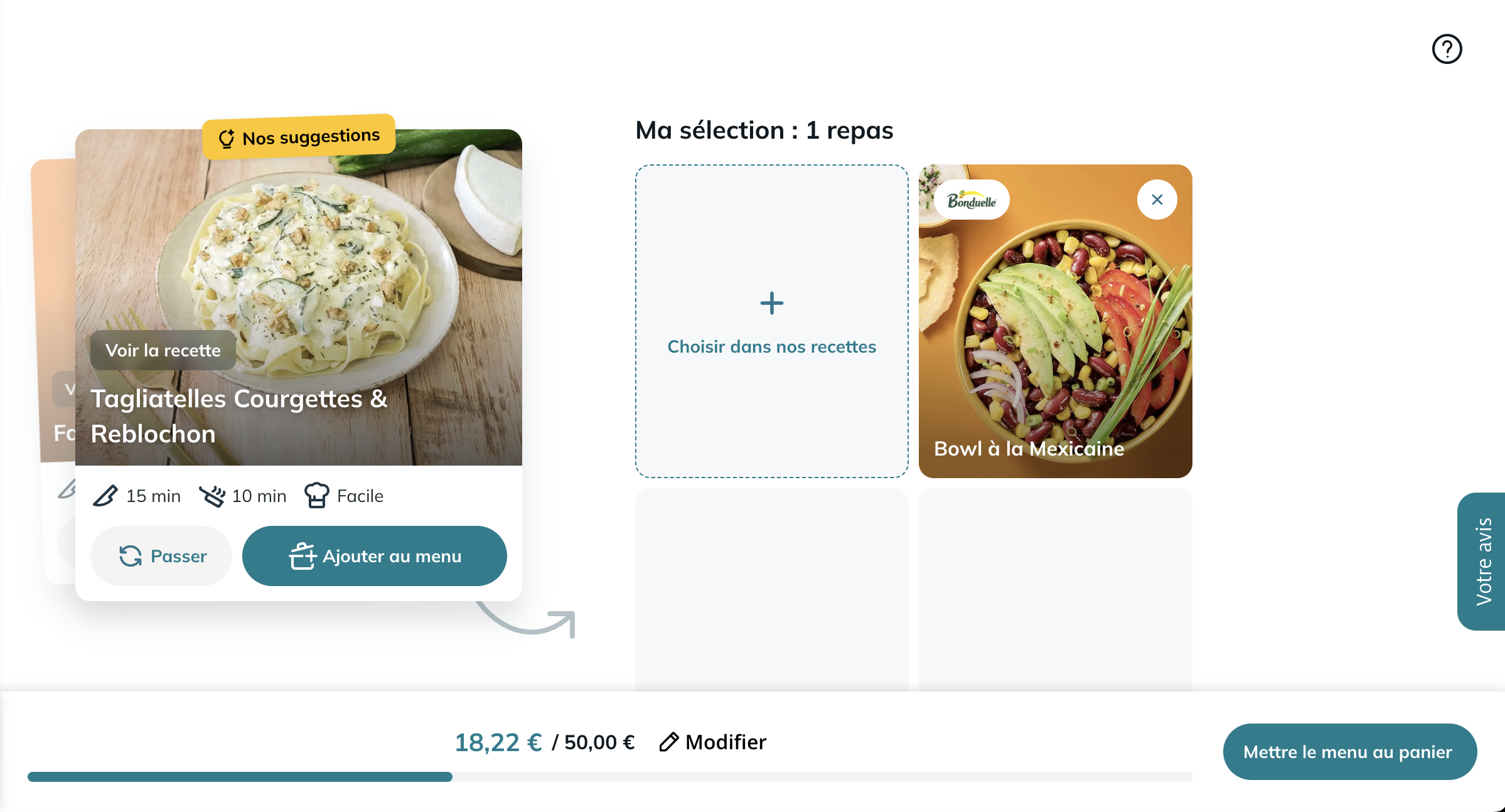
Onboarding & help (modal)
First-time users are greeted with a quick onboarding modal.
Users can open the onboarding help modal at any time to understand (or re-check) how to use the planner.
- From
planner-entry: the “How it works” / help link opens the modal. - From the current menu page: the help button (question mark / help icon) in the header opens the modal again.
This onboarding is a step-by-step guide displayed in a modal with next/previous navigation and a I understood button to close. It is meant to be reopened anytime.
Mobile view vs desktop view
On desktop, the current menu page displays the experience as a single layout.
On mobile, the current menu page is split into 2 separate views:
- Suggestions + quick menu: the recipe suggestion panel is shown, and a compact footer (“quick menu”) is displayed:
- Shows menu thumbnails (newest-first)
- Lets the user open recipe details by tapping a thumbnail
- Provides actions to see the menu and add recipes from the catalog
- Your current menu: the menu panel is shown with the list of recipes in the menu and the primary footer (CTA + budget when available).
The current menu web component keeps the URL in sync via the view query parameter:
?view=recipe: show suggestions?view=menu: show the menu
SSR API routes
Entry component (embed)
Base URL:
GET https://MEALZ_SSR_API_URL/API_VERSION/planner/entry
- Parameters:
store_id: string: (Recommended) Used to bind the entry to the currently selected store.
Current menu page (target page, not an entrypoint)
Base URL:
GET https://MEALZ_SSR_API_URL/API_VERSION/planner/current-menu
- Parameters:
store_id: string: (Recommended) Used for pricing, basket sync, and consistency of planner data.
Shareable planner URL (landing)
For marketing campaigns or direct links, the planner root route also renders the current menu experience (same as current-menu):
GET https://MEALZ_SSR_API_URL/v2/planner
- Same parameters as current-menu.
- Behavior: if the user has a menu, it opens it; otherwise it creates one.
Required HTTP headers
All the planner routes are SSR custom elements endpoints, so they require the same mandatory headers as other SSR features.
Do not forget the mandatory HTTP headers
Stylesheets (CSS)
Like other SSR features, planner styles are fetched separately and should be included via <link rel="stylesheet"> in your page <head>.
See Fetching the components stylesheets for the general principles.
Recommended styles routes for the planner:
GET https://MEALZ_SSR_API_URL/API_VERSION/styles/planner
GET https://MEALZ_SSR_API_URL/API_VERSION/styles/planner/planner-entry
styles/planner: everything needed for planner pages (planner + drawer + catalog-list + breadcrumb + entry, etc.)styles/planner/planner-entry: minimal CSS for the entry block only
How to integrate (client-side expectations)
1) Full page SSR (recommended)
You embed planner-entry where you want the entrypoint to appear, and you expose a dedicated URL on your website for the current menu page. On that URL, your server should:
- Fetch the planner HTML from the SSR API (
/planner/current-menu) - Inject the returned HTML into your page template
- Include the planner styles from
GET /styles/plannerin the page<head>
The returned HTML includes <script type="module"> tags, allowing custom elements to initialize automatically in the browser.
2) Runtime HTML injection (SPA / partial refresh)
If you fetch planner HTML at runtime and inject it with innerHTML, browser will not execute <script> tags contained in the injected HTML.
In that case you must ensure that:
- Like for CSS links, you must ensure the required
<script type="module">tags are present in your page (scripts injected viainnerHTMLwon't execute). - The SDK script (
SDK_WEBC_URL_V2) is loaded once - The required planner-related
mealz-componentsmodules are loaded (planner, preferences, catalog list/toolbar, recipe-card/cta…) - The CSS links are present in
<head>(viastyles/planner)
Routing configuration (what you must provide)
The planner contains internal navigation (from planner entry → planner current menu, and finally redirect to the retailer cart).
Those URLs are client-dependent and are configured on our side (per supplier + per environment). Concretely, we need:
- The URL of your planner current menu page
- The URL of your retailer cart page (redirect target after finalization)
This is configured in the SSR API routing (example format):
{
  "baseUrl": "https://www.example.com",
  "features": { "planner": "/planner" },
  "planner": {
    "current": ""
  },
  "retailerCart": "/cart"
}
Shareable planner URL
Some clients want to use their planner page URL in marketing campaigns redirection (example: https://your-website.com/planner).
The behavior is:
- Opening the shared planner URL should display the planner
- If the user is already a client with a current menu, it will open his menu
- If the user is new to the website. It will create a menu with the current suggestions
Authentication behavior (what clients should know)
- Users can start building a menu without being authenticated (using an authless identity), but authentication is required to push the menu to basket.
- The planner flow uses browser storage to resume critical steps (for example after login / POS selection). In particular:
- Guests selection is stored under
_mealz/planner/guests - Finalize flow can be resumed using a cached URL (
_miam/cachedFinalizeMenuUrl)
- Guests selection is stored under
Works without POS selected / without user connected (limitations)
The planner is designed to remain usable even if no point of sale (POS) is selected and/or no user is logged in, with the following limitations.
Without a POS selected
- You cannot set a budget (budget is store-dependent).
- We cannot fetch products nor product pricings, because they depend on the store context.
- In the recipe-details view, inside "I'm shopping", the user can be prompted to select a POS (open the retailer store selector) to unlock store-dependent features.
Without a user logged in
- The user can still build a menu (authless flow), but when they try to move recipes from the menu to the basket (finalize), the planner will ask them to connect / log in first.
If a user built a menu while unauthenticated (authless), we will transfer it to the logged-in user at the end of your auth flow.
Note: if a logged-in user already has a menu, it will be overridden by the menu created as an unauthenticated user.
If you embed Mealz in constrained contexts (webviews, strict privacy modes), ensure localStorage is available and not fully blocked.
I18n
Planner uses the same i18n override mechanism as other SSR features (see Internationalisation).
Example planner text keys that can be overridden via i18n:
{
  "PLANNER_ENTRY": {
    "TITLE": "…",
    "HOW_IT_WORKS": "…",
    "DECREASE_GUESTS": "…",
    "INCREASE_GUESTS": "…"
  },
  "PLANNER_MENU_OPTION": {
    "SELECTION": "…",
    "SELECTION_SUBTITLE": "…",
    "CUSTOM": "…",
    "CUSTOM_SUBTITLE": "…",
    "CANCEL": "…"
  },
  "PLANNER_CURRENT_MENU": {
    "ADD_MENU": "…"
  },
  "PLANNER_RECIPE_LIST": {
    "SELECTION_TITLE": "…",
    "MEAL_SINGULAR": "…",
    "MEAL_PLURAL": "…",
    "CHOOSE_FROM_RECIPES": "…",
    "SUGGESTIONS": "…"
  },
  "PLANNER_RECIPE_SUGGESTION": {
    "ADD": "…",
    "OUR_SUGGESTIONS": "…",,
    "SEE_RECIPE": "…",
    "SWAP": "…"
  },
  "PLANNER_QUICK_MENU": {
    "SEE_MENU": "…",
    "ADD_RECIPE_ARIA": "…",
    "MENU_PREVIEW_ARIA": "…"
  },
}