Enable order history
Our library provides the functionality to enable order history, allowing users to easily track their past orders directly within the catalog. This feature introduces a newly redesigned "My Space" section, which includes two dedicated tabs: Favorites and History.
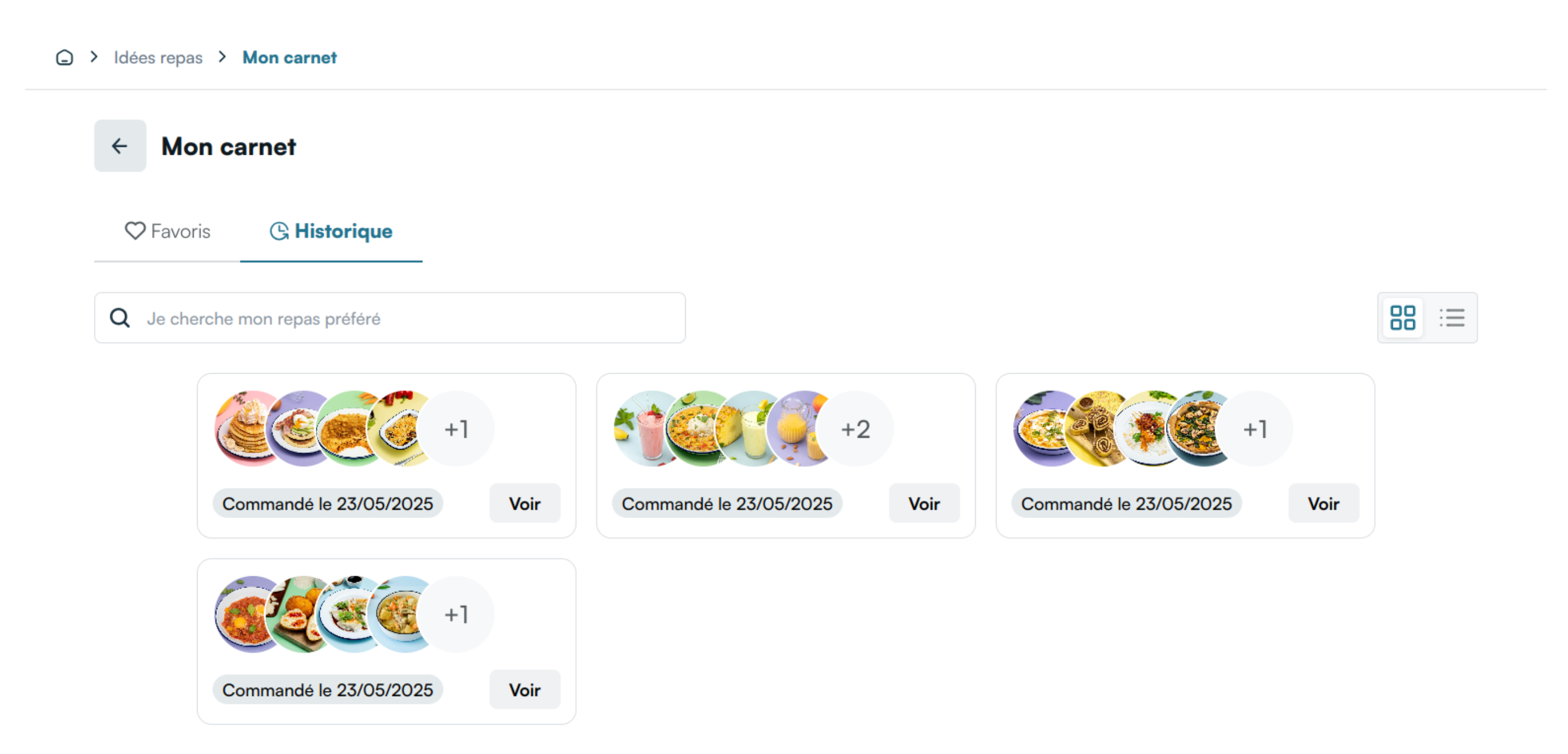
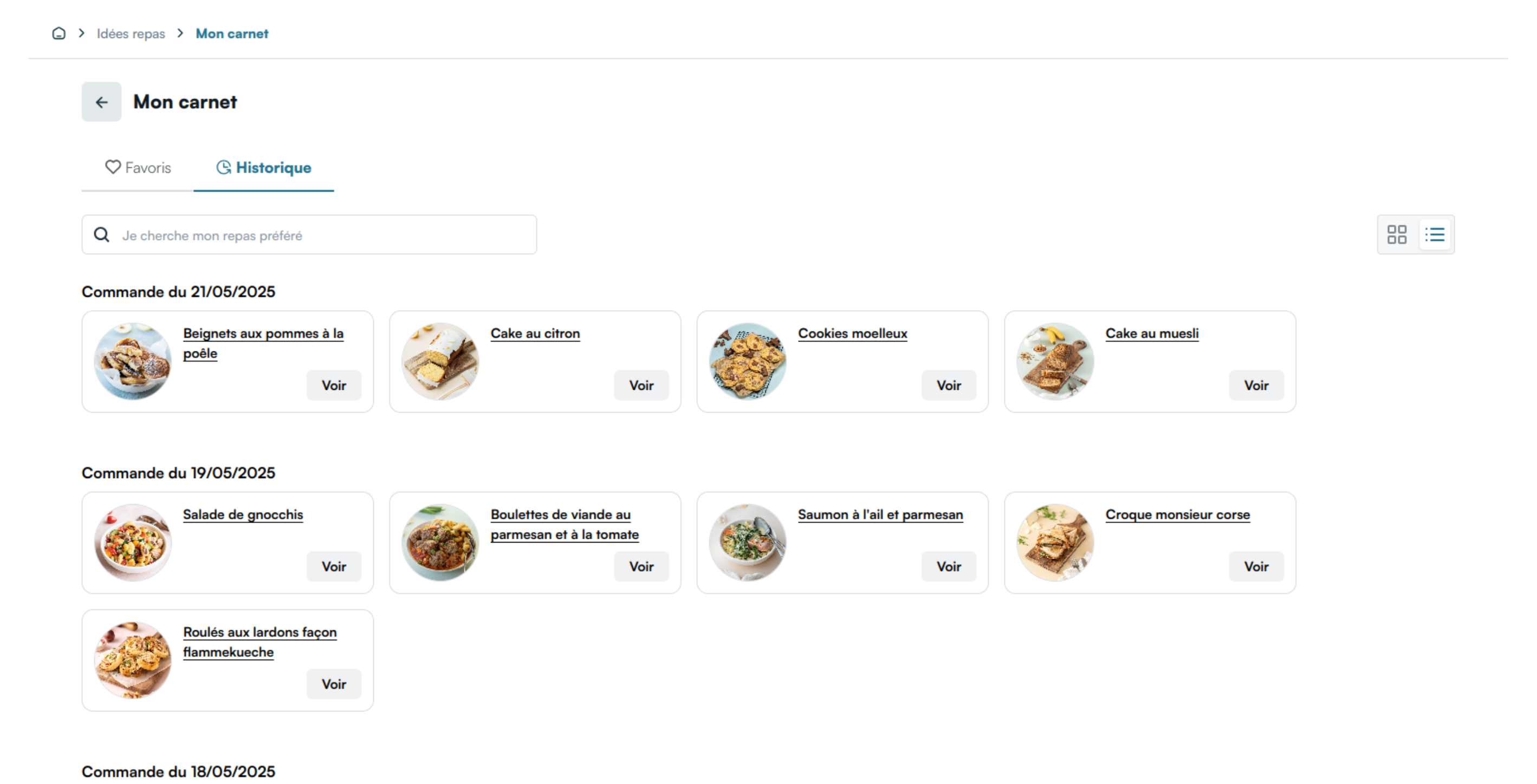
Since the version 1.3.0 (26/05/2025), the History tab has two different styles, with a switch to swap between the two.
The previously only style was a grid style and here is the new list style:
Activating Order History
-
To begin, please contact our team to receive the required token for enabling order history functionality.
-
Replace your existing
mealzTokenwith the new token and configure the user's language settings. Use the following code snippet:
  window.mealz.supplier.setupWithToken('newMealzToken');
  window.mealz.user.setLanguage('en');
- Once the order history feature is enabled, you can fetch data for the "My Space" page using the following API base URL:
GET https://MEALZ_SSR_API_URL/API_VERSION/catalog/my-space
- Parameters :
-
store_id: string:(Recommended) We need your store ID to display the prices of the recipes, to fetch the recipes in basket informations and to hide recipes with primary ingredients not available in your store, so ideally it should be passed if the user has chosen a store
-
tab: 'favorites' | 'history' = 'favorites':(Optional) Specify the tab to display: favorites (default) or history (See Routing)
-
history_style: 'grid' | 'list' = 'grid':(Optional) Specify the style to display for the history tab: grid (default) or list. Does not have any effect if used alongside
tab=favorites. (See Routing) -
pricebook_key: string = 'DEFAULT':(Optional) the pricebook key is needed to retrieve the recipe price corresponding to the pricebook you are currently using. If your website doesn't have multiple pricebooks for the same store, this parameter is not needed.
-
display_infos: boolean = false:(Optional) By default, the recipe-cards doesn't show the preparation time and difficulty af the recipe but if you want to display them you can set display_infos to true
-
display_recipe_variant: number = 1:(Optional) Select the variant for the display of the cards in the catalog. Default is 1, available values are 1, 2 and 3 (see here for examples)
-
search: string:(Optional) This parameter should be specified if the user has used the search bar. The search term should be retrieved from the URL parameter search and passed unaltered to refine the recipe results based on the search input.
-
Feature updates
Once order history is enabled, the following updates will be applied:
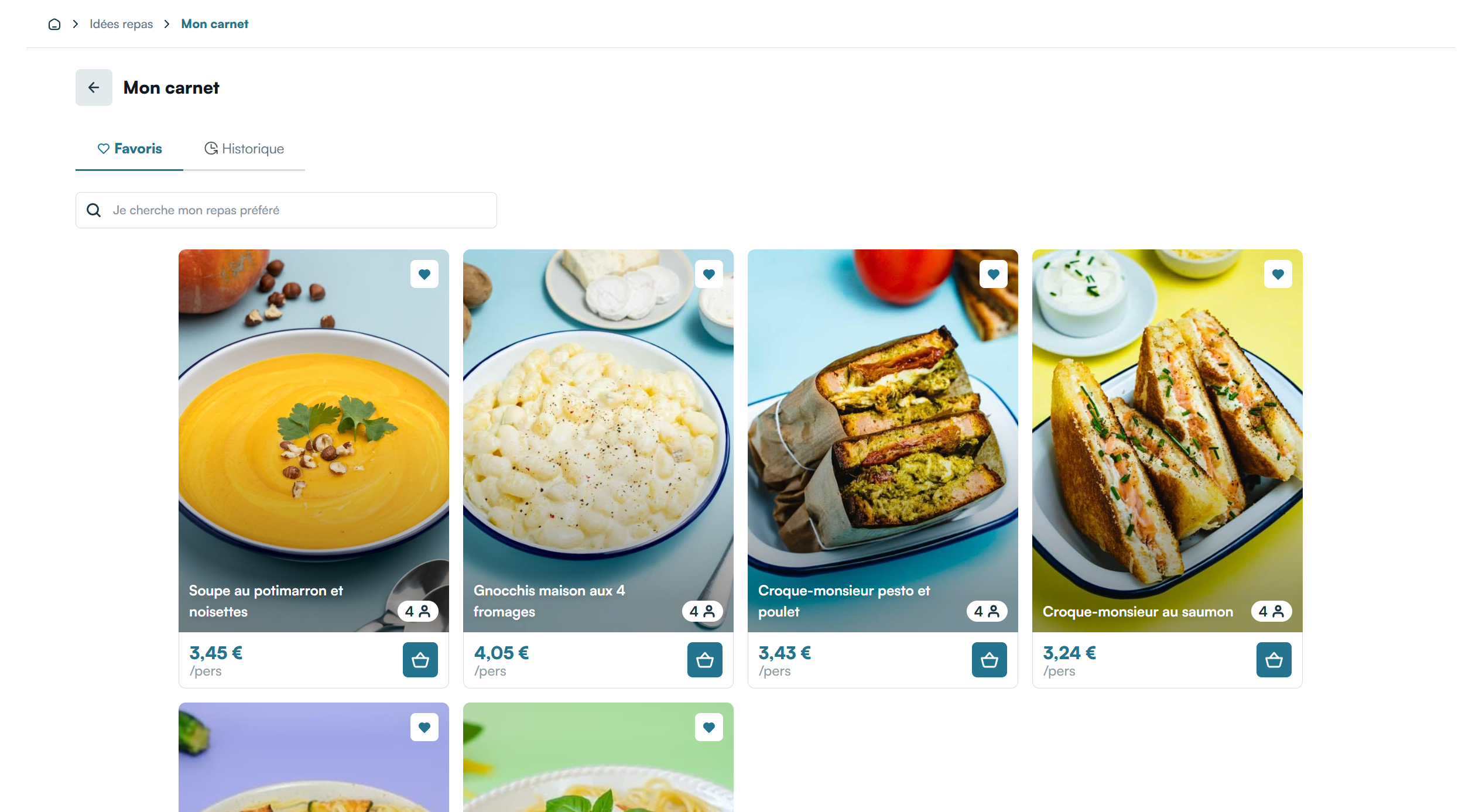
The "Favorites" page in the catalog will be renamed to "My Space", featuring two tabs:
- Favorites Tab: Displays the list of recipes saved as favorites by a connected user
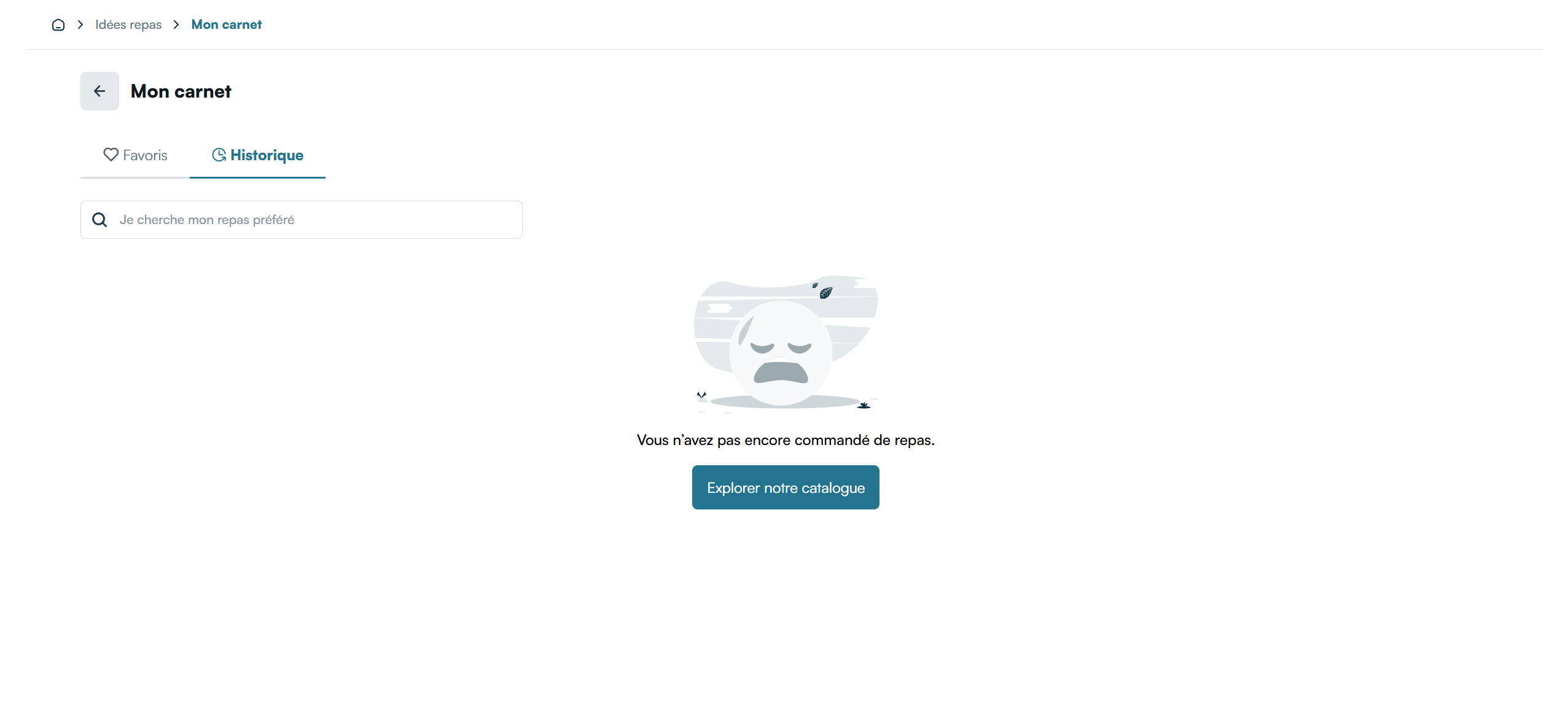
- History Tab: Displays the order history of a connected user
Clicking on an order in the History tab opens a drawer providing informations about the recipes included in the selected order.

You can further customize the appearance of the order history components to match your website’s design.
Routing
The /my-space page has two means of internal routing:
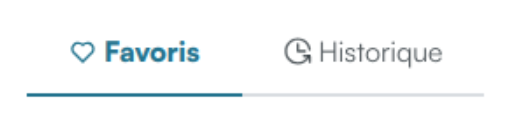
- A tab bar to switch between the Favorites page and the History page
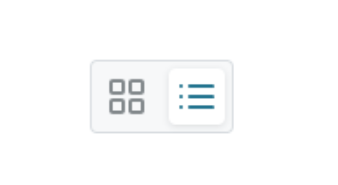
- A switch for the style of the history page:
On a click on the tab bar the user will be redirected to the current url (the url you have chosen for /my-space) with a parameter added to differentiate the tab to display. The parameter added to the url is the same one you have to pass to the /my-space route: either tab=favorites or tab=history.
Similarly, on a click on the switch element, the user will be redirected with the parameter history_style=grid or history_style=list added to the current url.
Thus, to display the tab & history style chosen by the user, you simply need to check the url for those two params and pass them to the request to /my-space directly, and you don't have to pass them if they are not present.
If you want to only display one of the tabs or one of the history styles, you can pass the corresponding parameter to the /my-space request no matter the url and add a display: none to the tab bar or the switch so the user can't change the view.