Recipe card
Overview
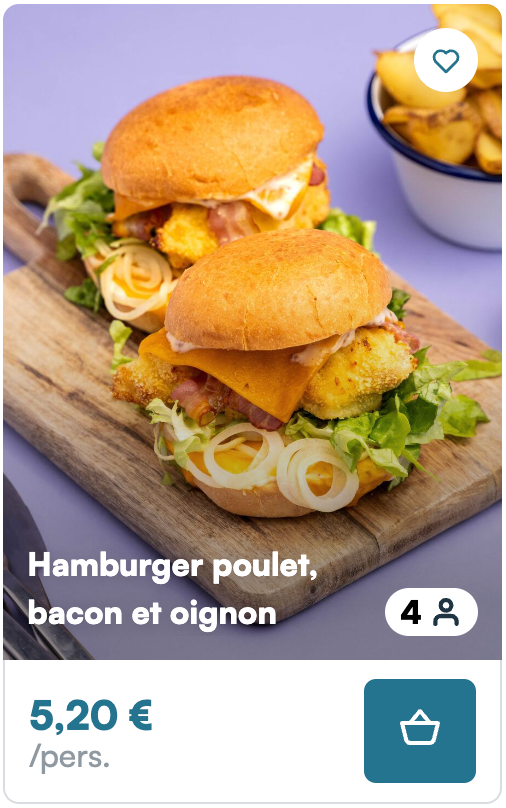
The recipe card is the base of Mealz' whole experience. This card fetches and shows a recipe based on the items that are displayed around it (see here to see how the process of fetching the best recipe works).
The primary CTA on the card is the "Baskets icon" button. When clicked, Mealz' drawer opens and shows the recipes' details component. Clicking on the picture or title has the same effect.
Finally, by clicking on the heart icon the user can add the recipe to Mealz' favorite recipes list. This icon only appears if the user is connected
You need to have loaded the token to display recipes and the library needs a valid store to add products to cart
-
Inputs :
productIds: {id: string, hasHighWeight?: boolean}[](Recommended) You can pass as many ids of products as you want, with the id they have in your database. The recipe displayed should be related to at least one of those products.- hasHighWeight, if passed and true, means that this product will get a higher weight when the AI will search for the right recipe (we do not recommend to set it to true, in most cases)
recipeId: string: (Not recommended) If a valid recipe id is passed, the recipe card will display the corresponding reciperandomModeEnable: boolean: (Not recommended) If set to true, will fetch a random recipe instead of a suggestion based on products Ids
⚠️ It is necessary to have at least one of the preceding inputs, or the card will not display anything
displayVariant: number = 1: (Optionnal) Select the variant for the display of the card. Default is 1, available values are 1, 2 and 3. See below for examples.
-
Outputs :
hide: void: Emits an event if no recipe corresponding to the products ids was found and the card must be hidden to not have an empty card.
As mentionned earlier, while you have the possibility to display a random recipe, we heavily recommend you to pass the products ids, because while a user would be interested by a chocolate cake recipe between chocolate bars, they could find it weird to have for instance a burger recipe between 2 bottles of milk. On the same note, displaying a fixed recipe can be tempting if you want to have control on the content appearing on your website, but it also means that the users will always see the same recipes at the same places and may not be interested, while our algorithm has some random components that makes the content vary between sessions, giving the user more inspiration.
Example :
A recipe contextualized with surrounding products (Recommended):
<webc-miam-recipe-card></webc-miam-recipe-card>
<script>
  const recipeCard = document.querySelector("webc-miam-recipe-card");
  const productIds = [{ id: "id1" }, { id: 2 }]; // product ids can be strings or numbers
  recipeCard.productIds = productIds;
  // Hide the recipe-card if no recipe was found to avoid a blank space in the shelf
  recipeCard.addEventListener(
    "hide",
    () => (recipeCard.style.display = "none")
  );
</script>
A fixed recipe:
<webc-miam-recipe-card></webc-miam-recipe-card>
<script>
  const card = document.querySelector("webc-miam-recipe-card");
  card.recipeId = "2417";
</script>
Display variants
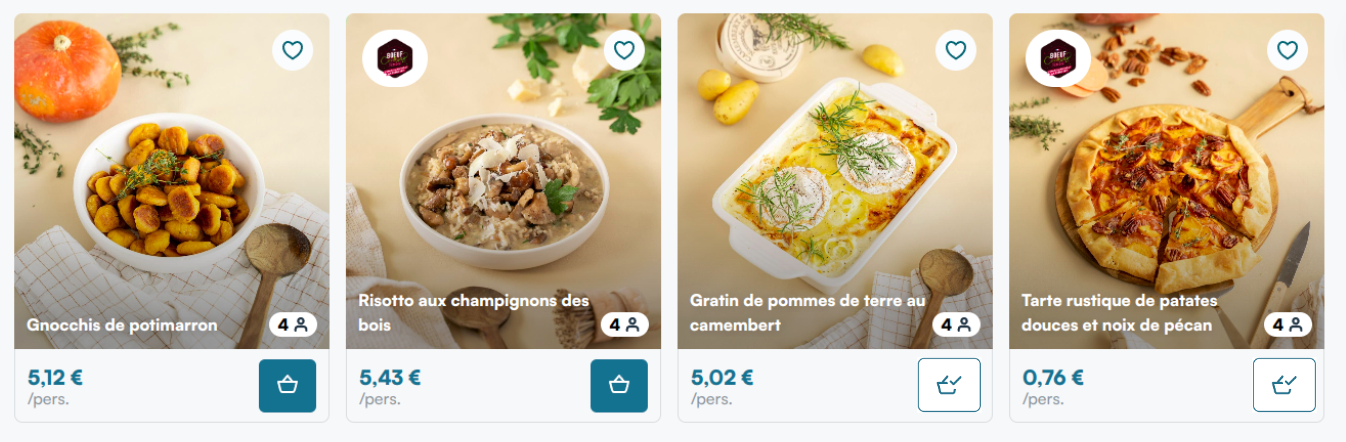
Variant 1 (default):
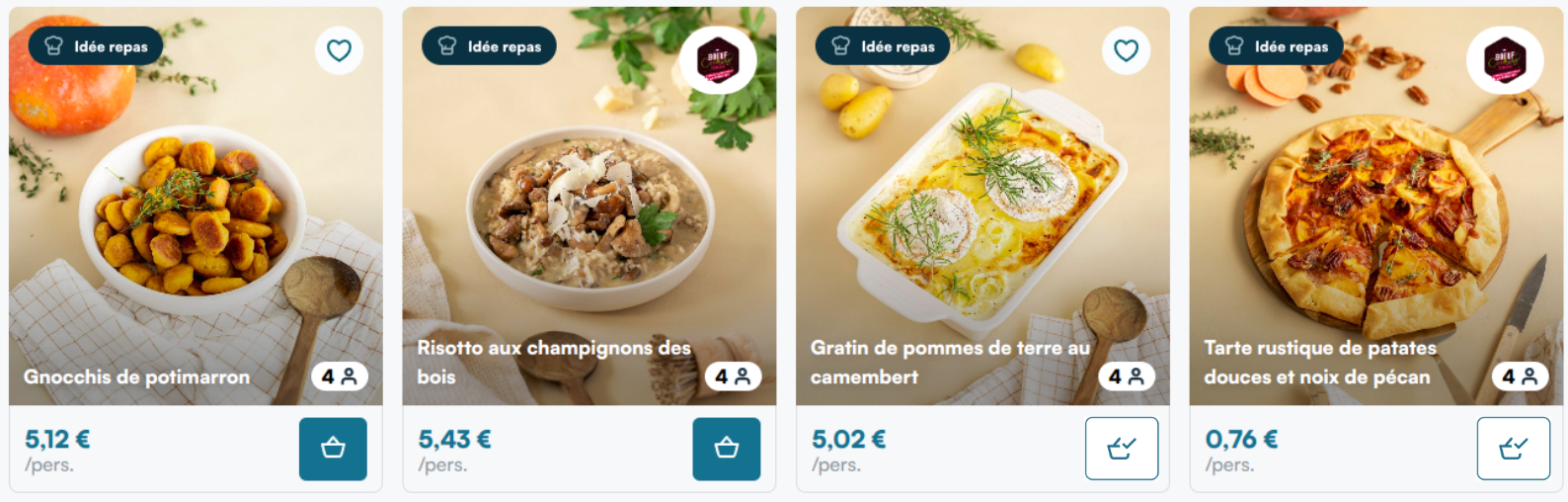
Variant 2:
Variant 3:
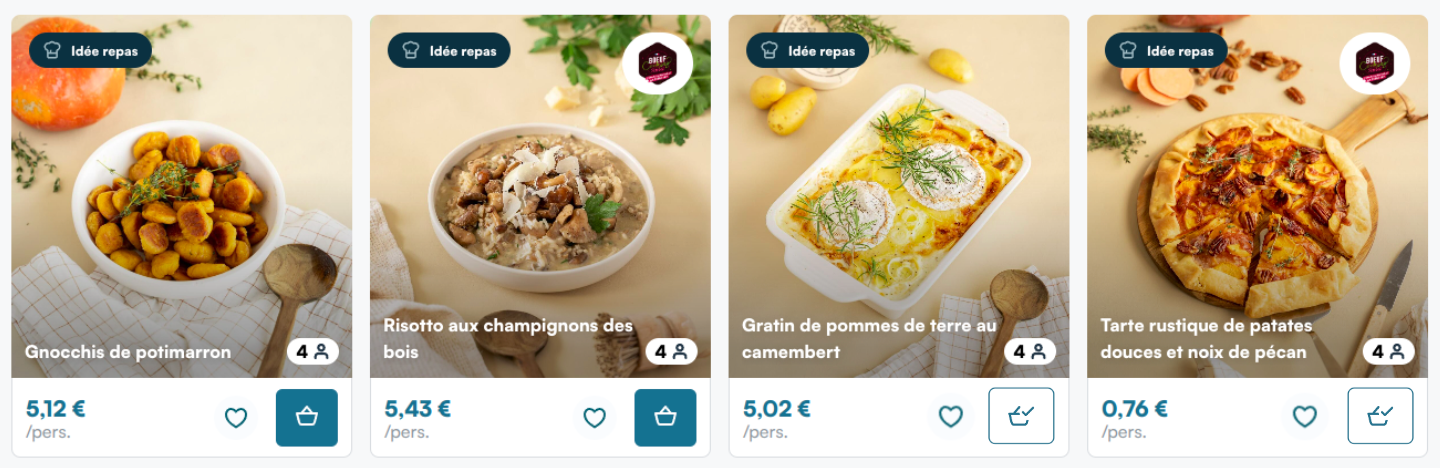
The second and third variants are ideal for the cards you display in your shelves, because of the badge in the upper-left corner (that you can easily replace by an image of your design that corresponds better to your website's design). The third variant is better if your products have their "add to favorite" CTA next to the price.
The first variant is better for our catalog, because displaying the badge on each card would be redundant, which is why we use this variant by default.