About our library
Which features can I add to my website using ngMiam
With ngMiam, Mealz provides you a bundle of features that you can add to your website.
- Recipe cards that you can insert in-between products to inspire the client
- A catalog of recipes so your clients have a page on your website where they can search for inspiration
- Reminders of recipes that you can insert in your basket page so the clients can remember from where the products come from
The recipe cards
The main Mealz feature is giving you access to a recipe card component that you can insert in between products in any shelf of your website. With those recipes appearing in the shelves among the products that the client came to look for, they may be inspired by the recipe and click on it. They will then see all products needed to make that recipe and discover that they can, in a single click, add to their cart all these products !
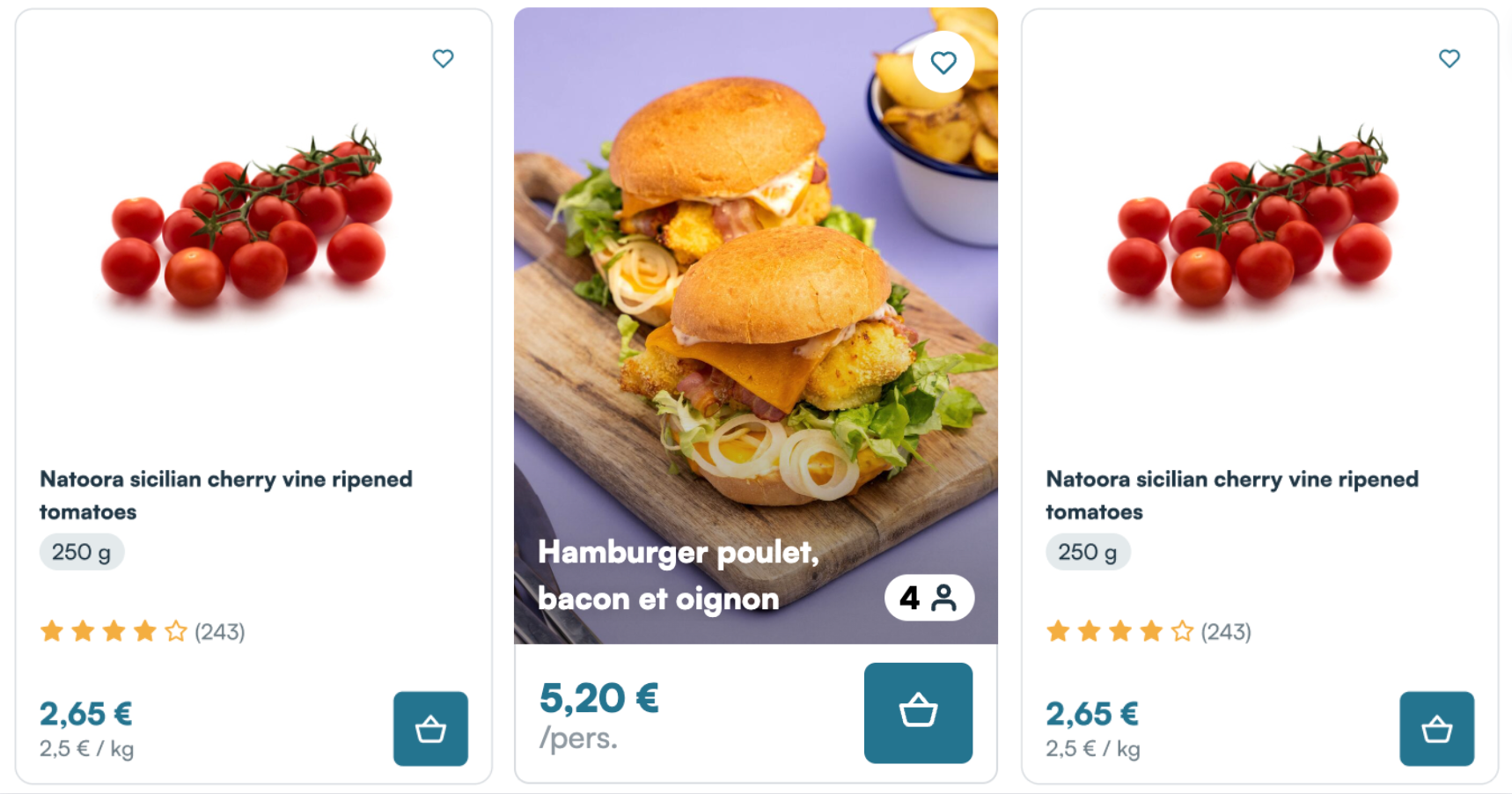
Here is an example of a recipe card inserted between two products:
If the user clicks on the main CTA, the title or the image, a drawer will appear (by default on the right side of the page) to display the list of ingredients needed for the recipe:
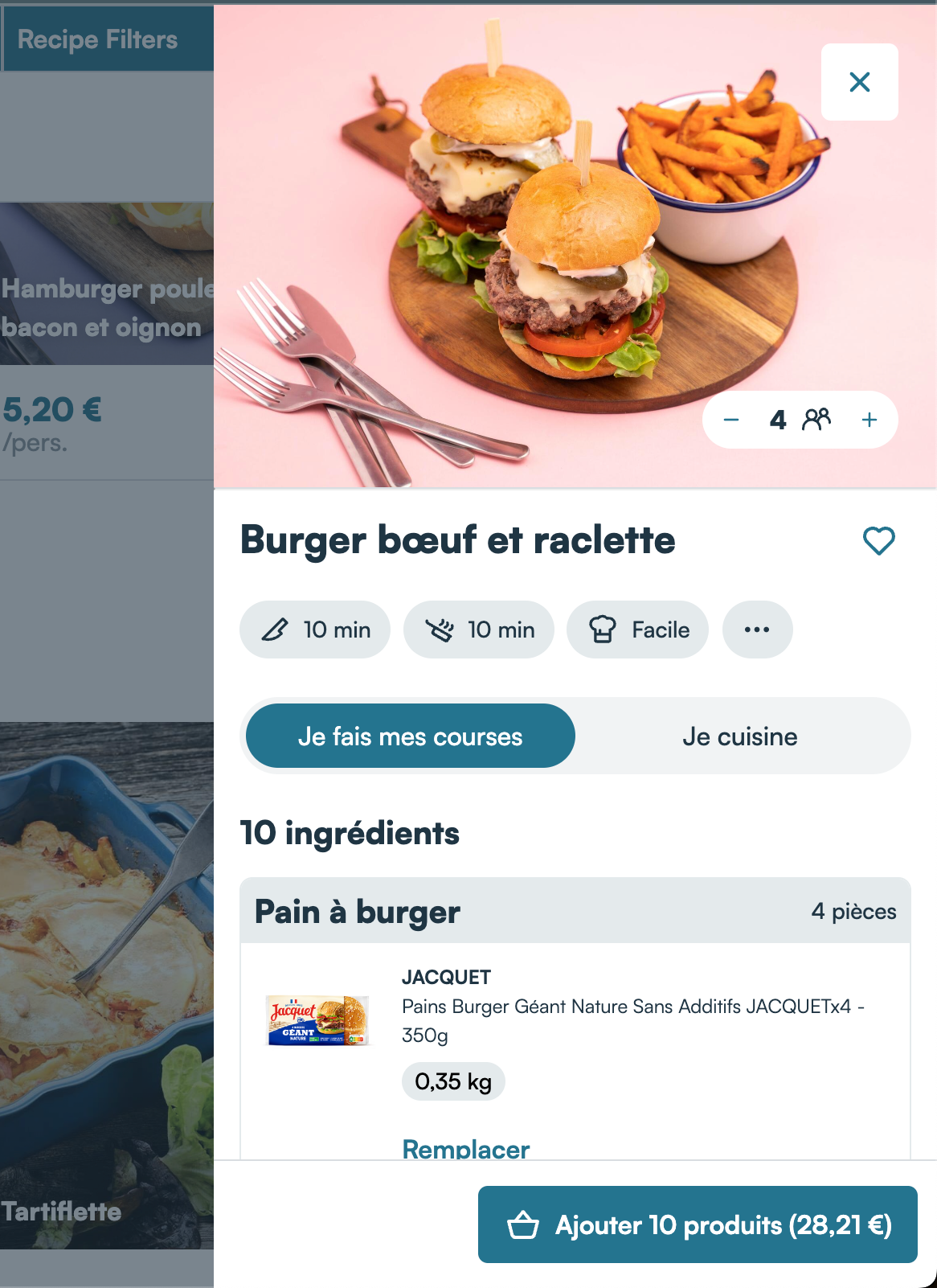
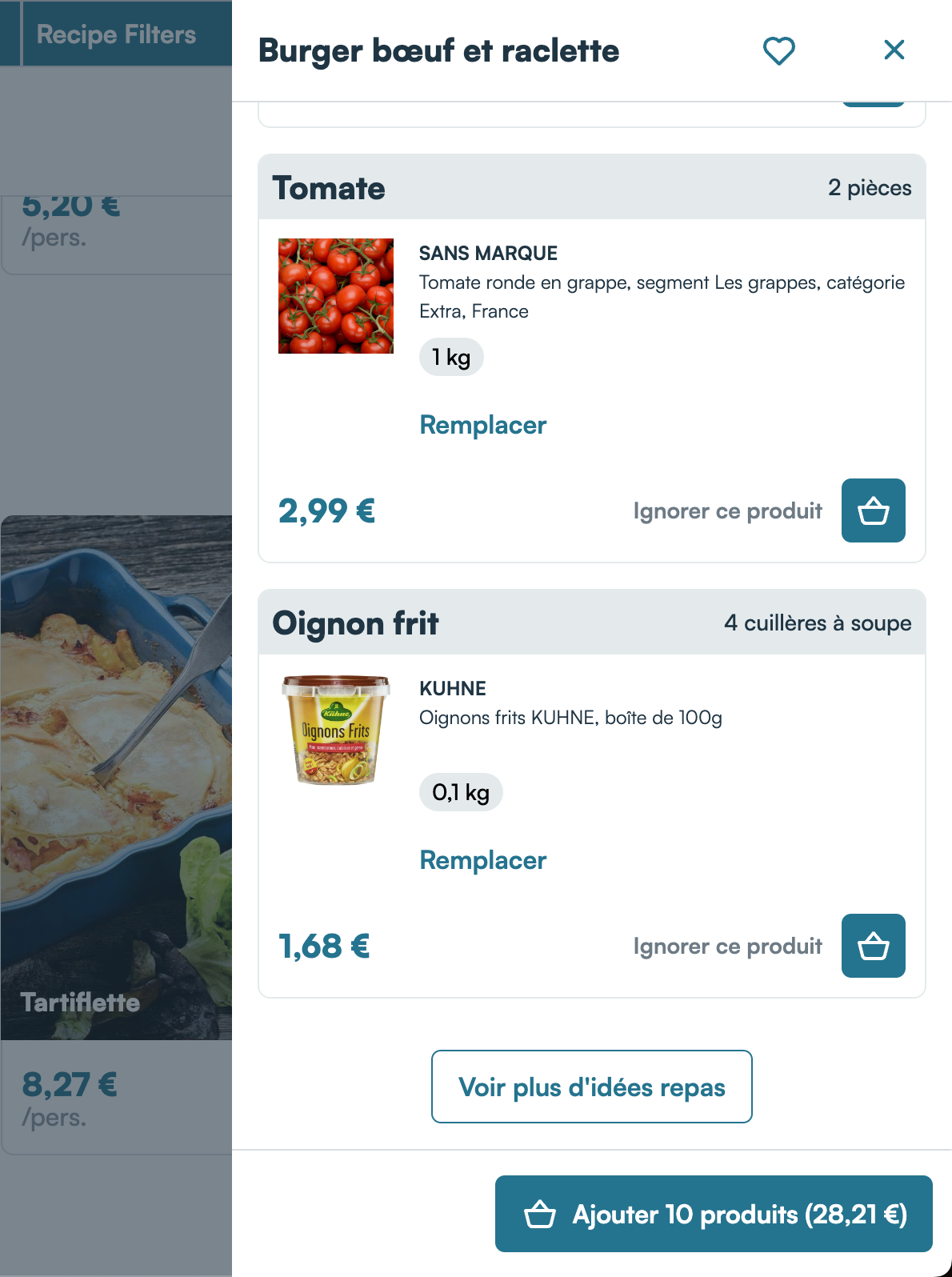
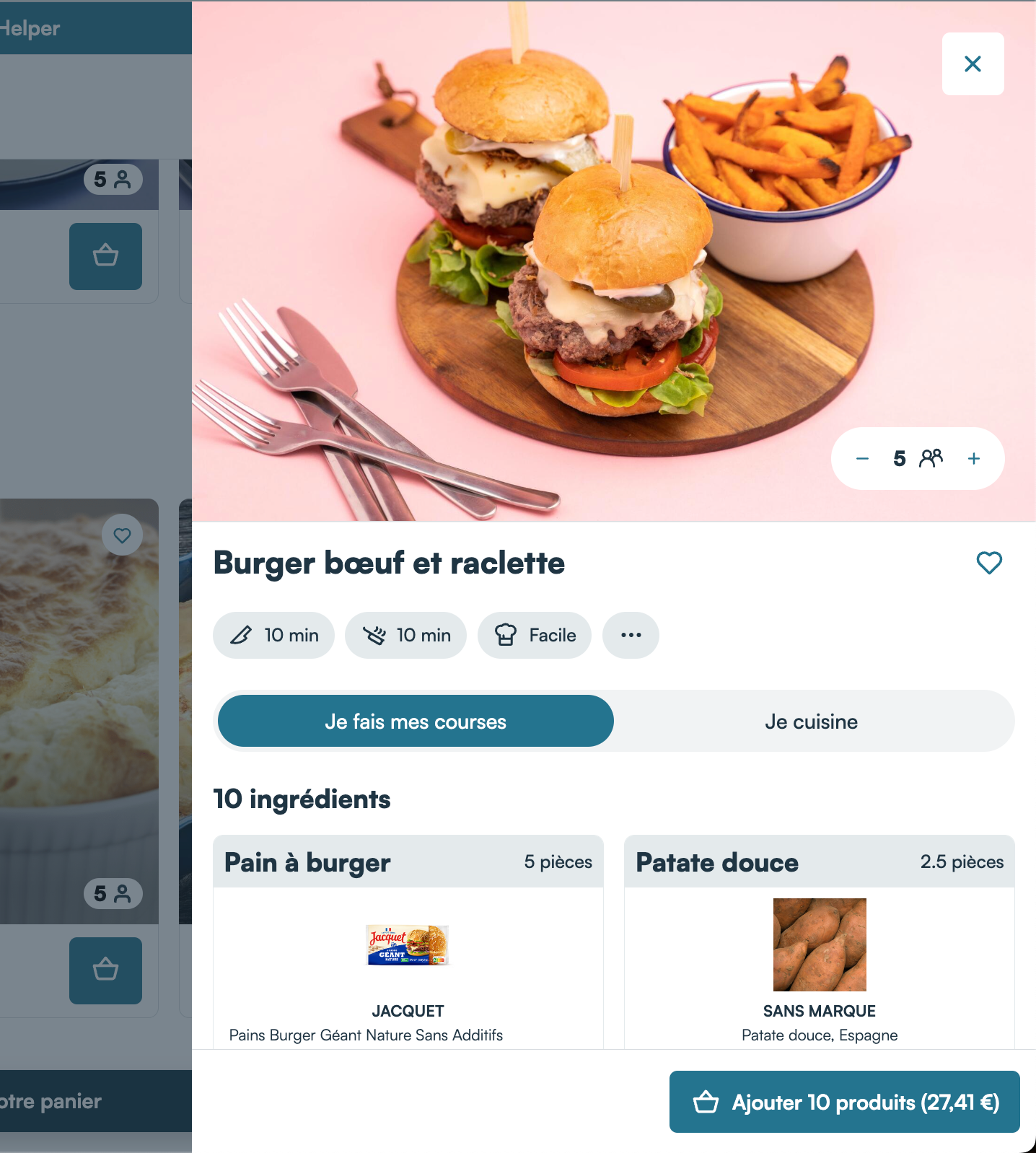
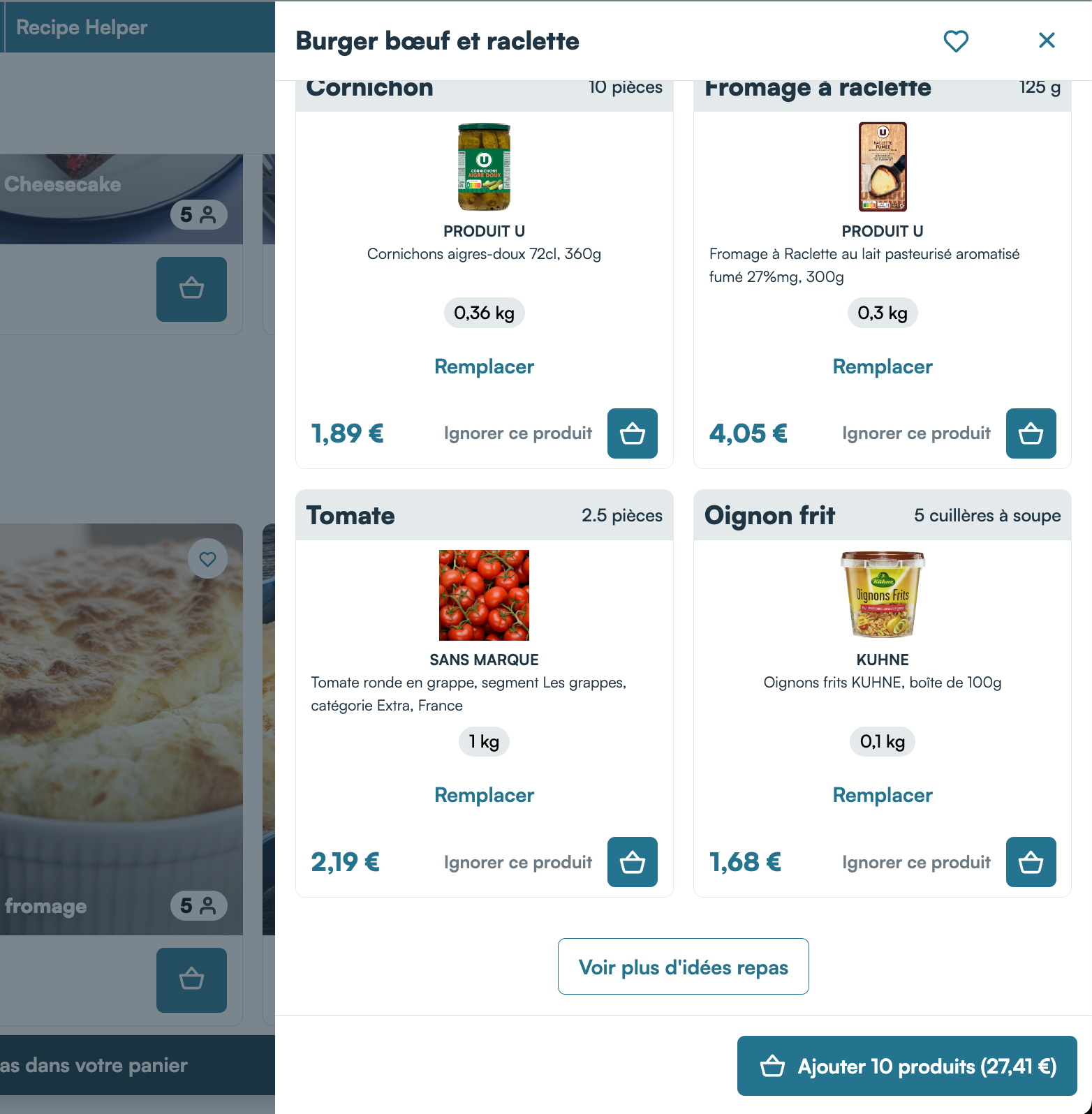
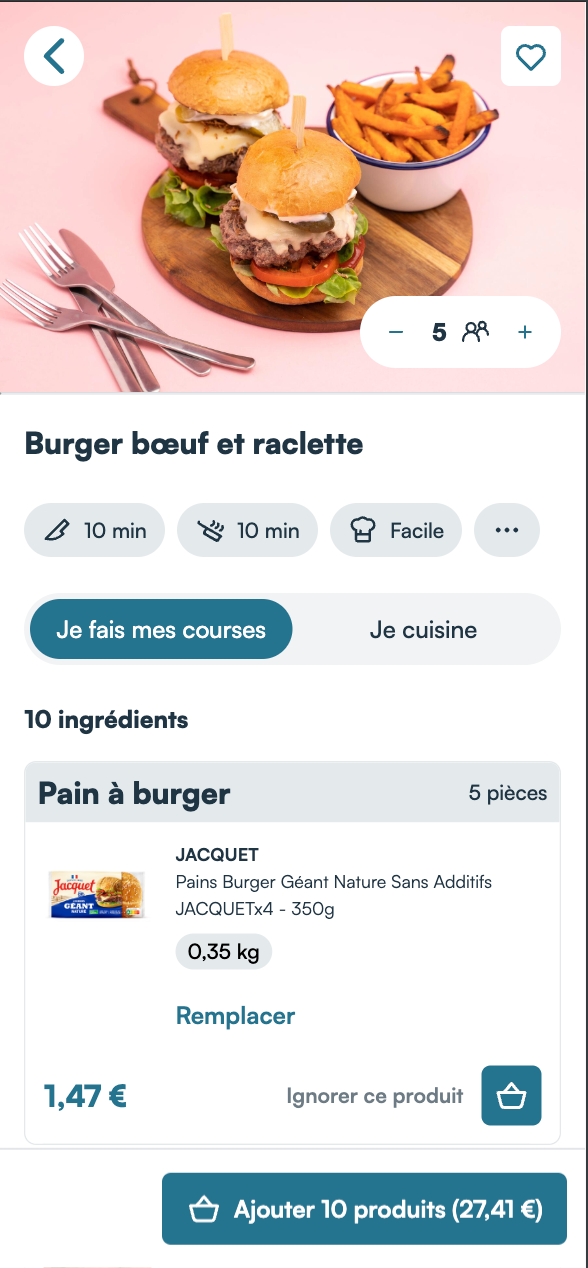
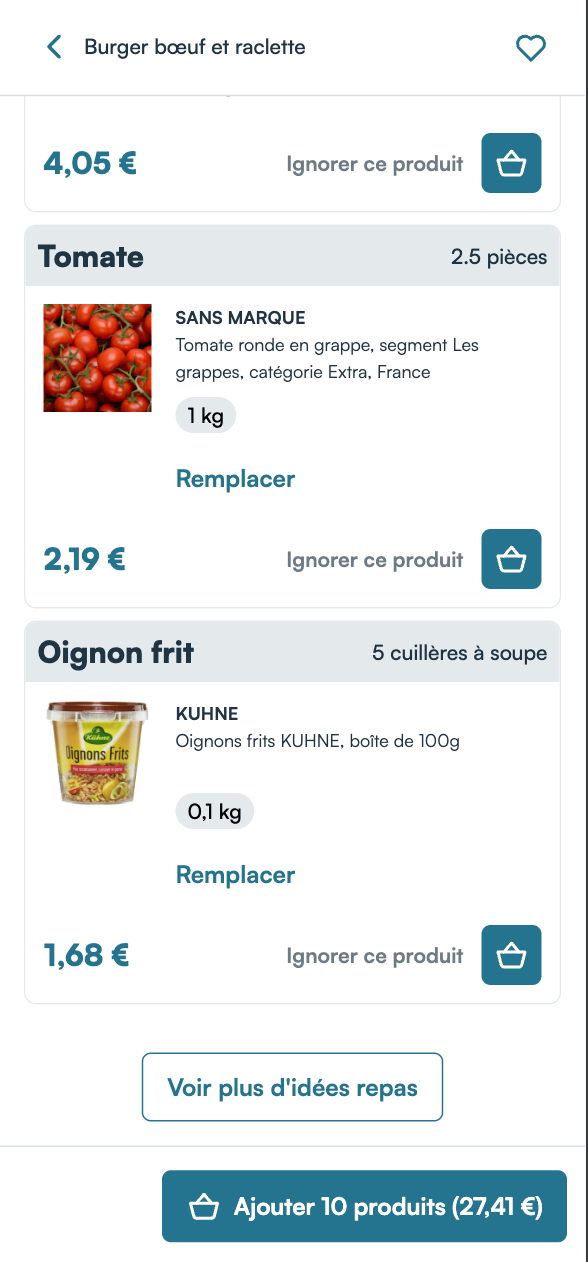
The user can then add the products to their cart, either all at once by clicking on the primary CTA, or one by one:
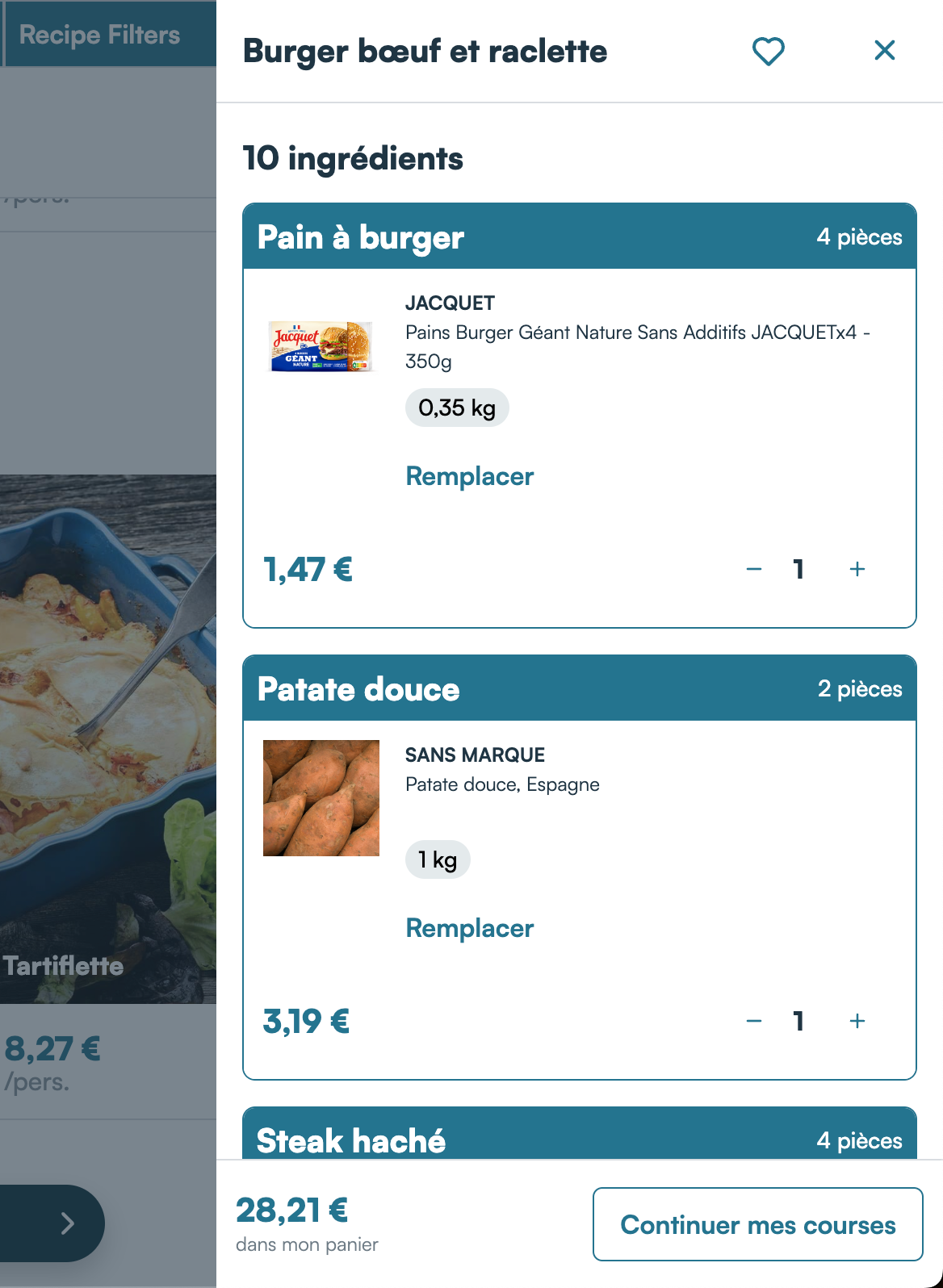
They can also replace any product they want by another product that would also suit the ingredient needed for the recipe:
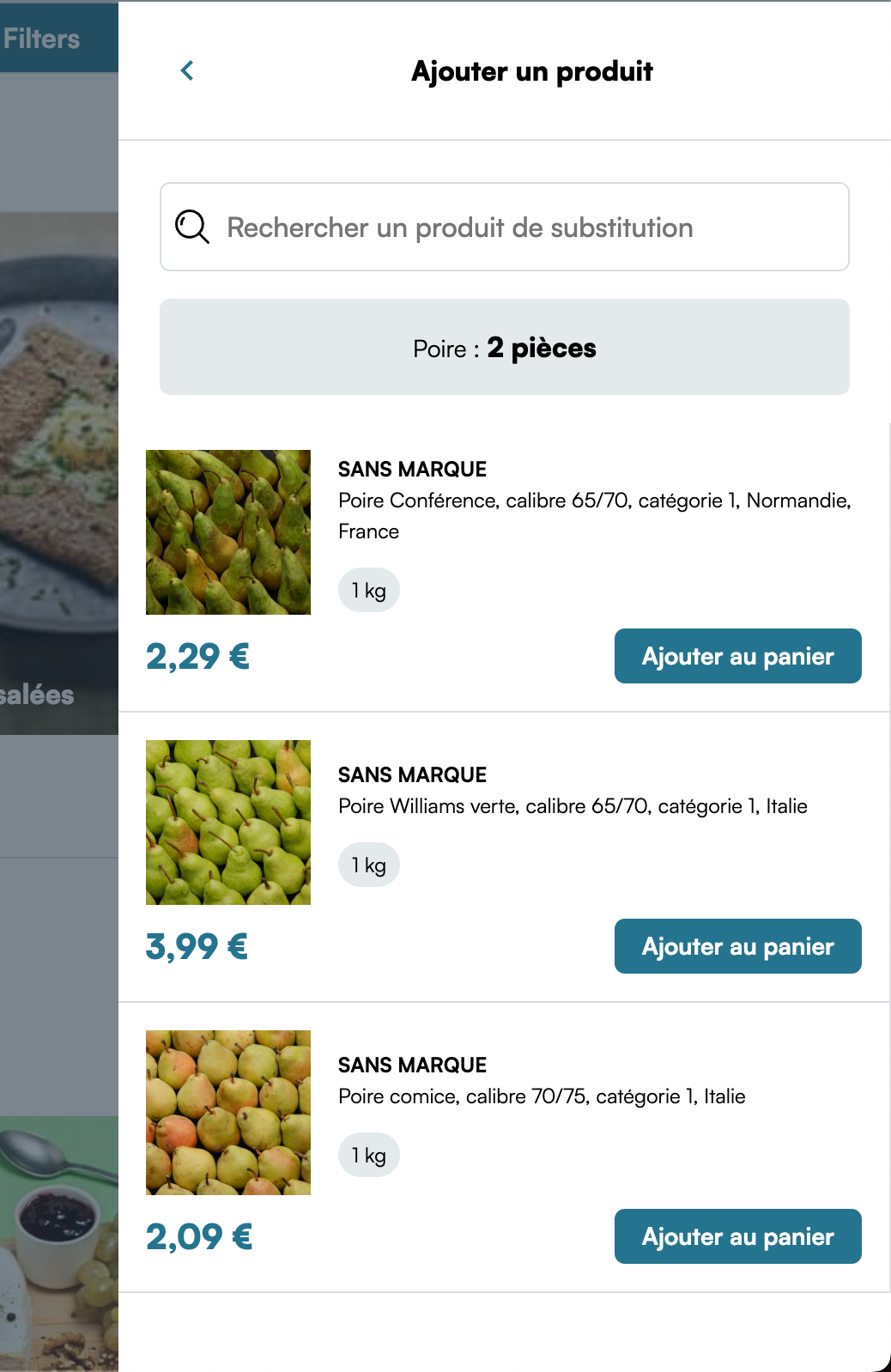
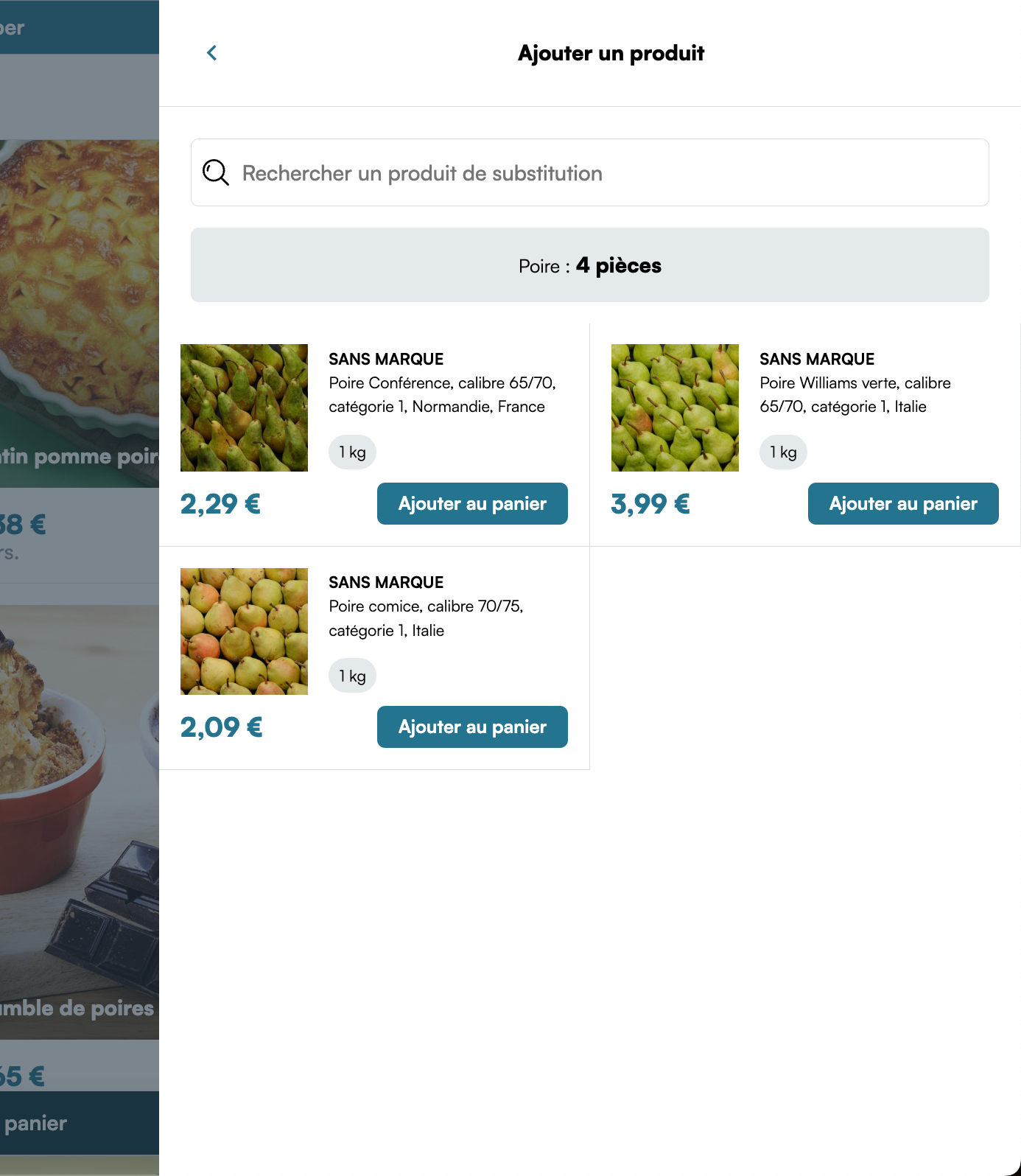
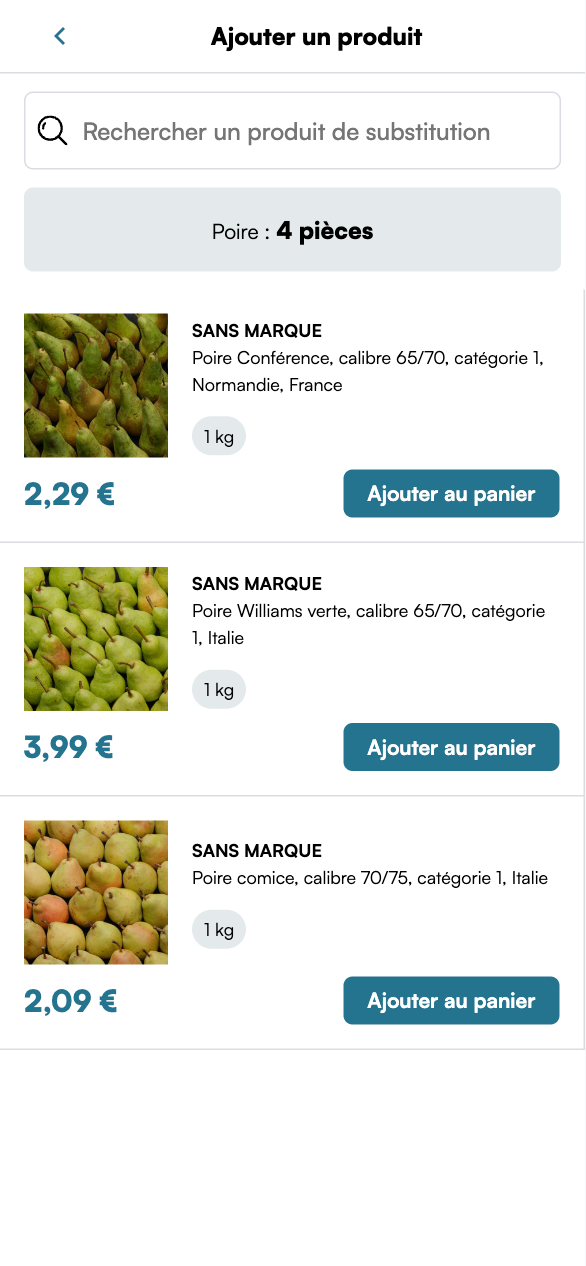
Once the user has added the recipe to their cart, the component is updated to remind them that the recipe was added:
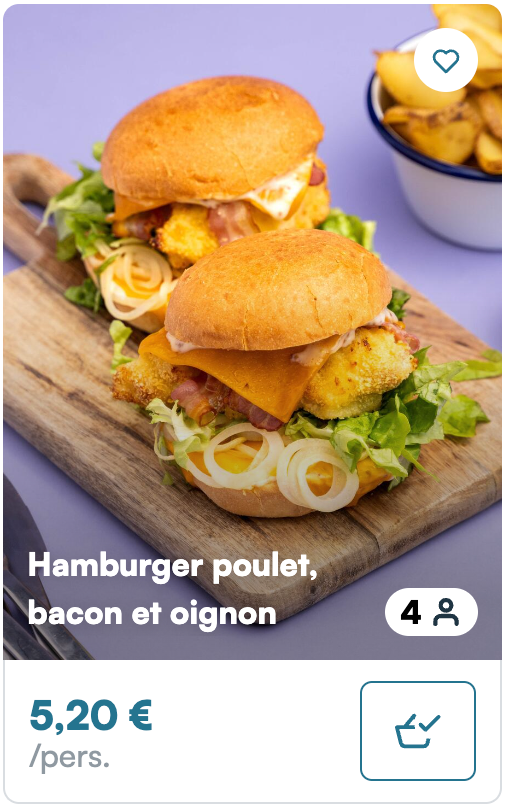
The recipe catalog
The other main feature Mealz offers is the catalog:
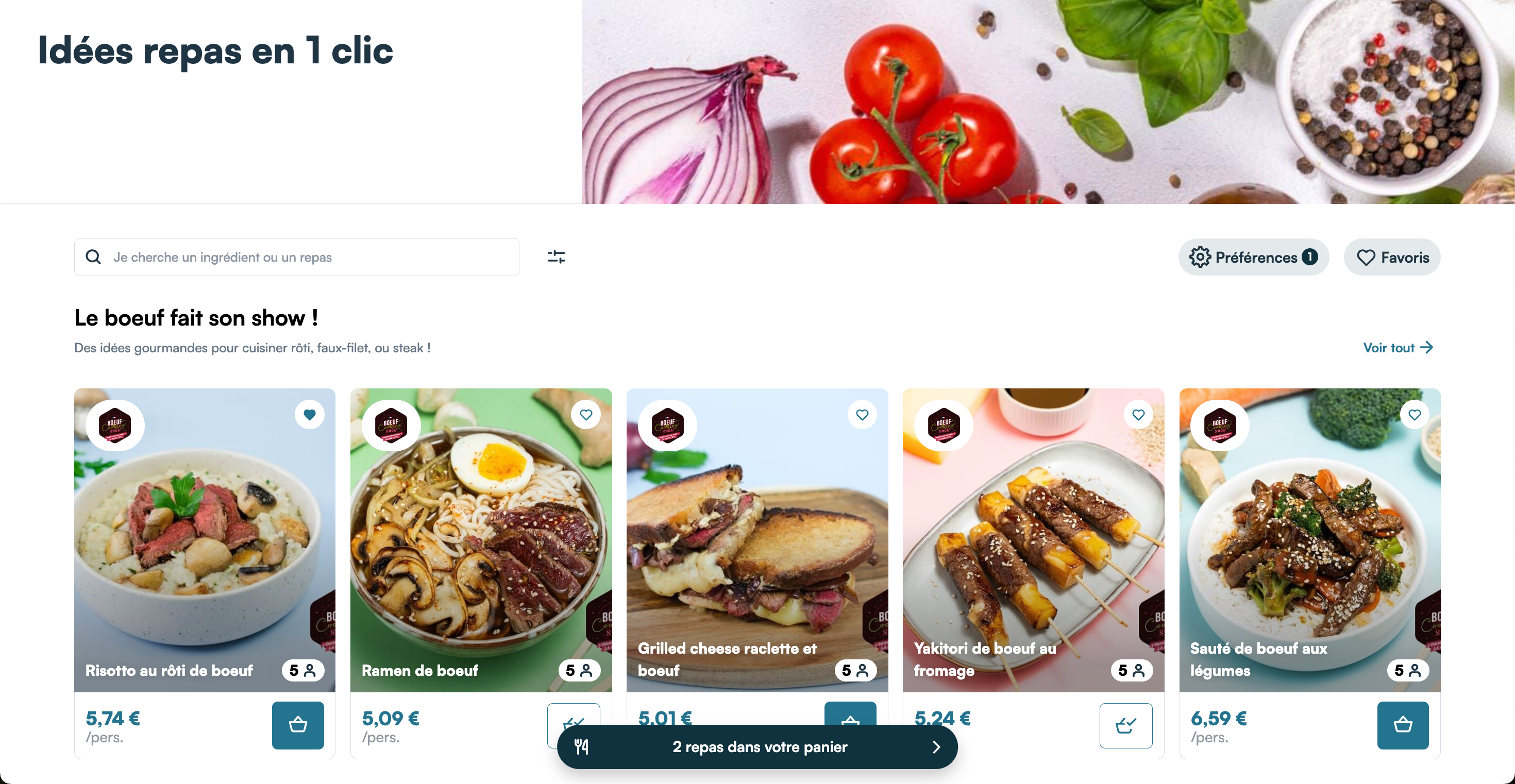
The catalog displays the recipes available on your website in cards that work exactly the same as the cards you can inject in the shelves of your website. In the catalog, the recipes are grouped in categories, which you can create and arrange in our back-office.
When the user clicks on the title of a category or on the link next to it, they will see the recipes inside the category this time in a list view:
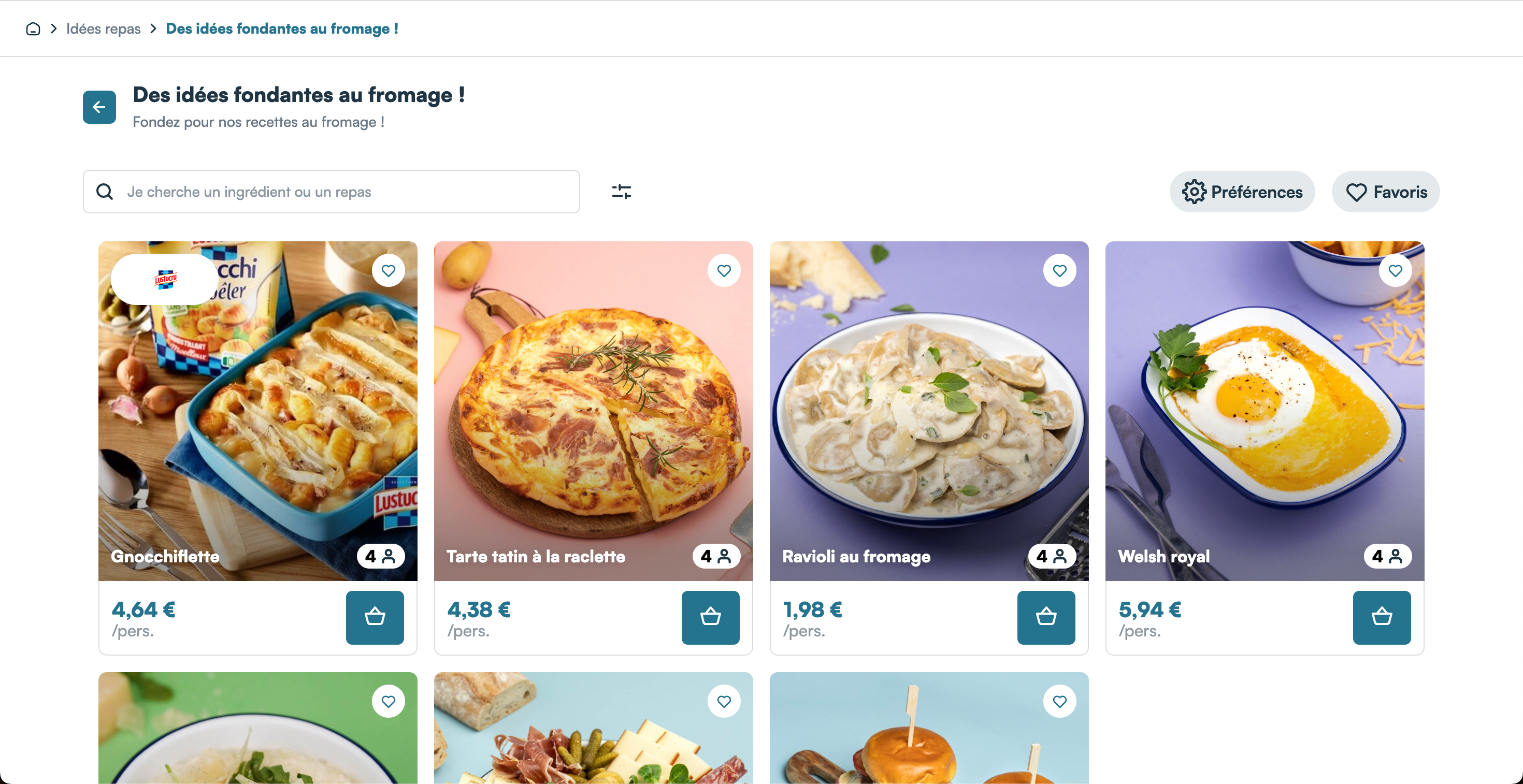
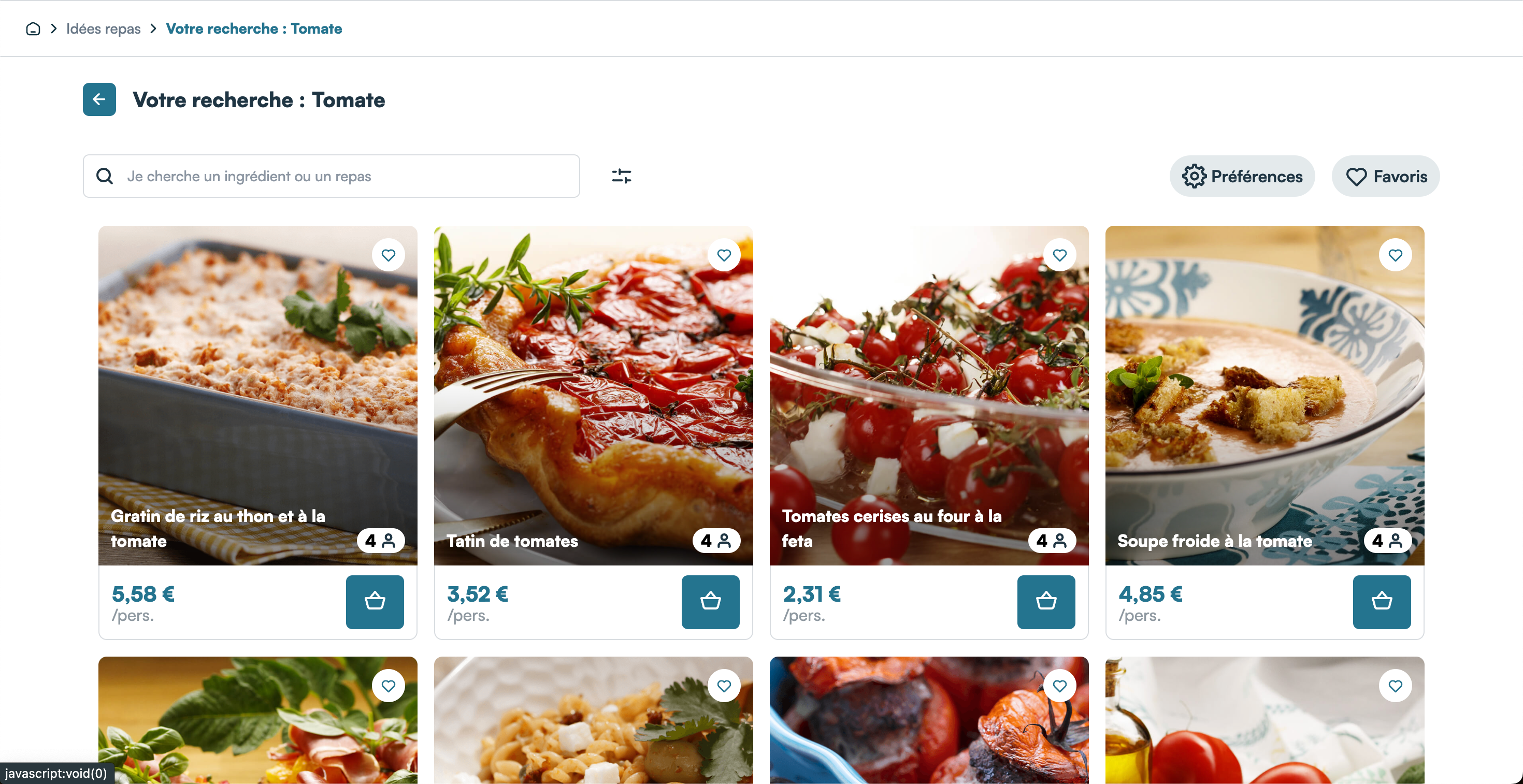
The same list view is used to display recipes if the user uses the search bar in the header of the catalog, or the filters:
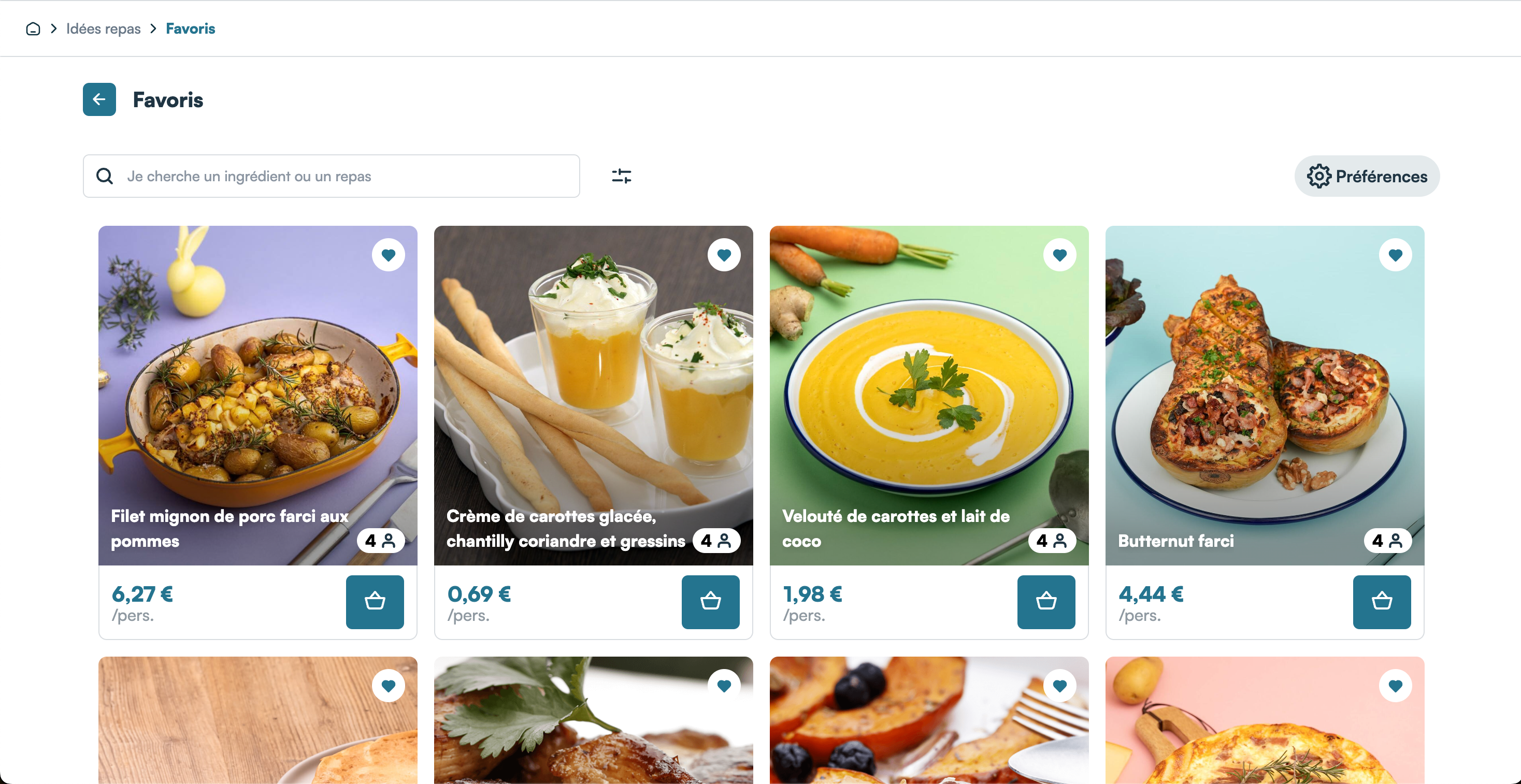
If the user clicks on the top right button "Favorites" ("Favoris"), they will see the list of recipes they have added to their favorites:
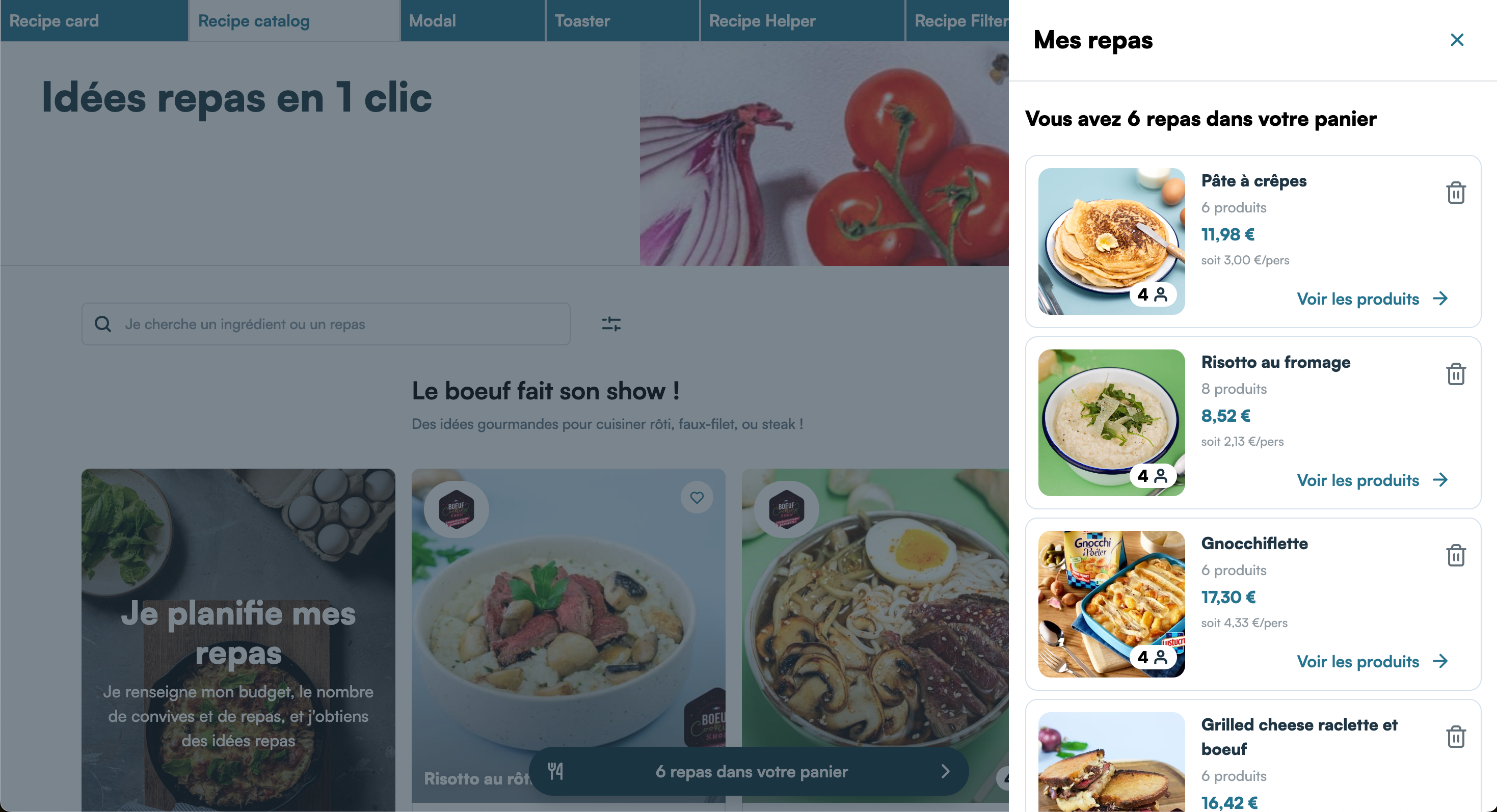
Finally, if any recipes has been added to the user's cart, a button appears at the bottom displaying the number of recipes currently in the cart. When the user clicks on this button, a drawer appears displaying the list of recipes in the cart:
The recipe reminders
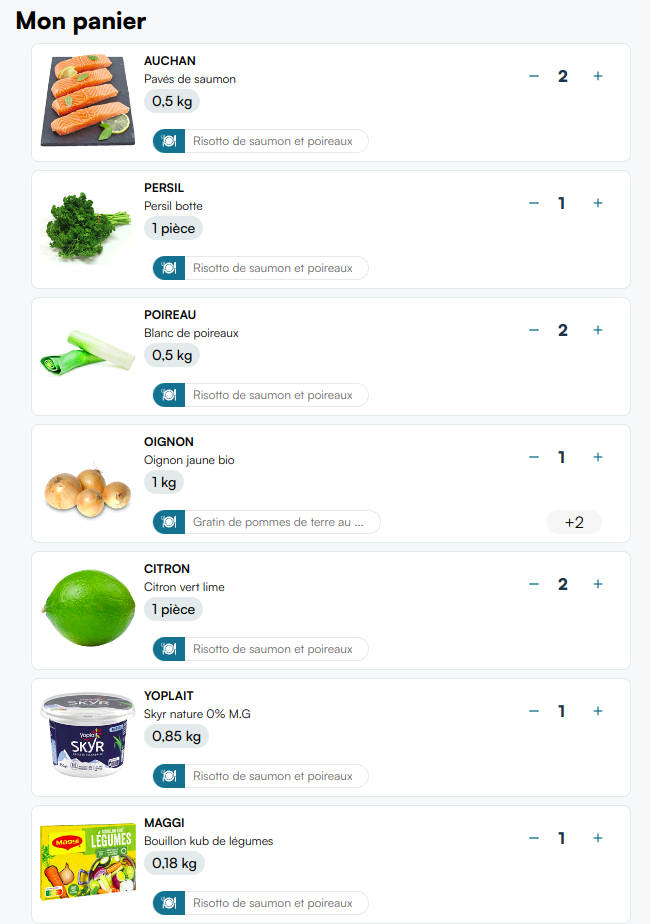
To complement the other two features which lets the users add product to their cart through recipes, Mealz gives you another component, the recipe-tags component, to remind the user why a product is in their basket
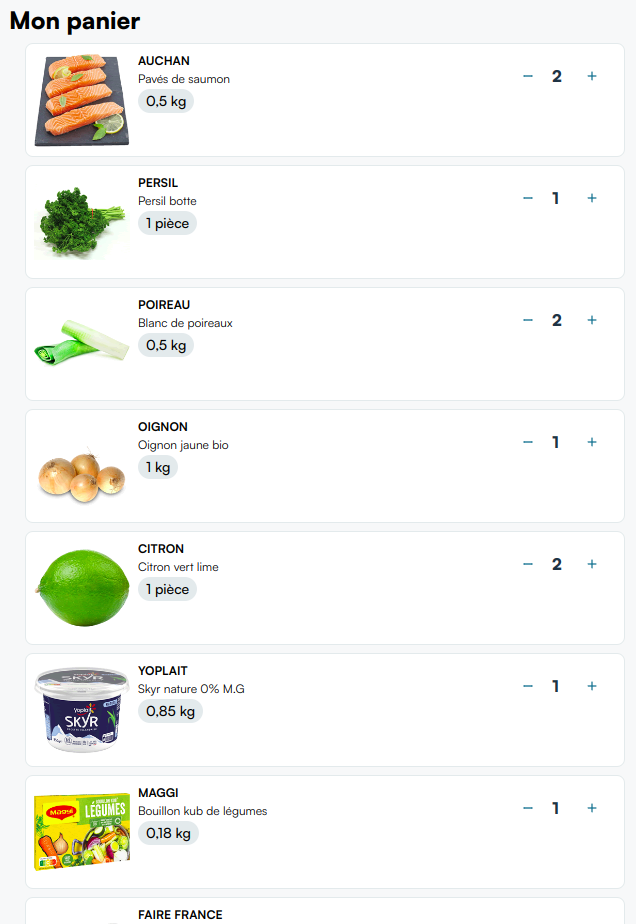
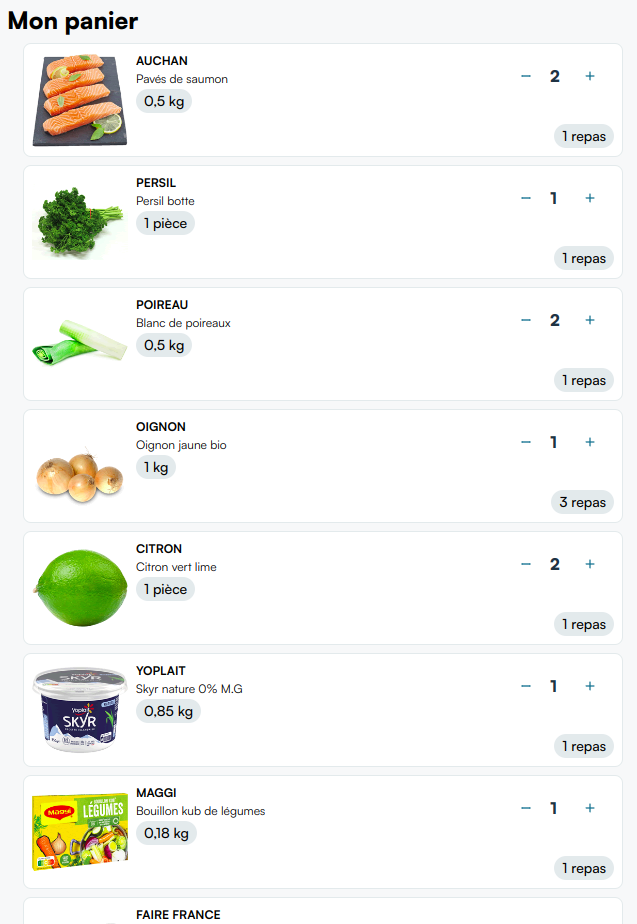
Imagine your cart page looks like this:
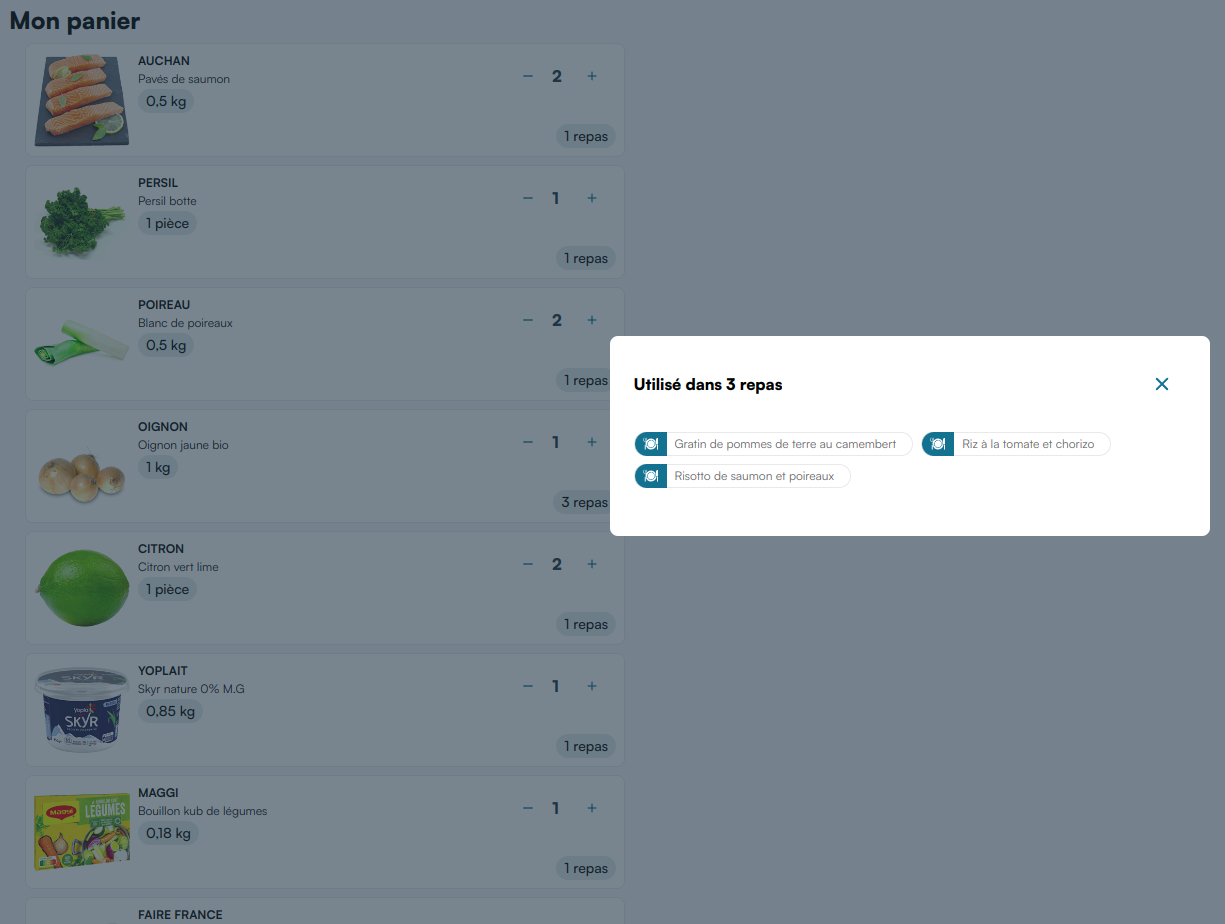
If you insert the recipe-tags component into each product component of your cart, you may have something that looks like this:
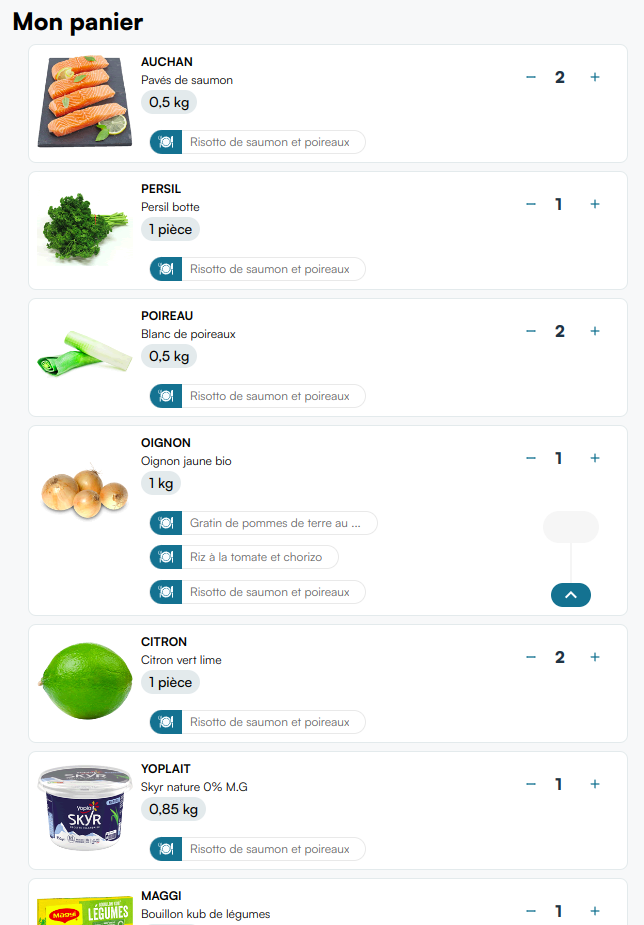
If you don't like the look, the component can also be a small tag that could for example look like this:
How the recipes displayed in the cards are chosen
We have developped the concept of our recipe cards by following this goal:
Display the right recipe, at the right time, to the right person.
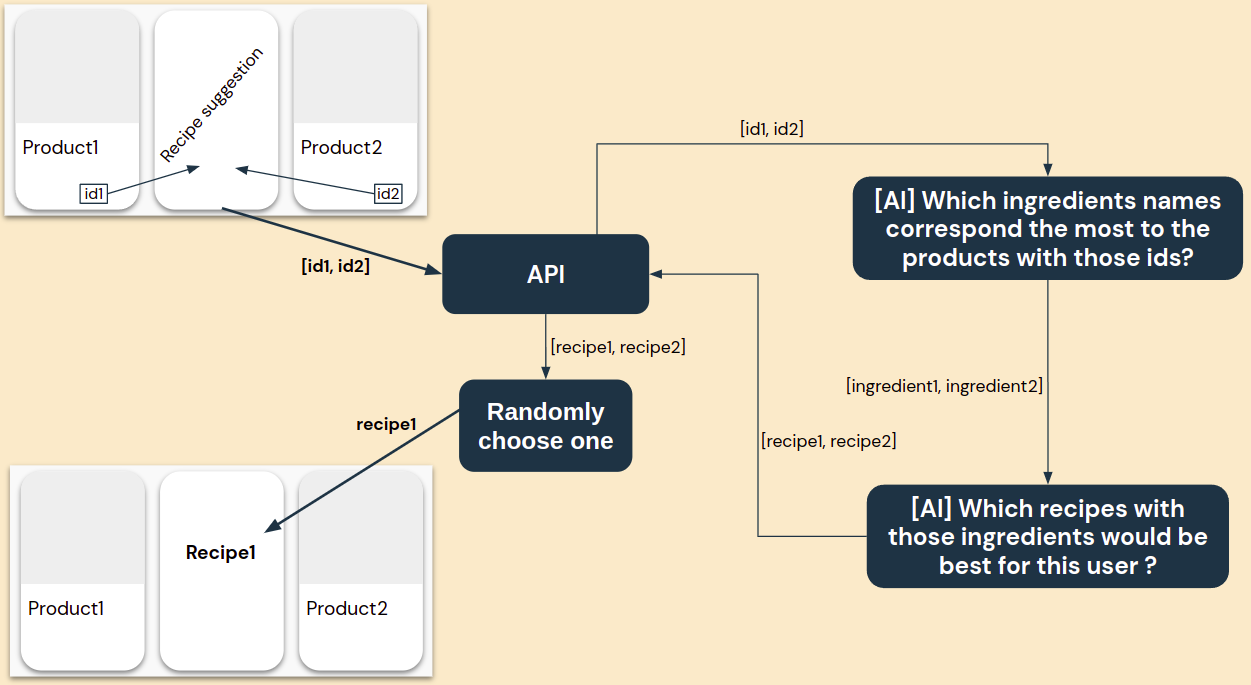
To achieve this, we have developped a solution based on Artificial Intelligence which is capable of finding the best recipes to show to one client, based on their shopping habits and on products displayed next to the recipe card.
So, while you could in theory decide precisely which recipe to display on each and every page of your website, we strongly recommand that, when you will insert our recipe suggestion cards in your code, you tell us which products are positionned next to the recipe, so that the recipe showed is contextualized.
Typically, if the user goes on the tomatoes shelf and they see a recipe suggested to them in-between products, they will expect the recipe to contain tomatoes, or else, why would it be there ?
So to accomodate with the user's expectations, you can pass to the recipe suggestion card the ids of the products directly next to it, which will indicate to our AI that it should search for a recipe that corresponds to those products.
Which products will be displayed to the user for a recipe ?
Just like the choice of recipe, the choice of which product to display for a given ingredient of a recipe is based on our AI.
For each ingredient of a recipe, our AI will determine a list of products ordered by pertinence for said ingredient, and will return the first product of the list to be displayed to the user:
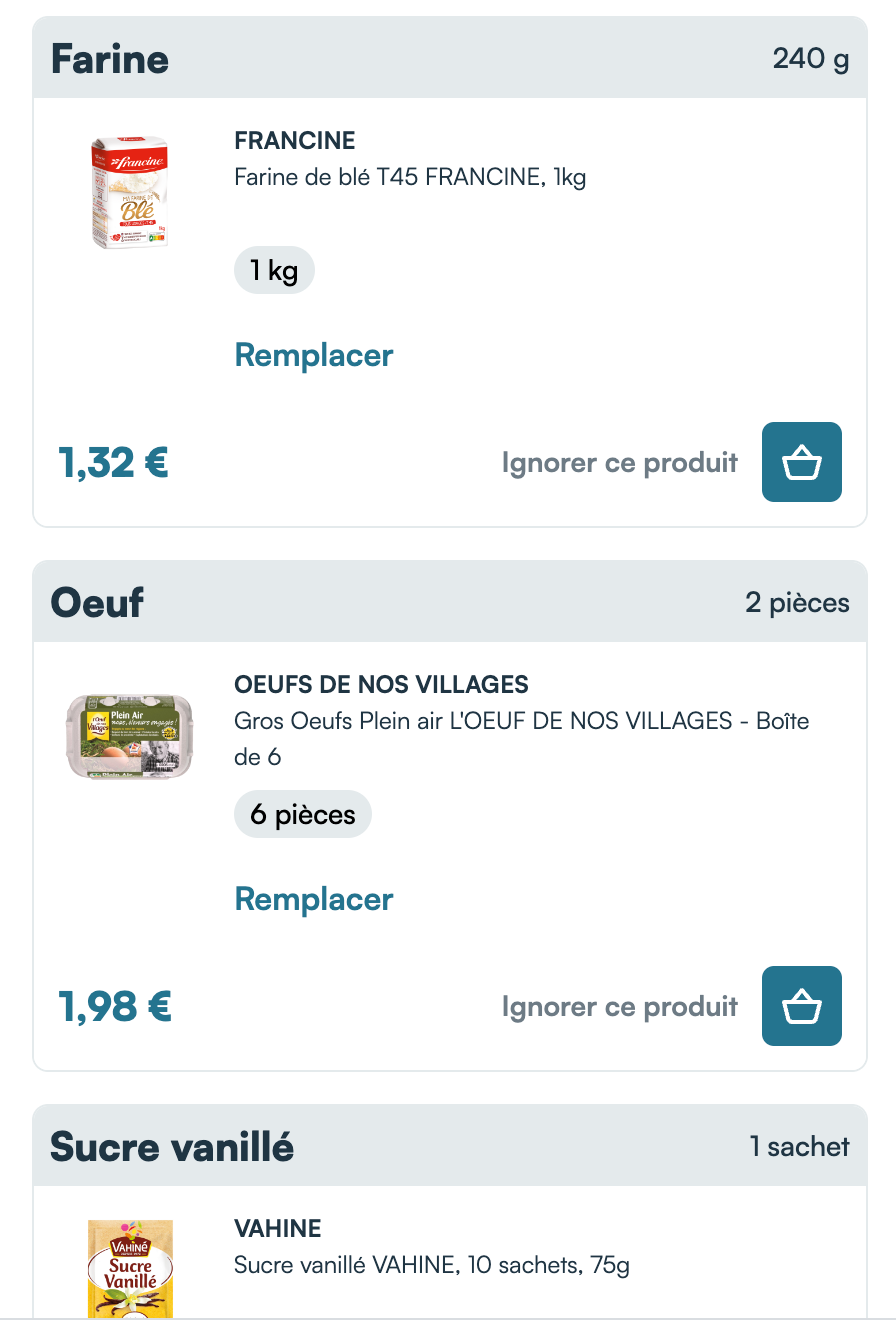
The products are of course selected from the product list for the store chosen by the user. Also, if a user tends to always replace the same product by the same other, our AI will learn over time and the product by which the user tends to replace will progressively rank higher in the list ordered by pertinence for the specific ingredient.