Basket Tags Walkthrough
Basket Tags are used on a product in the user's basket to show the recipes associated to that product.
Time to read:

10 minutes
Time for base implementation:
1 hour
Time for full customization:
1 day
Prerequisites
Packages
To have the Catalog functioning properly, you must install our packages mealz-core & mealz-android.
Here are the instructions
Initialize Mealz
Also, you must initialize Mealz in your MainActivity. Here are the instructions
if you are a provider or here if you are a supplier, if you don't know which configuration you need check here
Ingredients
BasketTag
The Basket Tags is button that shows the recipes that a product is associated with.
It is scrollable, either vertically or horizontally, & when users press on it, the Recipe Details page should launch.
This component is displayed on the products in a user's basket.

RecipeDetails
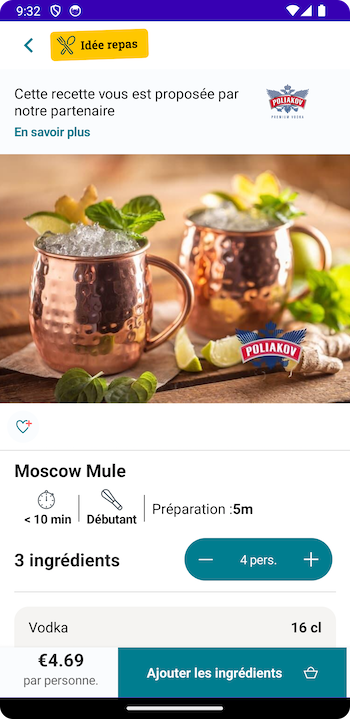
The RecipeDetails Page shows the information, ingredients, & steps for the recipe.
Optionally, the user can add the item to their basket from the footer.
If the user adds the recipe to their basket, they are navigated to their Miam MyMeals or Basket.
Otherwise, they can just navigate back to the Page they launched from.
SponsorDetails
The SponsorDetails Page shows information about the product or company that is sponsoring a certain recipe.
The content comes from the Sponsor, so only the background, loader, & empty are customizable.
The user just navigates back to the Page they launched from.

Customization
If you would like to customize your components, such as the Empty, Loader, or RecipeCard, you can read our documentation here.
Next Steps
After integrating Basket Tags, you can show the recipes associted with your ingredients.
If you'd like to provide another useful feature for your users, you can add the Recipe Carousel.