Recipe card Walkthrough
The Standalone Recipe Card can be embedded into any part of your app, & is ideal for your search results or product catalog.
Time to read:

10 minutes
Time for base implementation:
15 minutes
Time for full customization:
4 hours
Prerequisites
Packages
To have the Catalog functioning properly, you must install our packages mealz-core & mealz-android.
Here are the instructions
Initialize Mealz
Also, you must initialize Mealz in your MainActivity. Here are the instructions
if you are a provider or here if you are a supplier, if you don't know which configuration you need check here
Ingredients
RecipeCardJourney
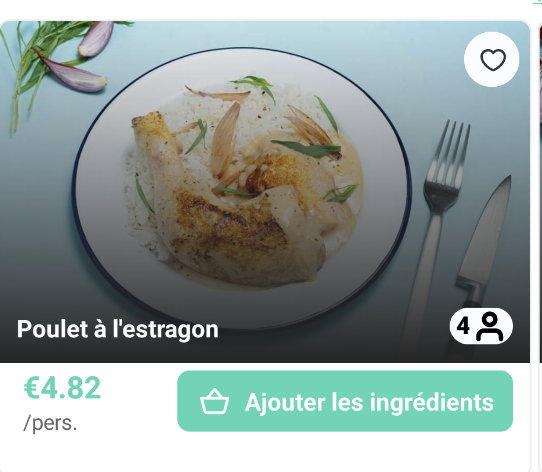
The Recipe Card is displayable button that launches the Recipe Details page when pressed.
It is used on the Catalog & other features, but can also be used standalone.
The Standalone Recipe Card is ideal for product search results as well as your product catalog.
RecipeDetails
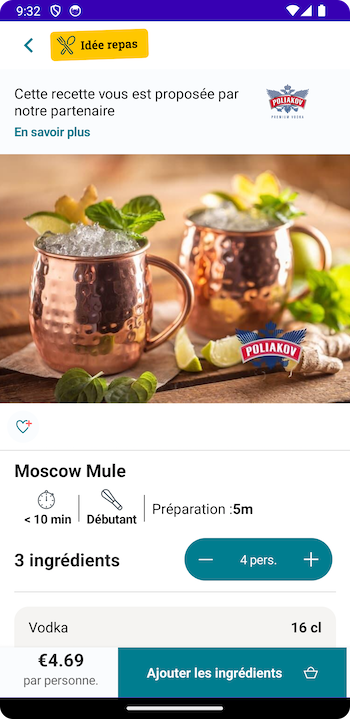
The RecipeDetails Page shows the information, ingredients, & steps for the recipe.
Optionally, the user can add the item to their basket from the footer.
If the user adds the recipe to their basket, they are navigated to their Miam MyMeals or Basket.
Otherwise, they can just navigate back to the Page they launched from.
SponsorDetails
The SponsorDetails Page shows information about the product or company that is sponsoring a certain recipe.
The content comes from the Sponsor, so only the background, loader, & empty are customizable.
The user just navigates back to the Page they launched from.

ItemSelector
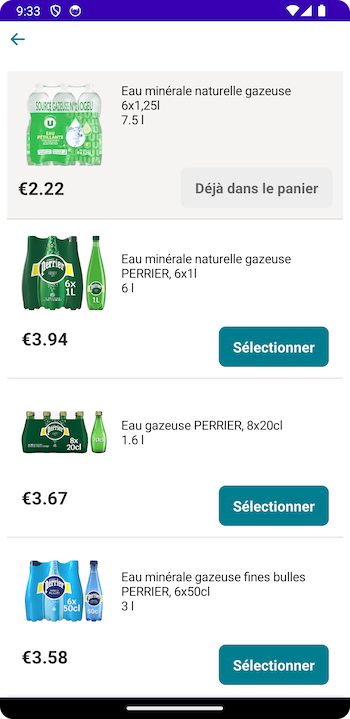
The ItemSelector Page shows other products that the user can replace their current product for.
When the user selects the product they are selecting, they should be navigated back to where they launched from.
Steps
Embed directly into your app
You can add our Standalone Recipe Card into your code like it was any other View. We have two different inits, one for a recipeId & SuggestionCriteria.
RecipeId: String
XML
When you are displaying one particular recipe & you have the recipeId, you can pass this in:
- layout.xml
- fragment.kt
<?xml version="1.0" encoding="utf-8"?>
<LinearLayout
    xmlns:android="http://schemas.android.com/apk/res/android"
    xmlns:tools="http://schemas.android.com/tools"
    android:id="@+id/fragment_call_to_action"
    android:layout_width="match_parent"
    android:layout_height="match_parent"
    xmlns:app="http://schemas.android.com/apk/res-auto">
    <com.miam.sdk.components.recipeJourney.RecipeJourney
        android:id="@+id/Recipe"
        android:layout_width="wrap_content"
        android:layout_height="wrap_content"
        app:layout_constraintBottom_toBottomOf="@+id/recipe"/>
</LinearLayout>
import android.os.Bundle
import android.view.LayoutInflater
import android.view.View
import android.view.ViewGroup
import androidx.fragment.app.Fragment
import com.miam.sdk.components.recipeJourney.RecipeJourney
import com.miam.DemoApp.R

class CallToActionFragment : Fragment(){
    override fun onCreateView(
        inflater: LayoutInflater,
        container: ViewGroup?,
        savedInstanceState: Bundle?
    ): View? {
        return inflater.inflate(R.layout.fragment_call_to_action, container, false)
    }

    override fun onViewCreated(view: View, savedInstanceState: Bundle?) {
        val recipe = view.findViewById<RecipeJourney>(R.id.Recipe).apply { bind(recipeId = "15434") }
    }
}
Compose
@Composable
fun MyFragment() {
    Column {
        RecipeJourney.View(recipeId = "15247")
    }
}
Criteria: SuggestionsCriteria
When you want recipes to be generated based on certain criteria, such as other products on the page or the products in your basket, you can use the SuggestionsCriteria. For example, if you are showing results for the search "Ham", you can take the productIds of the other search results & a recipe including Ham will be shown.
Here's an example of creating a SuggestionsCriteria
val criteria = SuggestionsCriteria(
    shelfIngredientsIds: [firstProduct.productId , secondProduct.productId ], // pass in the productIds of the other items on the page
    currentIngredientsIds: nil,
    basketIngredientsIds: nil,
    groupId: nil)
- layout.xml
- fragment.kt
<?xml version="1.0" encoding="utf-8"?>
<LinearLayout
    xmlns:android="http://schemas.android.com/apk/res/android"
    xmlns:tools="http://schemas.android.com/tools"
    android:id="@+id/fragment_call_to_action"
    android:layout_width="match_parent"
    android:layout_height="match_parent"
    xmlns:app="http://schemas.android.com/apk/res-auto">
    <com.miam.sdk.components.recipeJourney.RecipeJourney
        android:id="@+id/Recipe"
        android:layout_width="wrap_content"
        android:layout_height="wrap_content"
        app:layout_constraintBottom_toBottomOf="@+id/recipe"/>
</LinearLayout>
import android.os.Bundle
import android.view.LayoutInflater
import android.view.View
import android.view.ViewGroup
import androidx.fragment.app.Fragment
import com.miam.sdk.components.recipeJourney.RecipeJourney
import com.miam.DemoApp.R

class CallToActionFragment : Fragment(){
    override fun onCreateView(
        inflater: LayoutInflater,
        container: ViewGroup?,
        savedInstanceState: Bundle?
    ): View? {
        return inflater.inflate(R.layout.fragment_call_to_action, container, false)
    }

    override fun onViewCreated(view: View, savedInstanceState: Bundle?) {

        val recipe = view.findViewById<RecipeJourney>(R.id.Recipe).apply { bind(criteria = SuggestionsCriteria(currentIngredientsIds = getIdsOfAdjecentProducts())) }
    }
}
Compose
@Composable
fun MyFragment() {
    Column {
        RecipeJourney.View(criteria = SuggestionsCriteria(currentIngredientsIds = getIdsOfAdjecentProducts()))
    }
}