Meal Planner Walkthrough
The Meal Planner feature returns recipes to users based on a certain budget, number of guests, & number of recipes.
This is our Anti-Inflation feature.
Time to read:

20 minutes
Time for base implementation:
4 hours
Time for full customization:
1.5 weeks
Prerequisites
Packages
To have the Catalog functioning properly, you must install our packages mealz-core & mealz-android.
Here are the instructions
Initialize Mealz
Also, you must initialize Mealz in your MainActivity. Here are the instructions
if you are a provider or here if you are a supplier, if you don't know which configuration you need check here
Ingredients
The Meal Planner is made up of 9 base pages, where 4 of them are already implemented if you have implemented Catalog Feature. It also has a Call To Action that can be implemented inside the Catalog Feature directly.
Meal Planner CTA
The MealPlannerCTA is a simple button for launching the MealPlanner Feature.
Of course, you can implement your own custom button or navigation link for launching this feature as well.

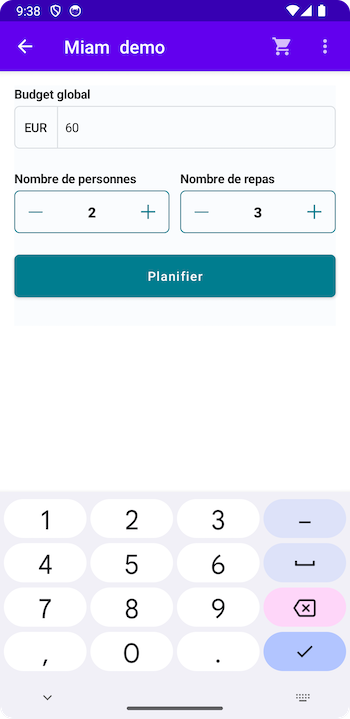
Meal Planner Form
The MealPlannerForm Page gives the user the option to set their budget, number of guests, & number of meals.
When selected, the Mealz API will be queried & the available recipes will be returned to the following page.
After the user selects the CTA, they will be navigated to the MealPlannerResults page where they can see the results.
Meal Planner Results
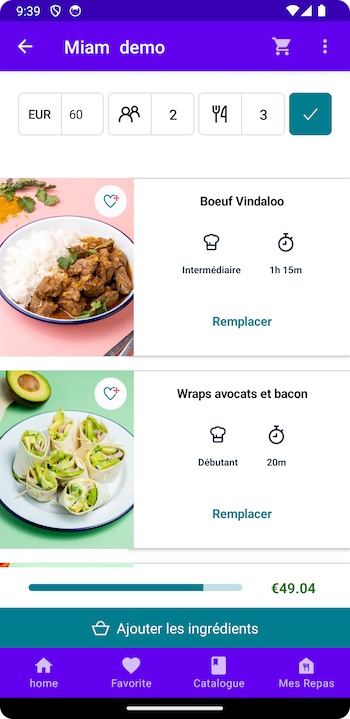
The MealPlannerResults Page shows the user the results of their recent query.
All of the options will in total meet their criteria of budget based on the number of people.
If the user selects the 'replace' (remplacer) button, they will be navigated to the MealPlannerRecipePicker.
When the user selects the CTA, they will be navigated to the MealPlannerBasket page where the recipes will be added to their basket.
Meal Planner Recipe Picker
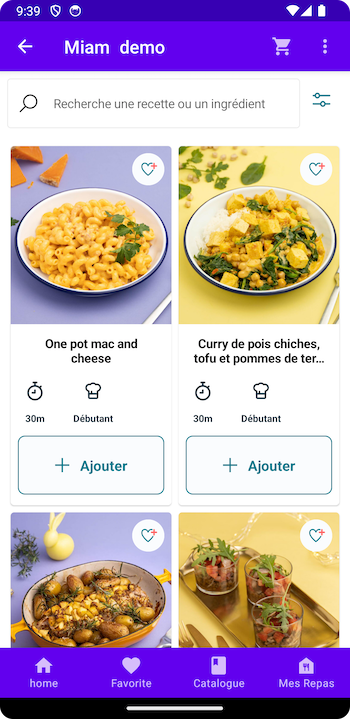
The MealPlannerRecipePicker Page grants the user the opportunity to replace a recipe that was generated for them.
Additionally, they can filter or search on this page.
When the user selects a new recipe, they will be navigated back to the MealPlannerResults page.
Meal Planner Basket
The MealPlannerBasket Page is a traditional Basket page (like MyMeals) where the user can update the ingredients for the recipes.
There are two Call To Actions, one labeled for navigating to a Recap page, the other for navigating to the user's Basket.
Of course, where the buttons navigate to (& if both are shown) is completely up to the implementation team.

Meal Planner Recap
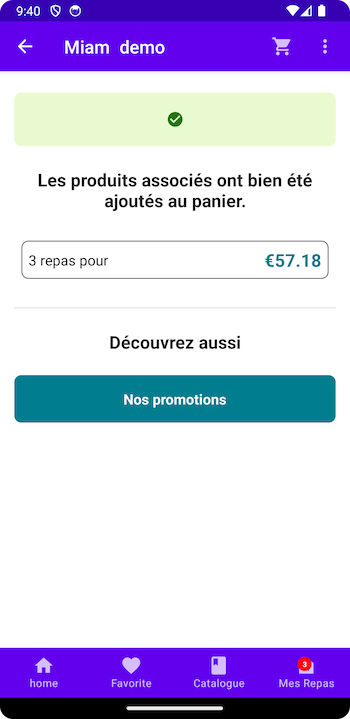
The MealPlannerRecap Page shows the total financial amount for the recipes that the user added to their basket.
The Call To Action should navigate to their Basket or back to the Catalog Feature.
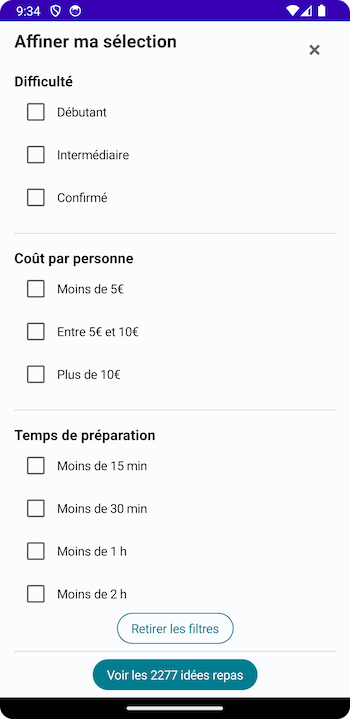
Filters
The Filters Page gives the user the option to sort by recipe difficulty, price per person, & time to cook.
As the user selects different options, the Call To Action button will update with the corresponding number of recipes available.
After the user selects the CTA, they will be navigated to the CatalogResults page & this page will be deleted from the navigation stack.
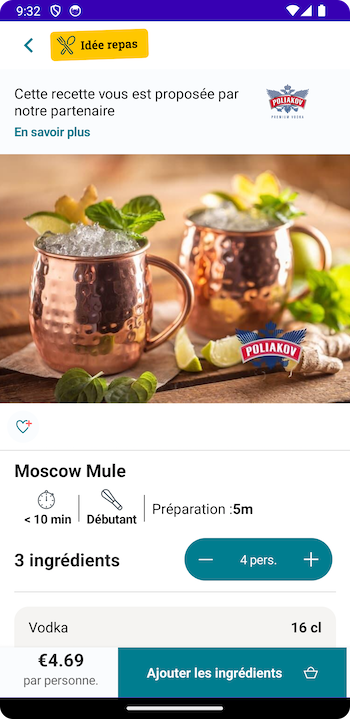
Recipe Details
The RecipeDetails Page shows the information, ingredients, & steps for the recipe.
Optionally, the user can add the item to their basket from the footer.
If the user adds the recipe to their basket, they are navigated to their Miam MyMeals or Basket.
Otherwise, they can just navigate back to the Page they launched from.
Sponsor Details
The SponsorDetails Page shows information about the product or company that is sponsoring a certain recipe.
The content comes from the Sponsor, so only the background, loader, & empty are customizable.
The user just navigates back to the Page they launched from.

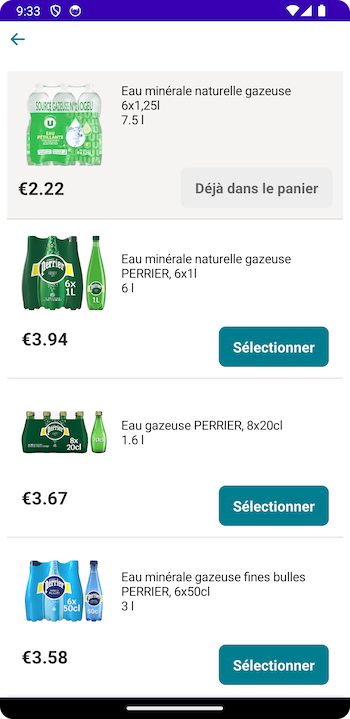
Item Selector
The ItemSelector Page shows other products that the user can replace their current product for.
When the user selects the product they are selecting, they should be navigated back to where they launched from.
Customization
If you would like to customize your components, such as the Empty, Loader, or RecipeCard, you can read our documentation here.
Next Steps
After integrating Catalog, you have the bulk of the Miam functionality in your android application.
However, we also have other features & standalones pages.
You can integrate a standalone MyMeals page, Favorites page, or our full feature Meal Planner.